Showing posts with label Executive Processing. Show all posts

Sunday, February 26, 2023

ChatGPT and Google Classroom: Power Up Your Ability To Provide Feedback

As an AI language model, ChatGPT can help teachers provide feedback on student writing more easily. In a previous blog post, I discussed ways to use AI tools such as ChatGPT to expedite the feedback process for student writing. Building on this, as an avid user of Google Classroom, I realized that feedback generated by ChatGPT can be stored in the Google Classroom comment bank. This can significantly reduce the amount of time spent grading student assignments.

One of the biggest challenges faced by teachers when grading student writing is providing informative and constructive feedback that is tailored to each student's needs. This process can be tedious and time-consuming, especially for writing assignments that require nuance and subjectivity. ChatGPT can simplify this process by generating criteria-based suggestions that are customized for each student.

For example, if a student is struggling with grammar and punctuation, ChatGPT can generate comments that focus on those specific areas. Similarly, if a student is struggling with the structure of their writing, ChatGPT can provide guidance. When you notice trends and similarities in the feedback that students need for issues such as grammar and punctuation, you can save them in the Google Classroom comment bank. To do this, simply copy and paste into the comment bank. This allows teachers to access and reuse comments across multiple assignments, saving time and ensuring consistency in grading.

Moreover, by storing comments in the comment bank, teachers can easily collaborate with their colleagues. If your department or PLC is using a shared Google Classroom for common or standardized assessments, all co-teachers have access to the comment bank. They can share and reuse effective comments, or create a set of standard comments that can be used across their department or school.

However, using AI-generated feedback has some potential drawbacks. Some teachers may feel that this approach is impersonal and lacks the nuance and context that human feedback can provide. Others may be concerned about the reliability and accuracy of the suggestions generated by ChatGPT.

It's important to view ChatGPT as a tool that can supplement, but not replace, the feedback provided by teachers. By using ChatGPT to generate criteria-based suggestions, teachers can save time and focus on providing more personalized and nuanced feedback to their students.

ChatGPT can be an incredibly useful tool for teachers looking to improve the efficiency and effectiveness of their feedback. By generating criteria-based suggestions that can be stored in the Google Classroom comment bank, ChatGPT can streamline the grading process while providing targeted and personalized feedback to each student. Although using AI-generated feedback has potential drawbacks, it can be an invaluable tool for teachers looking to improve the quality of their feedback while also reducing their workload. Think of ChatGPT as a personal assistant and adapt its suggestions based on your expertise and knowledge of your students.

If you would like to bring me to your school for PD, workshops, a keynote, training or a follow-up on this or previous blogposts, click here to schedule an appointment to chat. My book, The Complete EdTech Coach: An Organic Approach to Digital Learning, co-authored with my wife Katherine Goyette is now available on Amazon. Click here to purchase. It is published by Dave Burgess Publishing. Be sure to follow the hashtag #OrganicEdTech and #CVTechTalk for updates.


Monday, January 9, 2023

A Full Day of Professional Learning: Organic EdTech Integration with Google Workspace for Education

Are you looking for an action-packed full day of professional learning? If so, look no further. Bring in AdaKat EdTech Consulting to lead a day of affordable professional learning that will build teachers' capacity to organically integrate technology with Google Workspace for Education and more.

What does it mean to organically integrate technology? In our book, The Complete EdTech Coach: An Organic Approach to Supporting Digital Learning, we state "If you plan with the 4C's in mind, the tech will take care of itself". This means we lead with learning, never with tech. Using our 4C's lesson design process, teachers identify a learning goal and brainstorm how students will engage in communication, creativity, collaboration and critical thinking. As the coach in this process, we rely heavily on the teacher, drawing upon their content expertise and years of experience. They know their content and students best and we will recommend technology we know resides in their teacher toolbox and only if it fits naturally. If no tech is required to enhance the learning process, we will not force it.


This day of professional learning begins by building teacher capacity and adding to their teacher toolbox. Using Google Workspace for Education tools primarily, we will show how use simple tools and strategies in innovative ways.

Executive Processing and Simple Tools for English Learners

Teachers will learn executive processing skills to expedite their workflow and how they can impart these same skills to their students. From there, we dive into simple tools that will give English learners access to content and curriculum. Supporting English learners is something all teachers must do, and we will demonstrate ideas, tips and tricks that hide in plain sight, and can be used effectively by anyone.


Engagement with Chromebooks

Too often Chromebooks are used only as tools for word processing or algorithm-based learning programs. Using Chromebooks in this manner does not engage all learners in the 4C's and makes students passive consumers of content. During this portion of the day, we will investigate ways to use Chromebooks to guide your students to be active creators of content. We'll take a look out maximizing the Chromebook's camera, built-in screen recording app and ways to strike a healthy balance of paper/pencil with technology.

Google Classroom Shells

With all of these ideas, skills, tips, tricks and strategies at the forefront, we will next take a deep dive into the development of Google Classroom Shells. Google Classroom Shells are a simple way to power up PLCs and departments increasing ability to collaborate. Attendees will learn to develop Shells for go-to lessons, common activities, common assessments, Eduprotocols, specific curriculum and even PE classes.

Now that attendees' toolboxes have begun to fill, this day of professional learning will culminate by designing lessons using our 4C's lesson design process. Using a simple 4 square, presenters will guide teachers in a brainstorm in how students will work towards a learning goal while engaging in each of the 4C's. The presenter will rely and draw upon the teachers' years of experience, content expertise and tech toolbox empowering them to organically integrate technology into the lesson. They will be given time to work one on one with the presenters, in groups and or with department/PLCs. Attendees will end the day with at least one lesson they can use in class the next day.

Are you interested in an action packed day of professional learning and lesson design like this? If so, please reach out to AdaKat EdTech Consulting. Click here to book an appointment discuss logistics and pricing. Click here to purchase a copy our book The Complete EdTech Coach: An Organic Approach to Supporting Digital Learning.


Wednesday, March 9, 2022

Jumpstart the Writing Process with Google Keep and Google Docs


In 17 years as an educator, a frequent pain point I have seen teachers deal with is frustration with students struggling to manage notes and sources when working on a research project. These are essential skills that successful adults possess. Please share these tips with your students to help them better manage their notes, sources and writing process.

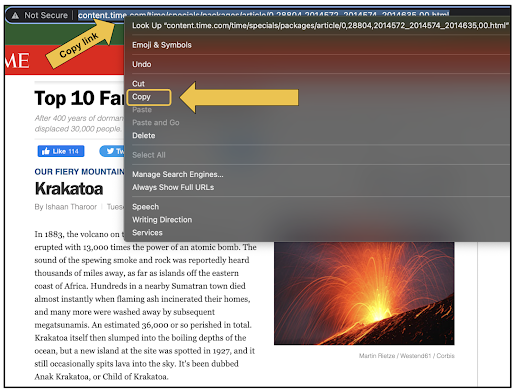
In the example shown below, a student is working on a research paper on volcanoes. All of the research is being done online. While the student searches for sources, they are copying the links of the websites they plan use and cite.


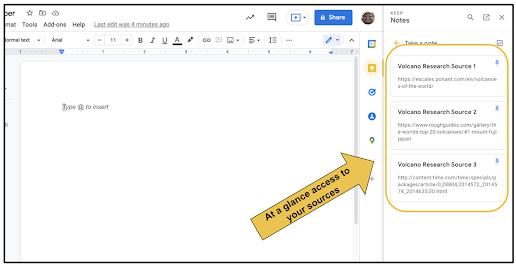
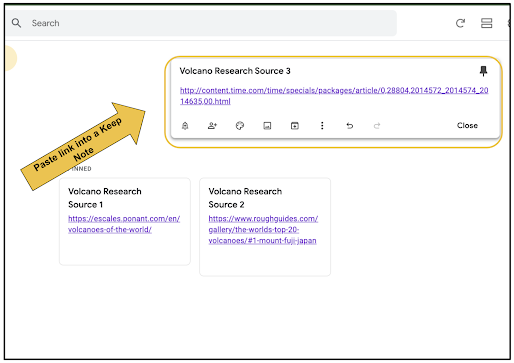
To make the sources easy to find and use during the writing process, this student puts each source as its own note in Google Keep. Notice how this student is mindful to properly name each source for easy, future reference.


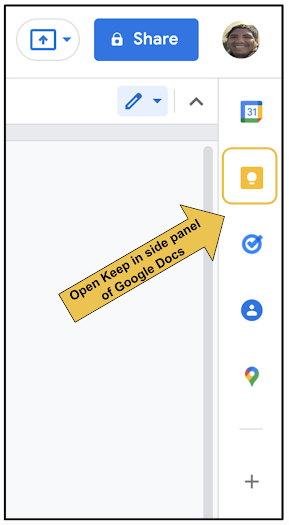
When the student is ready to start writing in Google Docs, they open the Google Keep button on the right side panel.


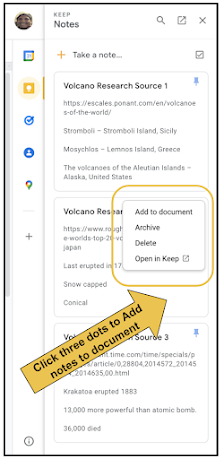
Immediately, their Keep Notes are available. The student has bullets and information in addition to the link to source on each note. This makes it easy to copy and paste information into the Doc to help jumpstart the writing process. This is great if they're using direct quotes.


If they click the three dots on any note, the entire contents of the note can be immediately imported to the Doc.


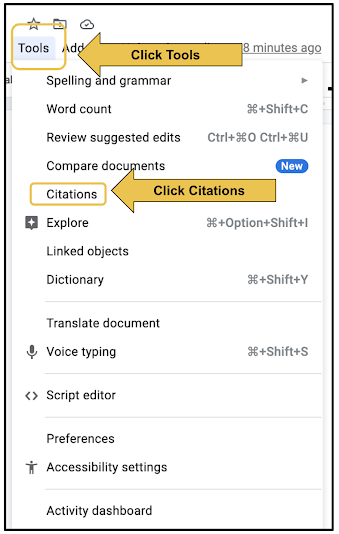
When they are ready to add citations, students can use the built-in Citations tool in the Tools menu within Google Docs.


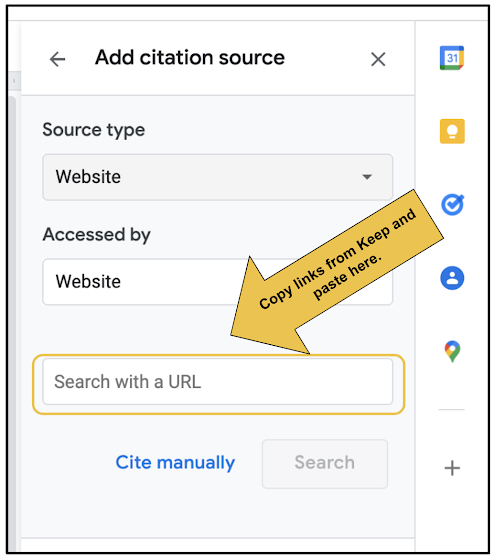
This allows students to easily cite any source, whether a website, blog, book, magazine, etc. With the links saved in Keep, it is quick and easy to copy and paste those links into the Citation tool for instant citation of a source.


Google Keep and Google Docs work very well together when it comes to enhancing the writing and research process. Keep also integrates similarly with Google Slides. This can be useful when creating presentations. How might you use Keep and Docs with your students?

Share the video below with students to show them how to do all the things mentioned in this blog post.


If you have any questions and would like a follow up, contact me via Gmail or Chat at ajuarez@techcoachjuarez.com. My book, The Complete EdTech Coach: An Organic Approach to Digital Learning, co-authored with my wife Katherine Goyette is now available on Amazon. Click here to purchase. It is published by Dave Burgess Publishing. Be sure to follow the hashtag #OrganicEdTech and #CVTechTalk for updates.


Tuesday, March 8, 2022

Time Management Tools for Students in Google Workspace: Google Calendar (Share with your students)


In 17 years as an educator, one of the biggest pain points I have seen teachers deal with is frustration with students not keeping track of assignments, due dates and time management. These are essential skills that successful adults possess. Please share these tips with your students to help them better manage their time.

Schools often provide students with a paper planner. We all know kids don't use this as much as we would like. A habit I try to instill in students is to write due dates and reminders in the planner, and then add them to Google Calendar. The repetition helps them better remember and it shows them the value of paper and digital time management tools.

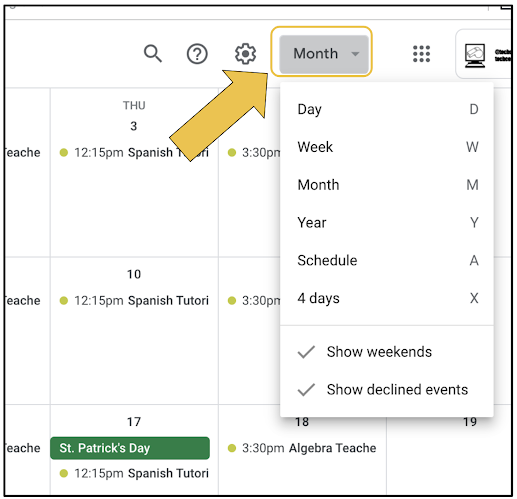
One of my favorite Google Calendar tips, for adults and students, is to use the Schedule View. This allows you to see your day (and a few days after) at a glance. It makes it easier to focus on the immediate future. Teach you students to change the view to schedule by clicking the Calendar View button just to the right of the "waffle". By default, it is set to Month View. This could be a useful habit in a homeroom or advisory class.


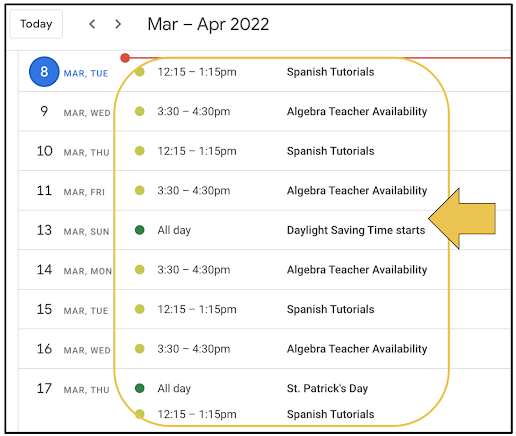
Below is what the Schedule View looks like. It will show you your current day's appointments, tasks, etc. vertically in chronological order.


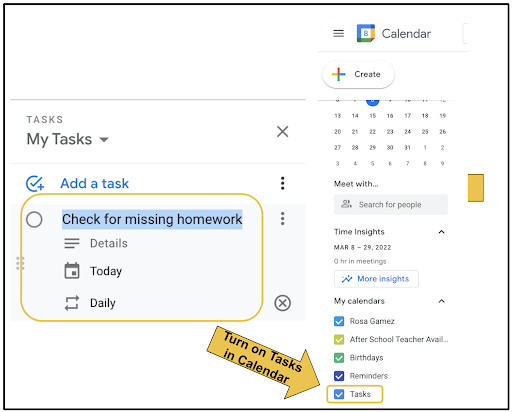
Last week, I wrote a similar blog post about how students can use Google Tasks to keep track of assignments and better manage time. Google Calendar allows you to show your Google Tasks in your calendar. This way you have a one stop shop for tasks and events. Any task you set in Google Tasks can be shown in Google Calendar by clicking the checkbox next to Tasks on the right side of Calendar in the section labeled My calendars. 


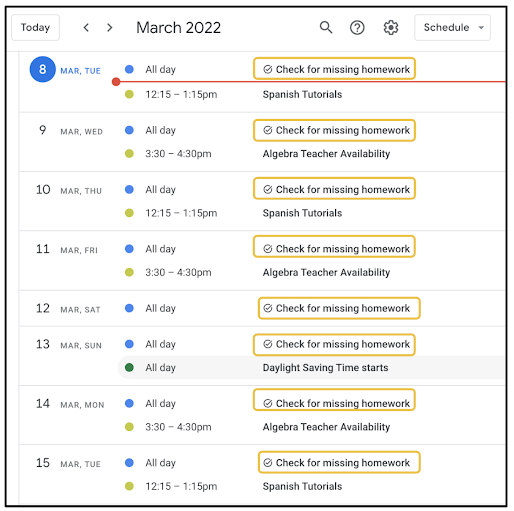
Below is what it looks like using the Schedule View with Tasks enabled in Google Calendar. Your Tasks will have a little circle with checkmark icon to the left of them. You can click on them in Google Calendar to view any notes attached to a Task and cross them off without having to switch over to Tasks in the right side toolbar.


Over the years, I have seen students struggle with managing school work with extra curricular activities. Often times, clubs and sports teams will print a schedule for students. More often than not, this printed schedule gets lost or left in a place where they forget to check. One thing they almost never forget to check is their cellphone. 

Teach your students to create extra curricular activity calendars in Google Calendar. If they sync their Google Calendar to the calendar app on their cellphones, reminders and schedules are just a pop up notification away. 

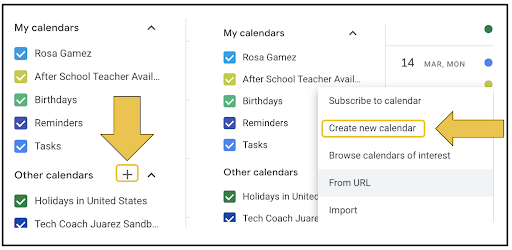
Have them start by clicking the little plus button on the left side of Google Calendar in the section labeled Other calendars. In the menu that appears, have them click Create new calendar. 


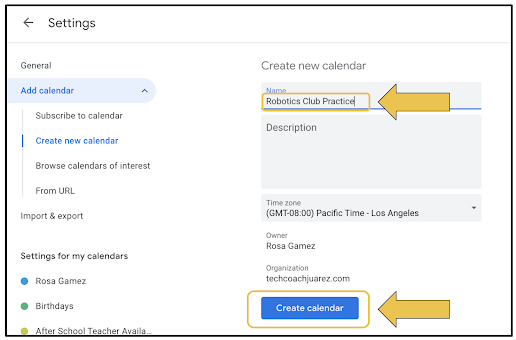
They will be prompted to name their new calendar, then click Create calendar.


When they return to the main Google Calendar screen, their extra curricular calendar will appear in the section on the left labeled My calendars. They will need to check mark it to make it visible. 

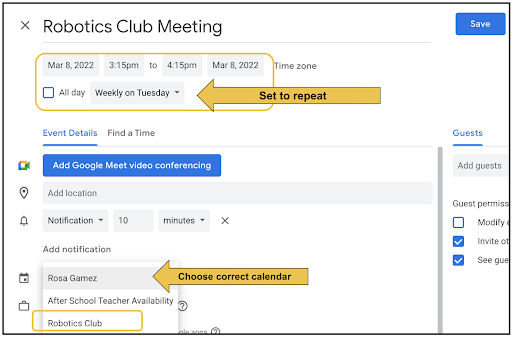
Below is an example of how students can begin creating events on their extra curricular calendars. They start by clicking the big Create button on the top left of Google Calendar. When the event details window pops up, have them click More options to go full screen and see all options. Have them set the date and time of their first event. It is a repeating weekly event, have them set it to repeat. 

Be sure to show them how to set the event to correct calendar. By default, events will appear on the calendar titled as their name. Have them click their name (seen below) and choose the correct calendar in the drop down menu that appears.


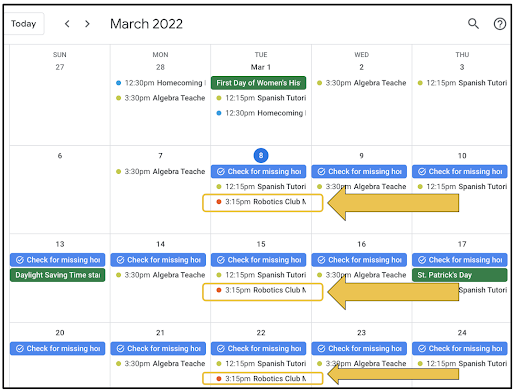
Below is what it looks like in Google Calendar using the Month View. You can see this student's "Robotics Club" event repeats every Tuesday. The color of the dot next to those events is different than events that are on other calendars. 


Students can use Google Calendar to schedule pretty much anything in their lives. They can schedule appointments, study dates, set reminders for homework, and much more. An easy way to start is to show them how your Google Classroom has an accompanying calendar that shows assignments and due dates. How might you use Google Calendar with your students? 

Share this video with your students that demonstrates the skills mentioned in this blog post.


If you have any questions and would like a follow up, contact me via Gmail or Chat at ajuarez@techcoachjuarez.com. My book, The Complete EdTech Coach: An Organic Approach to Digital Learning, co-authored with my wife Katherine Goyette is now available on Amazon. Click here to purchase. It is published by Dave Burgess Publishing. Be sure to follow the hashtag #OrganicEdTech and #CVTechTalk for updates.


Thursday, March 3, 2022

An Essential Student Skill: Student Gmail Inbox Maintenance (Share with your students)


Students these days are absolute experts when it comes to staying on top of notifications for their online gaming, social media, text messages, DM's and more. What they need to get better at is applying those same skills to email. As they get older, and transition into college or the workforce, professors, admissions officers and employers will communicate vital information via email, not text or DM. The sooner kids take email as serious as they do other forms of communication, the better they will be prepared for their future.

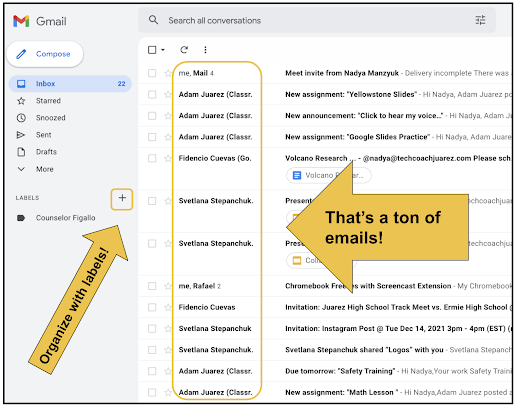
A common theme I see with students, adults too, is a crowded, cluttered inbox. This type of inbox can lead to missing important messages. Since most students are using Google Classroom, they get emails whenever their teachers post assignments, announcements, etc. Kids need to develop the habit of going through their inbox and deleting unnecessary or old messages and moving into labels the messages they need to save. 

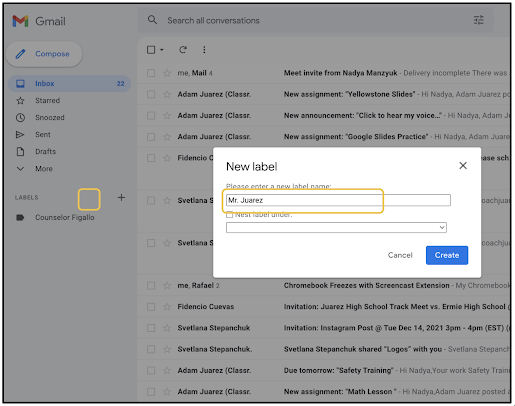
The screenshots shown below are using the most up-to-date version of Gmail, recently released by Google. If your Gmail doesn't look like this yet, it will soon. Start by showing kids how to create labels. Click the plus button to create a new label.


Each school year, I like to have students create a label for each teacher. It's also a good idea to create a label for counselors.


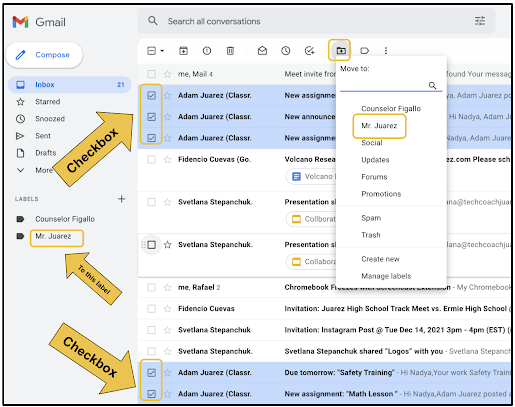
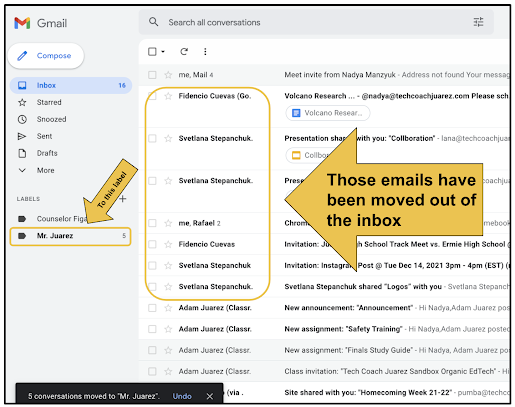
With labels created, you can move multiple, or single, messages by clicking the Move to button at the top. In the dropdown that appears, click the label into which you want to move the message(s). 


Instantly, you'll see those messages disappear from the inbox. Click on the label to view those messages.


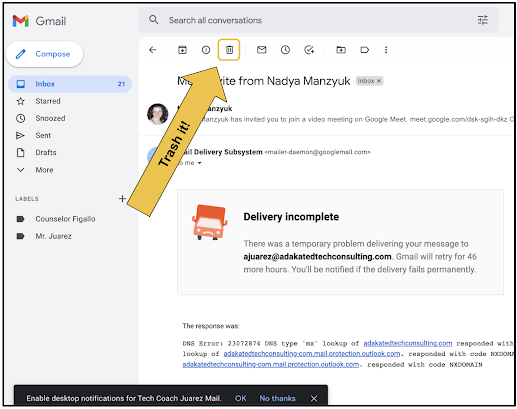
For messages you know you don't need, don't hesitate to delete them. One way is to click on the message to open it. From there, click the trash can button at the top.


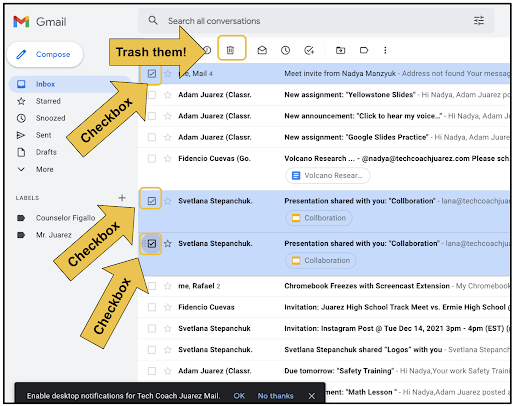
If you have a ton of emails you know you don't need, you can delete many at a time. Do this by clicking the checkbox next to each message you want to delete. Once you've "checkboxed" them, click the trashcan button at the top.


Share this video with students to show them each of the tips demonstrated in this blog.


Share these screenshots with your students. Set up time during the day or make it an expectation for free time for kids to not just check their email, but to organize and declutter their inbox. What email tricks do you have or have you used with students? 

If you have any questions and would like a follow up, contact me via Gmail or Chat at ajuarez@techcoachjuarez.com.

My book, The Complete EdTech Coach: An Organic Approach to Digital Learning, co-authored with my wife Katherine Goyette is now available on Amazon. Click here to purchase. It is published by Dave Burgess Publishing. Be sure to follow the hashtag #OrganicEdTech and #CVTechTalk for updates.


Monday, February 28, 2022

Time Management Tools for Students in Google Workspace: Google Tasks (Share with your students)


In 17 years as an educator, one of the biggest pain points I have seen teachers deal with is frustration with students not keeping track of assignments, due dates and time management. These are essential skills that successful adults possess. Please share these tips with your students to help them better manage their time

Schools often provide students with a paper planner. We all know kids don't use this as much as we would like. A habit I try to instill in students is to write due dates and reminders in the planner, and then add them to Google Tasks. The repetition helps them better remember and it shows them the value of paper and digital time management tools.

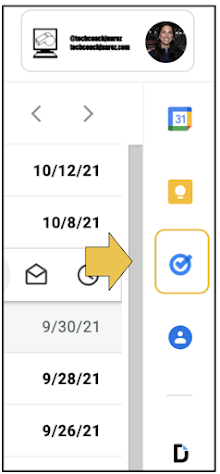
Hidden in plain sight is one of Google Workspace's most useful tools, Google Tasks. On the right sidebar of Gmail, Docs, Slides, Sheets, etc. you will see the Google Tasks icon. This simple tool allows students to set reminders for one-off assignments and repeating assignments. It provides a great complement to paper planners.


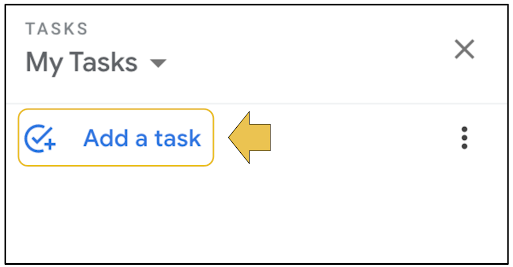
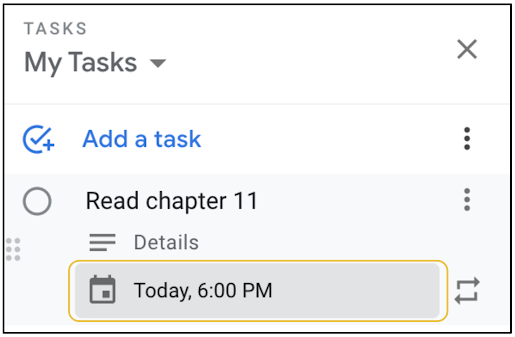
With Tasks open, have students click Add a task.


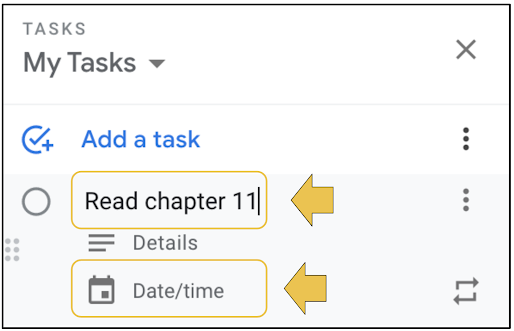
Below is an example of a task they can put in their paper planner and here in Google Tasks. Be sure to have them set a time for which they would like to be reminded to accomplish this task.


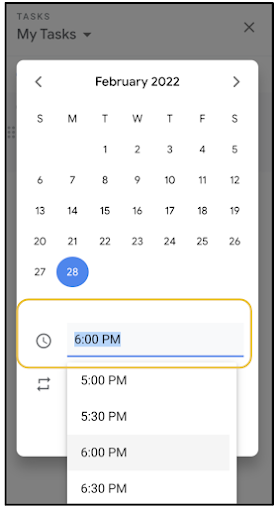
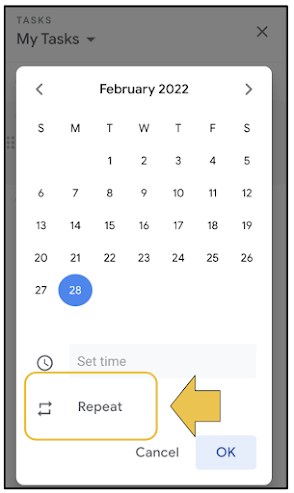
Below is what it looks like when setting the date and time for a reminder.


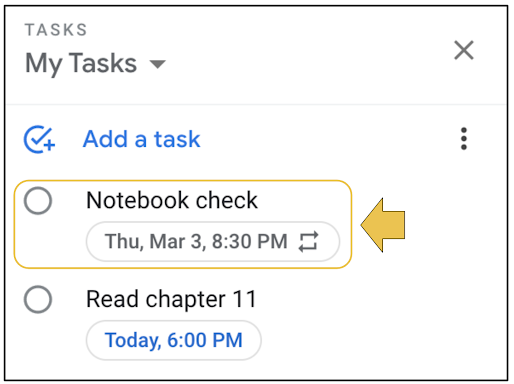
Once set, below is what it will look like on their right sidebar in Google Workspace. If students download the free Google Tasks app on their mobile devices, the reminders and tasks will sync.


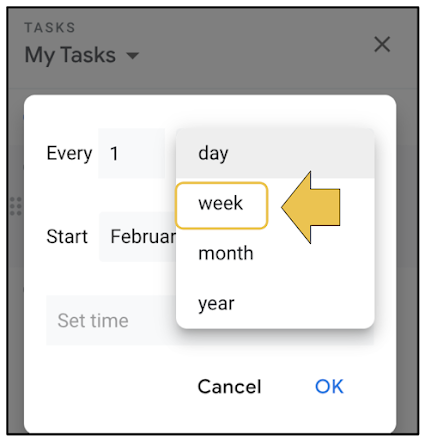
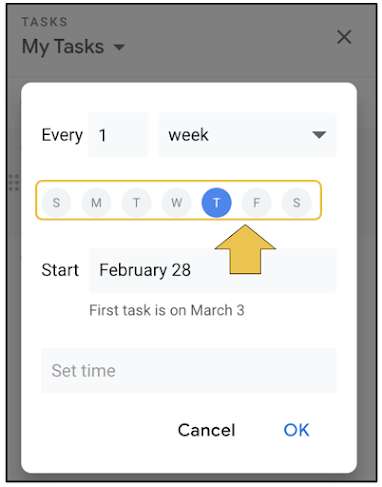
Students often have assignments such as binder or notebook checks that repeat weekly. When setting the date and time, they can set it to repeat.


Below is an example of what a repeating task looks like. Next to the time and date, you'll see two opposite pointing arrows. This means this task will repeat. When the student clicks the circle to cross it off, there is no need to put the task in again. A week later, it will reappear automatically with the new date.


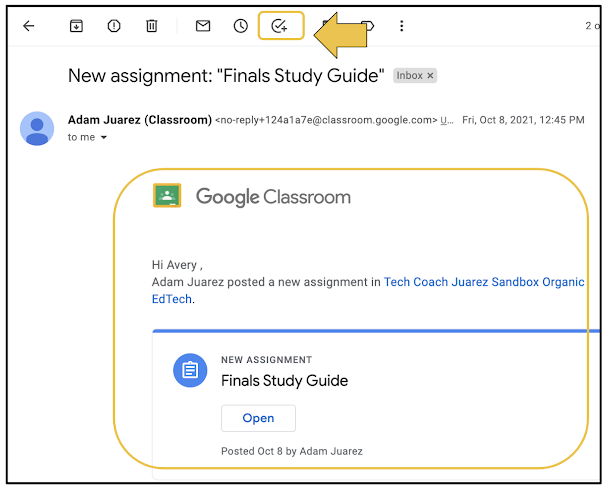
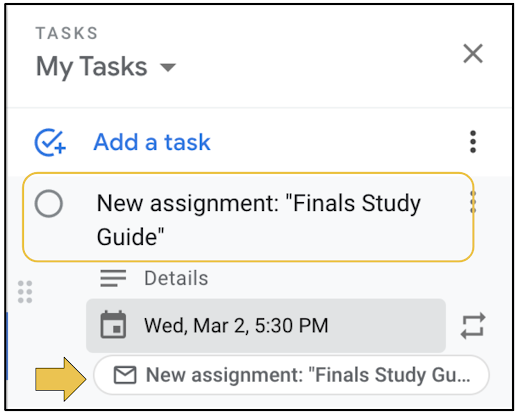
If you are reading this blog, you are probably using Google Classroom. When you post in Classroom, students receive an email notification. These email can be useful for students to manage their time. When they open an email notification from Classroom, have students click the Add to Tasks button at the top. This will add the subject of the email as a task and it can be edited if they want. Students should make it a habit of adding assignments to Tasks and setting reminders before the due dates.


Below is an example of a Google Classroom notification added to Tasks with a reminder. Notice the mail icon at the bottom. This serves as a link directly back to the email message. This is useful because between the time the student sets the reminder and the time you actually go back to the email to access the assignment, students will receive many more emails. This icon in Tasks allows the student to not have to go fishing through their inbox to find the message.


Google Tasks complements paper planners very well and it is a great tool to show students that technology is a powerful tool, not just a toy. How will you use Google Tasks to help students better manage their time?

If you have any questions and would like a follow up, contact me via Gmail or Chat at ajuarez@techcoachjuarez.com.

My book, The Complete EdTech Coach: An Organic Approach to Digital Learning, co-authored with my wife Katherine Goyette is now available on Amazon. Click here to purchase. It is published by Dave Burgess Publishing. Be sure to follow the hashtag #OrganicEdTech and #CVTechTalk for updates.


Wednesday, August 18, 2021

Welcome Back to School Tip: Use Chrome Groups to Organize Tabs for Each Class


Welcome back! I hope you're having a wonderful new school year. If you use Google Chrome, you know how easy it is to get stuck in tab overload. Too many tabs open at once can be a multitasking nightmare. You can get caught spending a frustrating amount of time trying to find the right tab. Sometimes you just open another instead of looking for the one you need. 

Hidden within Google Chrome is the ability to create tab groups. This helps you label groups of tabs you have open for better organization. Take a look at the screenshot below. In this Chrome window, I have Chrome tab groups set up for two classes that I teach. I have a group for my 6th period class and one for my 7th period class. If you look closely, each group has a different color. This helps me see easily which tabs I have open for each class. 

Get started by right clicking on a tab. In the menu that appears, hover your cursor over Add Tab to Group. From there, select New Group to create your first group. You can add other tabs to your newly created group by repeating this process, but instead select the group name. You can also drag and drop tabs horizontally into a group. 


The possibilities are endless for the ways you can organize Chrome with tab groups. You can create groups for class periods, subjects, projects, checking for understanding apps, engagement websites and much more. 

If you have any questions and would like a follow up, contact me via Gmail or Chat at ajuarez@techcoachjuarez.com. My book, The Complete EdTech Coach: An Organic Approach to Digital Learning, co-authored with my wife Katherine Goyette is now available on Amazon. Click here to purchase. It is published by Dave Burgess Publishing. Be sure to follow the hashtag #OrganicEdTech and #CVTechTalk for updates.