Showing posts with label English Learners. Show all posts

Friday, February 2, 2024

Empower English Learners and Teachers with Translation Chrome Extensions


In today's digital age, supporting English language learners (ELLs) has become increasingly innovative, thanks to simple yet effective tech tools. One of the game-changers in this field is the array of Google Chrome extensions designed to aid ELLs in navigating and comprehending the vast world of English content online. These tools are not just helpful; they can transform the way ELLs engage with language learning.

Imagine a student encountering a challenging text online. With these Chrome extensions (click here to access my favorite), they can simply highlight the text, and instantly, a small popup appears, offering the text translated into their home language. But it doesn't stop there. The popup also includes a button to have the text read aloud in their native language. This feature is incredibly empowering for English learners, allowing them to take control of their learning experience. They no longer have to rely solely on teachers or classmates to understand content, instructions, and more, fostering a sense of independence and confidence in their language acquisition journey.
Here is an example of how a student can use this tool in Google Classroom. Note the speaker button that, when clicked, will read the text aloud to them.

Here is a real photograph captured in a classroom situated in rural Tulare County, California. The student depicted speaks and reads limited English; however, they are utilizing a translation Chrome extension. This tool, approved by the school and deployed to student accounts, enables them to access instructions in Google Classroom. Similar to the example mentioned earlier, it features a speaker button that allows the text to be read aloud.


But the benefits of these Chrome extensions are not limited to students alone. Teachers, too, can leverage these tools to create a more inclusive and efficient learning environment. In California, where Spanish is the predominant second language, these extensions are invaluable. When preparing instructions, resources, or activities on platforms like Google Classroom, Quizizz, Blooket, Kahoot, Quizlet, and Gimkit, teachers can use these extensions for quick and convenient side-by-side translations of instructions, questions and answer choices.


The wisdom behind incorporating these tech tools provide side by side translation is that it allows teachers to provide all students with one version of a quiz, game, assignment, etc., keeping all responses, regardless of language, in one place. This approach not only simplifies the teacher's task, but also helps ELLs feel more included. They don't feel singled out or different because they are given the same version of activities as their peers. With just a few more clicks, coupled with some copying and pasting, teachers can make a significant difference in the inclusivity and effectiveness of their instruction.


These simple tech tools showcase the potential of technology to help bridge gaps in language learning and curriculum access. They are by no means a magic bullet or cure all for the support of English learners. By embracing such innovations, educators can enhance their support for English learners, making the learning experience more accessible, engaging, and empowering for all students while they engage in other, more in-depth and research-based instruction. 

The video below demonstrates a translation extension in real time with Quizizz and Google Classroom.


Wednesday, January 31, 2024

Helperbird: A Safe Alternative to the Defunct Immersive Reader Chrome Extension


In the ever-evolving landscape of digital tools, the recent discontinuation of the Immersive Reader Chrome Extension marks a significant change, particularly for the education sector. Immersive Reader, known for enhancing the accessibility of digital content, has been a vital tool for teachers and students alike. Its features, such as read aloud, text spacing, and translation, have made it easier for learners with different needs to access information. However, with this tool no longer operational on Google Chrome, many users are left seeking alternatives.

The good news is that Microsoft's Immersive Reader continues to be available on Microsoft products, including the Edge browser. This offers a semblance of continuity for those who are able to switch platforms. But for the vast majority who are entrenched in the world of Google Chrome, this change poses a challenge.

Enter Helperbird, a Chrome Extension that emerges as a solid alternative. Helperbird not only allows users to access many of the beloved features of Microsoft's Immersive Reader but also brings its own suite of tools to the table. Its functionality is straightforward and user-friendly: simply select the text you want to read, right-click, and hover over the Helperbird option. A menu appears, offering various tools, including the option to open the content in Immersive Reader. This seamless integration ensures that the transition from the now-defunct Chrome Extension is as smooth as possible.

However, it's important to note that full access to Helperbird's features requires signing up for an account. This might be a minor inconvenience compared to the benefits it offers. For a visual guide on how to use Helperbird to access Immersive Reader, see the screenshot provided below. This visual aid can be particularly helpful for getting acquainted with the new process and exploring the available options.


For individuals concerned about data collection and usage, the privacy section on Helperbird's page in the Chrome Web Store provides clear and reassuring information. It explicitly states that Helperbird commits to never selling, storing, or misusing any user data. Additionally, the privacy policy aligns with key regulations such as COPPA and FERPA, ensuring compliance with important standards for the protection of children's online privacy and student education records. This transparency and commitment to privacy and security should offer peace of mind to users prioritizing data safety. Click here to view the developer's privacy policy.


Friday, August 25, 2023

Elevating Classroom Instruction with YouTube Music's Enhanced Lyrics Feature


In today's digital age, educators are constantly seeking innovative ways to engage students and enhance learning experiences. The newly enhanced lyrics feature in YouTube Music presents a golden opportunity to better integrate music into classroom instruction, fostering reading, literacy skills, and aiding English learners on their language journey.

Music has a unique power to captivate and connect with students. YouTube Music's upgraded lyrics feature goes beyond just playing tunes. It displays synchronized lyrics, turning the act of listening to music into a type of interactive reading exercise. As students follow along with the lyrics, they sharpen their reading comprehension and fluency skills in an engaging and enjoyable manner.

For learners of English, the advantages are even deeper. According to Belgian researcher Pauline Degrave*, songs offer genuine listening content. Learners are exposed to native speakers using authentic language, pronunciation, intonation, etc. This aids in the development of listening skills. Lyrics also support the acquisition of vocabulary. New words and phrases are reiterated in the lyrics. Combining them with melody can assist in memorization and recollection. Teachers can select songs with themes matching classroom topics, adding contextual richness to language lessons.

Desktop View

The mobile app view has karaoke style lyrics

Furthermore, YouTube Music's variety of options enable educators to cater to various learning preferences and age groups. Whether it's historical ballads for a history class, or lyrical poetry for an English literature session, the tool offers a wide array of possibilities.

Integrating songs with lyrics in the classroom enhances not only literacy and language skills but also fosters creativity, cultural comprehension, and emotional self-expression. As educators, embracing technological advancements such as YouTube Music's improved lyrics feature can transform our teaching methods, creating an engaging and melodious learning encounter for everyone involved.

If you would like to bring me to your school for PD, workshops, a keynote, training or a follow-up on this or previous blogposts, click here to schedule an appointment to chat.

My book, The Complete EdTech Coach: An Organic Approach to Digital Learning, co-authored with my wife Katherine Goyette is now available on Amazon. Click here to purchase. It is published by Dave Burgess Publishing. Be sure to follow the hashtag #OrganicEdTech and #CVTechTalk for updates.

*Degrave, Pauline. "Music in the foreign language classroom: How and why." Journal of Language Teaching and Research 10.3 (2019): 412-420.

Friday, May 26, 2023

Enhancing Classroom Engagement: The Synergy of Sketchnoting and Flip


In today's modern educational landscape, it is essential to adopt innovative techniques that not only engage students but also cater to diverse learning styles. Sketchnoting, the practice of visually capturing ideas, and Flip, a platform for making fun, creative videos, complement each other and can significantly enhance student engagement in the classroom. This blog post explores how the integration of sketchnoting and Flip can promote active learning and supports English learners in accessing the curriculum.
Sketchnoting with paper and pencil enables students to actively process and visually represent key concepts. By sketching their understanding, students reinforce their learning, improve memory retention, and develop critical thinking skills. Sketchnoting encourages students to synthesize information, identify main ideas, and make connections between concepts. This hands-on approach fosters creativity and allows students to personalize their learning experience. Additionally, the sketchnoting process provides teachers with multiple opportunities to provide real-time, individualized feedback. These encounters lead to authentic, one-one-one teachable moments with a teacher and a student. These moments create a classroom culture where the teacher is not a sage on the stage, but a guide on the side.

The sketchnoting process done by a student in Mrs. Cruz' class in Central CA.

Once students have sketched their ideas, Flip becomes a powerful tool for transforming their static visual notes into dynamic video explanations. Using Flip's fun, creative tools, students can create engaging videos that explain complex concepts. This process encourages students to delve deeper into the subject matter, develop effective communication skills, and demonstrate a comprehensive understanding of the material. The combination of sketchnoting and Flip enables students to become active creators and presenters of their knowledge.

In addition, if the Flip topic is set for the class to see all the videos, a valuable digital citizenship opportunity is created. Students should be encouraged to leave positive feedback and ask clarifying questions on their classmates' videos. Building this positive habit with Flip can build similar habits when students engage in social media. 

Mrs. Cruz's students created trailers for their state reports.

For English learners, accessing the curriculum can be challenging due to language barriers. However, sketchnoting and Flip provide valuable support by offering a visual and interactive approach. Sketchnoting allows English learners to visually organize information, making it more accessible and easier to comprehend. The combination of images, icons, and keywords helps students develop vocabulary and language skills. Furthermore, Flip empowers English learners to create videos that convey their understanding, allowing them to practice language use in a meaningful context.

The integration of sketchnoting and Flip creates a powerful synergy in the classroom. By combining the benefits of paper and pencil sketching with the interactive and creative capabilities of Flip, students' engagement and understanding of key concepts are enhanced. This approach is particularly advantageous for English learners as it provides visual support and encourages language development. Educators can harness the potential of sketchnoting and Flip to create a dynamic and inclusive learning environment, where students actively participate, showcase their creativity, and take ownership of their learning.

If you would like to bring me to your school for PD, workshops, a keynote, training or a follow-up on this or previous blogposts, click here to schedule an appointment to chat.

My book, The Complete EdTech Coach: An Organic Approach to Digital Learning, co-authored with my wife Katherine Goyette is now available on Amazon. Click here to purchase. It is published by Dave Burgess Publishing. Be sure to follow the hashtag #OrganicEdTech and #CVTechTalk for updates.


Tuesday, January 10, 2023

Simple Google Tools to Give English Learners Access to Curriculum

English learners often feel left out and teachers struggle to find ways to simply give them access to content. Have you ever felt a little uncomfortable trying to help give English learners access to content? If so, Google has a variety of easy to use tools that help teachers accommodate the learners and empower the learners to access the content. In this session, we will explore Google Docs/Slides Add-ons, Google Chrome extensions and systems to not only give access, but help aid with their development with the English language.


This session will demonstrate simple ways to use Google to give ELLs access to content in their home language and side-by-side with English. A common practice when attempting to give English learners access to content, teachers create separate versions of content or assignments in the home language. This can make English learners feel alienated, and at the same time, it does not help them grow with the English language. Don't get me wrong, there is a time and place for separate versions in the home language, but in this session, we will take a look at simple tools and systems to provide side-by-side translation in the same resource or activity. This can begin to help English learners feel included, accommodated and develop with the English language.


In this session, attendees will:


  • Take a look at tools built into Google Docs to aid with translation

  • Investigate Chrome extensions to help English learners access curriculum and engage

  • Demonstrate Add-ons in Google Docs and Slides for translation and engagement

  • Develop a system for side by side translation, not just versions in different languages

  • Practice using Google Translate conversation mode to enhance your ability to give in-person, real-time feedback


If you would like to bring me to your school for PD, workshops, a keynote, training or a follow-up on this or previous blogposts, click here to schedule an appointment to chat.

My book, The Complete EdTech Coach: An Organic Approach to Digital Learning, co-authored with my wife Katherine Goyette is now available on Amazon. Click here to purchase. It is published by Dave Burgess Publishing. Be sure to follow the hashtag #OrganicEdTech and #CVTechTalk for updates.

Monday, January 9, 2023

A Full Day of Professional Learning: Organic EdTech Integration with Google Workspace for Education

Are you looking for an action-packed full day of professional learning? If so, look no further. Bring in AdaKat EdTech Consulting to lead a day of affordable professional learning that will build teachers' capacity to organically integrate technology with Google Workspace for Education and more.

What does it mean to organically integrate technology? In our book, The Complete EdTech Coach: An Organic Approach to Supporting Digital Learning, we state "If you plan with the 4C's in mind, the tech will take care of itself". This means we lead with learning, never with tech. Using our 4C's lesson design process, teachers identify a learning goal and brainstorm how students will engage in communication, creativity, collaboration and critical thinking. As the coach in this process, we rely heavily on the teacher, drawing upon their content expertise and years of experience. They know their content and students best and we will recommend technology we know resides in their teacher toolbox and only if it fits naturally. If no tech is required to enhance the learning process, we will not force it.


This day of professional learning begins by building teacher capacity and adding to their teacher toolbox. Using Google Workspace for Education tools primarily, we will show how use simple tools and strategies in innovative ways.

Executive Processing and Simple Tools for English Learners

Teachers will learn executive processing skills to expedite their workflow and how they can impart these same skills to their students. From there, we dive into simple tools that will give English learners access to content and curriculum. Supporting English learners is something all teachers must do, and we will demonstrate ideas, tips and tricks that hide in plain sight, and can be used effectively by anyone.


Engagement with Chromebooks

Too often Chromebooks are used only as tools for word processing or algorithm-based learning programs. Using Chromebooks in this manner does not engage all learners in the 4C's and makes students passive consumers of content. During this portion of the day, we will investigate ways to use Chromebooks to guide your students to be active creators of content. We'll take a look out maximizing the Chromebook's camera, built-in screen recording app and ways to strike a healthy balance of paper/pencil with technology.

Google Classroom Shells

With all of these ideas, skills, tips, tricks and strategies at the forefront, we will next take a deep dive into the development of Google Classroom Shells. Google Classroom Shells are a simple way to power up PLCs and departments increasing ability to collaborate. Attendees will learn to develop Shells for go-to lessons, common activities, common assessments, Eduprotocols, specific curriculum and even PE classes.

Now that attendees' toolboxes have begun to fill, this day of professional learning will culminate by designing lessons using our 4C's lesson design process. Using a simple 4 square, presenters will guide teachers in a brainstorm in how students will work towards a learning goal while engaging in each of the 4C's. The presenter will rely and draw upon the teachers' years of experience, content expertise and tech toolbox empowering them to organically integrate technology into the lesson. They will be given time to work one on one with the presenters, in groups and or with department/PLCs. Attendees will end the day with at least one lesson they can use in class the next day.

Are you interested in an action packed day of professional learning and lesson design like this? If so, please reach out to AdaKat EdTech Consulting. Click here to book an appointment discuss logistics and pricing. Click here to purchase a copy our book The Complete EdTech Coach: An Organic Approach to Supporting Digital Learning.


Monday, March 28, 2022

Translation in Google Docs Made Easy with Docs Paragraph Translate

Translation of text is one of the most basic ways we can begin to support English learners. When you don't speak another language, this can seem like a daunting task. Though not the most difficult thing in the world, opening Google Translate in another tab and hopping back and forth to copy and paste text is tedious and annoying. But what if you could translate targeted text from right within Google Docs? Would that be so much easier? Spoiler alert, the answer is yes and the Docs Paragraph Translate Add On in Google Docs is here to help.

Start by going to the Add-Ons tab in Google Docs, go to Get add-ons, search for Docs Paragraph Translate and install. Once installed, it'll appear in your Add-ons list as seen below.


After opening it, you can set it to Auto-detect the source language or set it exactly to the language you want. If your source language is English, Auto-detect will work fine. 


Set your target language for which you want to translate to. These settings are automatically saved so you don't have set them each time, unless your want a different language.


On your document, select the text you want to translate. With the Add-on open, click Translate.


Immediately, the translation of the selected text appears in the side panel. From there, click the part of the Doc where you'd like to put the translation.


Below, you can see the translation right beneath the text that was originally selected.


In my 17 years working with English learners, I have seen them be more successful with language development when providing side by side translation of their home language and English. This Add-on has been a life saver for quickly translating directions and other important pieces of text as I curate learning experiences for all learners. How will you use the Docs Paragraph Translate Add-on?

If you have any questions and would like a follow up, contact me via Gmail or Chat at ajuarez@techcoachjuarez.com. My book, The Complete EdTech Coach: An Organic Approach to Digital Learning, co-authored with my wife Katherine Goyette is now available on Amazon. Click here to purchase. It is published by Dave Burgess Publishing. Be sure to follow the hashtag #OrganicEdTech and #CVTechTalk for updates.


Monday, February 14, 2022

Bring Your Word Wall to Life with Mote


Mote is a very simple, yet powerful tool that gives feedback a personal touch. Beyond feedback, Mote can be used to provide scaffolds for English learners and struggling readers. Over the years, using a word wall has been a popular strategy used in classrooms across the world. It's an easy way to display vocabulary for students to reference. It helps build an atmosphere and culture of learning in a classroom. 

A problem with word walls is in how they can be just ornamental. It takes a "commitment" to get students to actively use it as a resource. If you struggle to get kids to interact dynamically with the word wall, Mote is very useful. Mote allows you to record voice notes, all of which can be accessed via a QR code. When printing out your words for the word wall, add the QR code to each word. This allows students to use their devices to scan the QR code and have the word pronounced and read to them, in addition to providing additional verbal information or context.

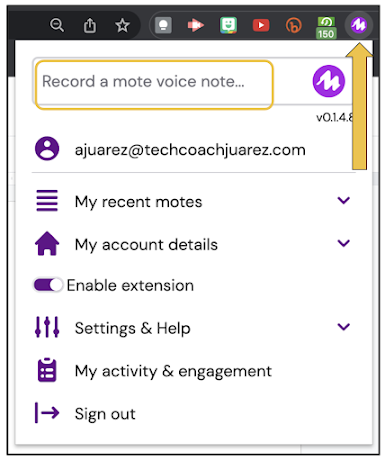
Start by clicking the Mote extension, and in the dropdown menu, click Record a mote voice note button. Record yourself pronouncing the word, reading the definition and or providing additional information and context.


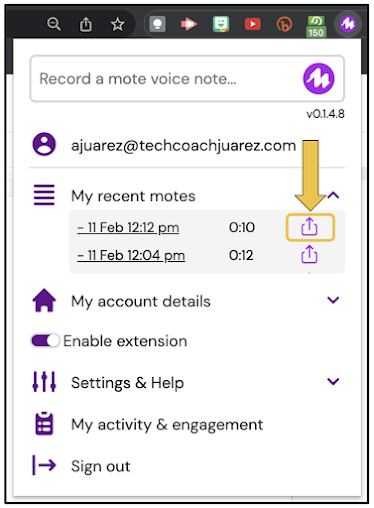
When you finish recording, it will appear under My recent motes, with the most recent being at the top. Next to each mote, you will see a share button. 


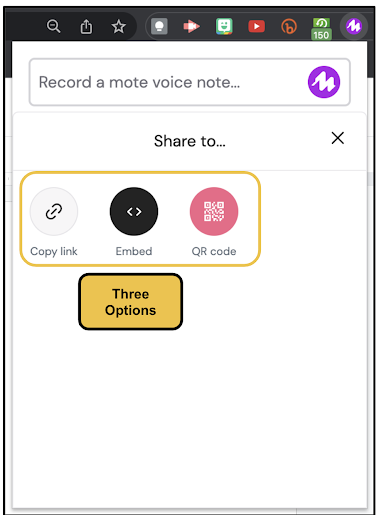
When you click the share button, you'll see three options pop up. One is to copy the link to the mote, another to embed the HTML code and the third will generate a QR code you can download.


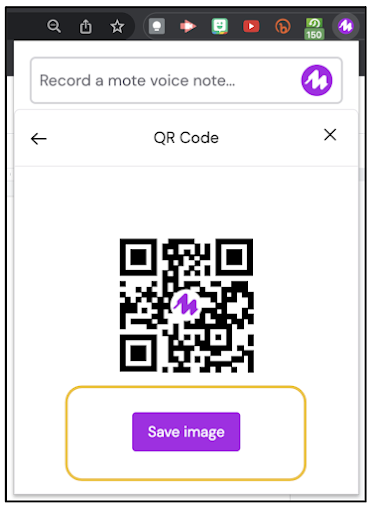
Click Save to download the QR code.


After saving and downloading the QR code, use your favorite tool (Google Slides, PowerPoint, Google Docs, Microsoft Word, Google Drawings, Canva, etc.) to create a place card with the word for the word wall. After typing the word, leave space to upload the QR code.


With the word typed and QR code added, print out your place cards. For me, I would use Google Slides or PowerPoint to create a slide for each word. From there, you can print all the words at once on one file.


With your "Mote-ified" word wall set up, as part of your lesson plan, students can use their devices to scan the QR code to interact. This helps kids get out of their seats and possibly jump start some academic conversations while engaging with the vocabulary like never before. Combine this with Quizlet Live or Quizizz to add a level of gamification.

When it comes to Mote, word walls are just part of the tip of the iceberg. The possibilities are virtually endless with the ways you can use Mote to personalize learning and engage students. How have you used Mote beyond merely providing verbal feedback?

If you have any questions and would like a follow up, contact me via Gmail or Chat at ajuarez@techcoachjuarez.com. 

My book, The Complete EdTech Coach: An Organic Approach to Digital Learning, co-authored with my wife Katherine Goyette is now available on Amazon. Click here to purchase. It is published by Dave Burgess Publishing. Be sure to follow the hashtag #OrganicEdTech and #CVTechTalk for updates.


Tuesday, January 25, 2022

Support English Learners and Quickly Translate PDF Files with Google Docs

Using PDF files and trying to support English learners can be tricky. Because PDFs are meant to limit editing, translating the text to the home language of English learners is difficult. There are paid services for this or you could recruit a translator, but who wants to spend money or wait for translation? For a long time, you have been able to open PDF files as Google Docs and the text became editable. But, in the past, the converted text was often jumbled and many stylistic mistakes were made. 

Recently, this function has greatly improved to where very little of the converted text is altered. With this, you can quickly translate the document from the Google Docs Tool tab. From there, you can download a version of your document in PDF format. Follow the steps below to learn how.

Step 1: Open a PDF in Google Drive.


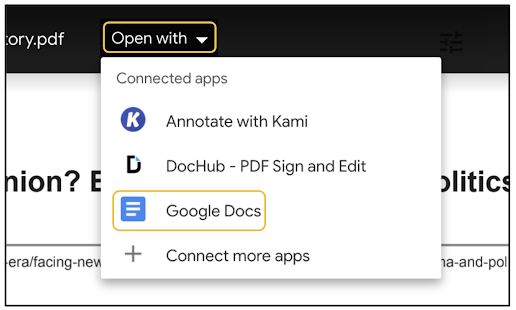
Step 2: Hover your cursor over the document. When the Open with option appears at the top middle, click it and select Google Docs.


Step 3: After the document opens in Docs, scroll through, check for any grammar or formatting errors that may have occurred during conversion and fix them. From there, click the Tools tab at the top. In the dropdown that appears, click Translate document.


Step 5: In the pop up that appears, title the new file and choose your language.


Step 6: After choosing your language, click Translate. A new file will be generated and saved in your Google Drive.


Step 7: The new file will automatically open in a new tab. It will be in the language you selected. Click the Tools tab and hover your cursor over Spelling and grammar. Click Spelling and grammar check. This will show all the mistakes lost in translation.


Step 8: In the pop up that appears, you'll see each mistake. You can ignore or accept each. Since I am not well versed in any language other than English, I generally trust Google's suggestions for spelling and grammar. Google Translate is much better than it used to be and it's a safe bet your translated version will be understandable by those who need to read it. I will say it isn't 100 percent accurate all the time, but good enough to get by until you can get someone to verify it. At the very least, you're providing access to content to those who need it.


Here is what the translated version of my original looks like.


Step 9: To get the translated version in a PDF format, click the File tab, hover your cursor over Download and select PDF. From there, a PDF file will be downloaded to your computer. From there you can upload to Drive if you want.


If you have any questions and would like a follow up, contact me via Gmail or Chat at ajuarez@techcoachjuarez.com.

My book, The Complete EdTech Coach: An Organic Approach to Digital Learning, co-authored with my wife Katherine Goyette is now available on Amazon. Click here to purchase. It is published by Dave Burgess Publishing. Be sure to follow the hashtag #OrganicEdTech and #CVTechTalk for updates.


Thursday, November 18, 2021

Instant Translation of Image Text with Yandex


Supporting the unique language needs of English learners is a common necessity amongst all educators. When you don't speak the home language of an English learner, this becomes even more difficult. Oftentimes, teachers in this situation need to find a staff member who can translate text. To help with this process, Yandex Translate can be a valuable tool. Yandex using OCR (Optical Character Recognition) technology to translate text in an image.

One of my favorite reading and text-marking strategies is Booksnaps. In a nutshell, Booksnaps happen when you curate images of text on Slides, PowerPoint or Seesaw and provide students with opportunities to digital mark the text, answer questions and focus their reading to look for themes and more. 

Getting images of text in English is no problem, but translating to another language is another issue. Yandex allows you to upload your English language images of text and it quickly reproduces the same text in almost any language. The translated image of text is downloaded and imported to any activity you are trying to create.

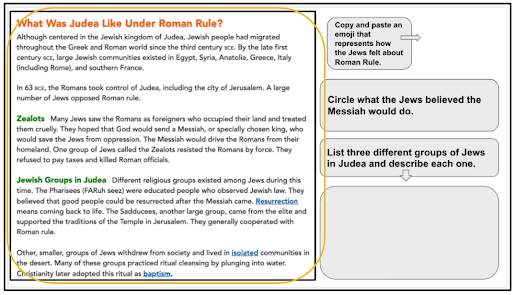
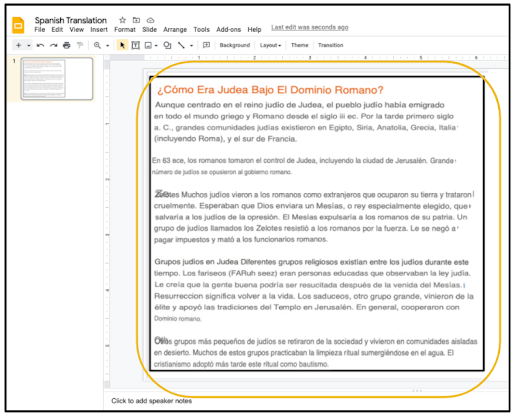
Below is an example of how I use Yandex to create a Spanish translation of Booksnaps. Circled below is an image of text. This image was imported to a slide from my computer. Because it's saved on my computer, I can import it into Yandex.


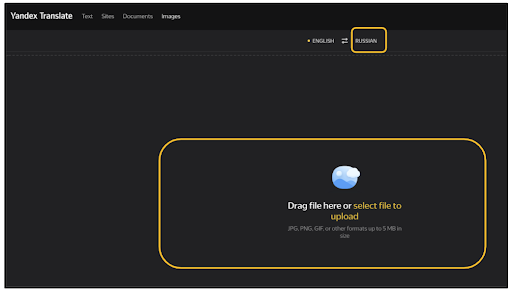
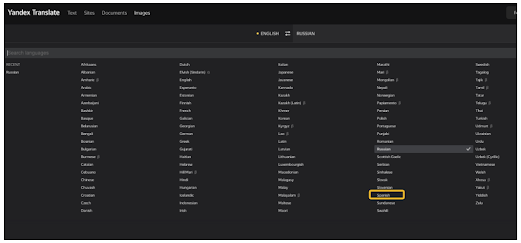
Start by going to translate.yandex.com/ocr. Click the target language button to choose your language and then select file to upload.


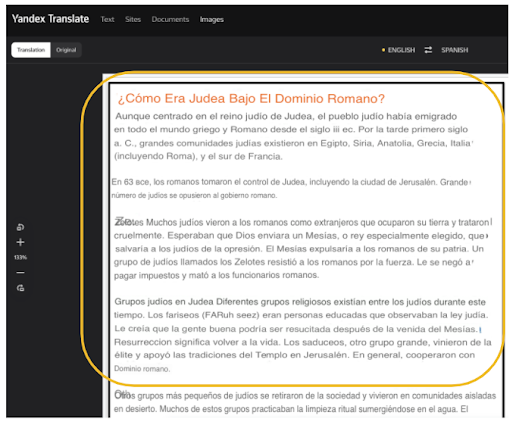
Within seconds, you will see your English language text image translated to the language of your choice.


The translated image can then be imported to a non-English language version of your slides.


Take a look below at a short demonstration of how Yandex Translate works.


If you have any questions and would like a follow up, contact me via Gmail or Chat at ajuarez@techcoachjuarez.com. My book, The Complete EdTech Coach: An Organic Approach to Digital Learning, co-authored with my wife Katherine Goyette is now available on Amazon. Click here to purchase. It is published by Dave Burgess Publishing. Be sure to follow the hashtag #OrganicEdTech and #CVTechTalk for updates.