Showing posts with label Engagement. Show all posts

Monday, January 9, 2023

A Full Day of Professional Learning: Organic EdTech Integration with Google Workspace for Education

Are you looking for an action-packed full day of professional learning? If so, look no further. Bring in AdaKat EdTech Consulting to lead a day of affordable professional learning that will build teachers' capacity to organically integrate technology with Google Workspace for Education and more.

What does it mean to organically integrate technology? In our book, The Complete EdTech Coach: An Organic Approach to Supporting Digital Learning, we state "If you plan with the 4C's in mind, the tech will take care of itself". This means we lead with learning, never with tech. Using our 4C's lesson design process, teachers identify a learning goal and brainstorm how students will engage in communication, creativity, collaboration and critical thinking. As the coach in this process, we rely heavily on the teacher, drawing upon their content expertise and years of experience. They know their content and students best and we will recommend technology we know resides in their teacher toolbox and only if it fits naturally. If no tech is required to enhance the learning process, we will not force it.


This day of professional learning begins by building teacher capacity and adding to their teacher toolbox. Using Google Workspace for Education tools primarily, we will show how use simple tools and strategies in innovative ways.

Executive Processing and Simple Tools for English Learners

Teachers will learn executive processing skills to expedite their workflow and how they can impart these same skills to their students. From there, we dive into simple tools that will give English learners access to content and curriculum. Supporting English learners is something all teachers must do, and we will demonstrate ideas, tips and tricks that hide in plain sight, and can be used effectively by anyone.


Engagement with Chromebooks

Too often Chromebooks are used only as tools for word processing or algorithm-based learning programs. Using Chromebooks in this manner does not engage all learners in the 4C's and makes students passive consumers of content. During this portion of the day, we will investigate ways to use Chromebooks to guide your students to be active creators of content. We'll take a look out maximizing the Chromebook's camera, built-in screen recording app and ways to strike a healthy balance of paper/pencil with technology.

Google Classroom Shells

With all of these ideas, skills, tips, tricks and strategies at the forefront, we will next take a deep dive into the development of Google Classroom Shells. Google Classroom Shells are a simple way to power up PLCs and departments increasing ability to collaborate. Attendees will learn to develop Shells for go-to lessons, common activities, common assessments, Eduprotocols, specific curriculum and even PE classes.

Now that attendees' toolboxes have begun to fill, this day of professional learning will culminate by designing lessons using our 4C's lesson design process. Using a simple 4 square, presenters will guide teachers in a brainstorm in how students will work towards a learning goal while engaging in each of the 4C's. The presenter will rely and draw upon the teachers' years of experience, content expertise and tech toolbox empowering them to organically integrate technology into the lesson. They will be given time to work one on one with the presenters, in groups and or with department/PLCs. Attendees will end the day with at least one lesson they can use in class the next day.

Are you interested in an action packed day of professional learning and lesson design like this? If so, please reach out to AdaKat EdTech Consulting. Click here to book an appointment discuss logistics and pricing. Click here to purchase a copy our book The Complete EdTech Coach: An Organic Approach to Supporting Digital Learning.

Monday, February 14, 2022

Bring Your Word Wall to Life with Mote


Mote is a very simple, yet powerful tool that gives feedback a personal touch. Beyond feedback, Mote can be used to provide scaffolds for English learners and struggling readers. Over the years, using a word wall has been a popular strategy used in classrooms across the world. It's an easy way to display vocabulary for students to reference. It helps build an atmosphere and culture of learning in a classroom. 

A problem with word walls is in how they can be just ornamental. It takes a "commitment" to get students to actively use it as a resource. If you struggle to get kids to interact dynamically with the word wall, Mote is very useful. Mote allows you to record voice notes, all of which can be accessed via a QR code. When printing out your words for the word wall, add the QR code to each word. This allows students to use their devices to scan the QR code and have the word pronounced and read to them, in addition to providing additional verbal information or context.

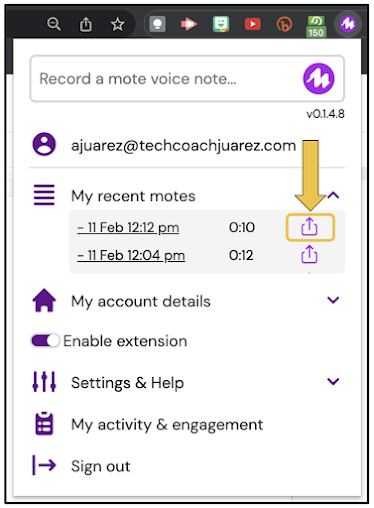
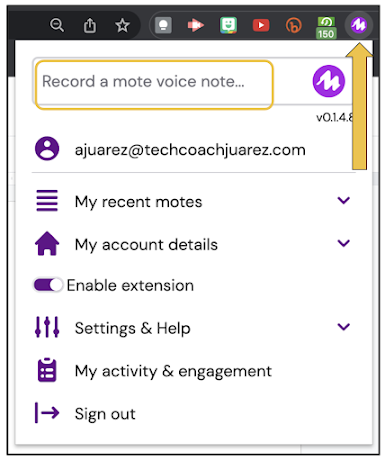
Start by clicking the Mote extension, and in the dropdown menu, click Record a mote voice note button. Record yourself pronouncing the word, reading the definition and or providing additional information and context.


When you finish recording, it will appear under My recent motes, with the most recent being at the top. Next to each mote, you will see a share button. 


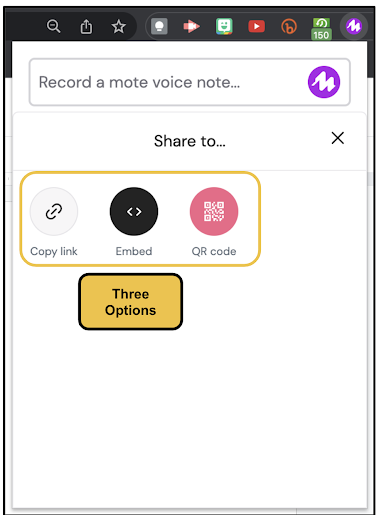
When you click the share button, you'll see three options pop up. One is to copy the link to the mote, another to embed the HTML code and the third will generate a QR code you can download.


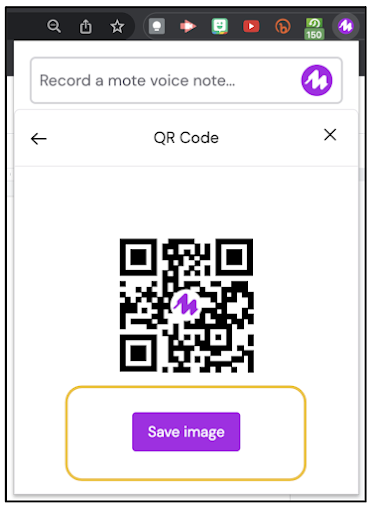
Click Save to download the QR code.


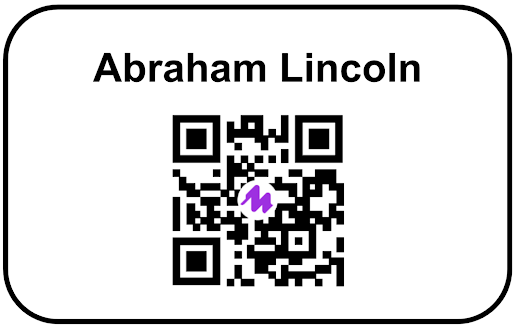
After saving and downloading the QR code, use your favorite tool (Google Slides, PowerPoint, Google Docs, Microsoft Word, Google Drawings, Canva, etc.) to create a place card with the word for the word wall. After typing the word, leave space to upload the QR code.


With the word typed and QR code added, print out your place cards. For me, I would use Google Slides or PowerPoint to create a slide for each word. From there, you can print all the words at once on one file.


With your "Mote-ified" word wall set up, as part of your lesson plan, students can use their devices to scan the QR code to interact. This helps kids get out of their seats and possibly jump start some academic conversations while engaging with the vocabulary like never before. Combine this with Quizlet Live or Quizizz to add a level of gamification.

When it comes to Mote, word walls are just part of the tip of the iceberg. The possibilities are virtually endless with the ways you can use Mote to personalize learning and engage students. How have you used Mote beyond merely providing verbal feedback?

If you have any questions and would like a follow up, contact me via Gmail or Chat at ajuarez@techcoachjuarez.com. 

My book, The Complete EdTech Coach: An Organic Approach to Digital Learning, co-authored with my wife Katherine Goyette is now available on Amazon. Click here to purchase. It is published by Dave Burgess Publishing. Be sure to follow the hashtag #OrganicEdTech and #CVTechTalk for updates.


Friday, September 10, 2021

Increase Engagement with Flipgrid......Get Certified Too!


For kids these days, apps like TikTok, Snapchat and YouTube Shorts are all the rage. Students engage with these apps voluntarily. If you're looking to leverage the engagement students have with those apps with what you're teaching, give Flipgrid a whirl. The aforementioned apps incorporate video, filters, etc. Flipgrid is a great way to leverage those things with your students.

If you are reading this, it's very likely you're familiar with the basics of Flipgrid. If you're looking to up your Flipgrid game and connect with likeminded educators, check out Flipgrid's Certification program. Flipgrid offers three certification levels. Level 1 is called Certified Educator. Level 2 is called Certified Expert. Level 3 is called #GridGuide. Click here to begin your journey.

I, myself, recently completed the Level 1 Certification and am raring to have a go at Level 2. To get started with Level 1, Microsoft has created user friendly training course that will give you many ideas for how to use Flipgrid. Upon completion, you'll receive a badge like the one you see above.

For me, Flipgrid has been an invaluable tool for helping to empower and engage my English learners. It really helps increasing opportunities for listening and speaking. How will you use Flipgrid to increase engagement? 

If you have any questions and would like a follow up, contact me via Gmail or Chat at ajuarez@techcoachjuarez.com. My book, The Complete EdTech Coach: An Organic Approach to Digital Learning, co-authored with my wife Katherine Goyette is now available on Amazon. Click here to purchase. It is published by Dave Burgess Publishing. Be sure to follow the hashtag #OrganicEdTech and #CVTechTalk for updates.

Wednesday, September 1, 2021

Engage With Your Students in the Google Classroom Stream

The Google Classroom Stream can easily get overlooked as most work is done within the Classwork tab. If you use the default settings, the Stream can be a very confusing place with assignment posts being included with class announcements. Not too long ago, I wrote a post showing you how to configure the Stream settings so only class announcements appear and assignment posts do not. 

The Stream is simple, versatile tool for engaging students. The most common use is for class announcements. As seen below, type your announcement in the box.


When you start an announcement, some basic stylistic tools appear. These tools include Bold, Italics, Underline, Bullets and Remove Formatting. If you have the Mote Chrome Extension, a Mote button will appear as an option for leaving voice messages as an announcement.  Like with an Assignment in the Classwork tab, you have buttons to share files from Drive or computer, add links or YouTube videos.


Besides announcements, the Stream can be used for kids to do an exit ticket. This way, there is no collecting of slips of paper that can be difficult to manage or read. It's quick, convenient, informal CFU.


Below is an example of what a Stream exit ticket could look like.


You could use the Stream to give kids a sneak preview or head start on an upcoming lesson. For kids who like to work ahead, I often post a link, days in advance, to a Quizlet Study Set with the vocabulary we will be using for an upcoming lesson. 


The same way the Stream can be used as an exit ticket, it can also be used as a bellringer. When used as a bellringer, I like to add the instruction "When you sit down" to give kids clarity.


Video announcements are another way to utilize the Stream. If you're a YouTuber and upload videos YouTube, you can easily add YouTube videos as an announcement. Many kids will respond or react to a video announcement more often than just text. The example below is from a day I was absent and I left a video message to let the kids know why I was out and what my expectations were. This is easily done with the Google Classroom mobile app.


With the mobile app, start an announcement and click the "paper clip" button at the top of the screen. In the menu that appears, as seen below, click Record video. This video will not be on YouTube, but saved in your Google Classroom folder in Google Drive. 


As mentioned earlier, if you've installed the Mote Chrome extension, a Mote button will appear as an option. Click it to leave a voice announcement or reminder.


Below is what it will look like after you've posted a Mote message as an announcement in the Stream.


Another way you can use the Stream is to send students reminders for upcoming assignment due dates. In Classwork, each assignment has its own link. Copy and paste the link in a Stream announcement. Kids will have one click, easy access to the assignment without having to search for it in the Classwork tab. 


Below is an example for a Spanish Class where students are reminded when their "Cinco al Dia" assignment is due. All they have to do is click the link for quick access to the assignment. When using the Stream to post links to assignments, this not something you can do one time for all classes as each assignment within in each Classroom has different links. You will have to repeat for each Classroom.


These are just a few of the ways I like to engage students with the Google Classroom Stream. In what ways do you engage students with the Stream? If you have any questions and would like a follow up, contact me via Gmail or Chat at ajuarez@techcoachjuarez.com. 

My book, The Complete EdTech Coach: An Organic Approach to Digital Learning, co-authored with my wife Katherine Goyette is now available on Amazon. Click here to purchase. It is published by Dave Burgess Publishing. Be sure to follow the hashtag #OrganicEdTech and #CVTechTalk for updates.