Showing posts with label Accessibility. Show all posts

Wednesday, January 31, 2024

Helperbird: A Safe Alternative to the Defunct Immersive Reader Chrome Extension


In the ever-evolving landscape of digital tools, the recent discontinuation of the Immersive Reader Chrome Extension marks a significant change, particularly for the education sector. Immersive Reader, known for enhancing the accessibility of digital content, has been a vital tool for teachers and students alike. Its features, such as read aloud, text spacing, and translation, have made it easier for learners with different needs to access information. However, with this tool no longer operational on Google Chrome, many users are left seeking alternatives.

The good news is that Microsoft's Immersive Reader continues to be available on Microsoft products, including the Edge browser. This offers a semblance of continuity for those who are able to switch platforms. But for the vast majority who are entrenched in the world of Google Chrome, this change poses a challenge.

Enter Helperbird, a Chrome Extension that emerges as a solid alternative. Helperbird not only allows users to access many of the beloved features of Microsoft's Immersive Reader but also brings its own suite of tools to the table. Its functionality is straightforward and user-friendly: simply select the text you want to read, right-click, and hover over the Helperbird option. A menu appears, offering various tools, including the option to open the content in Immersive Reader. This seamless integration ensures that the transition from the now-defunct Chrome Extension is as smooth as possible.

However, it's important to note that full access to Helperbird's features requires signing up for an account. This might be a minor inconvenience compared to the benefits it offers. For a visual guide on how to use Helperbird to access Immersive Reader, see the screenshot provided below. This visual aid can be particularly helpful for getting acquainted with the new process and exploring the available options.


For individuals concerned about data collection and usage, the privacy section on Helperbird's page in the Chrome Web Store provides clear and reassuring information. It explicitly states that Helperbird commits to never selling, storing, or misusing any user data. Additionally, the privacy policy aligns with key regulations such as COPPA and FERPA, ensuring compliance with important standards for the protection of children's online privacy and student education records. This transparency and commitment to privacy and security should offer peace of mind to users prioritizing data safety. Click here to view the developer's privacy policy.


Wednesday, March 24, 2021

Chrome Accessibility Update: Live Captions Now Built In


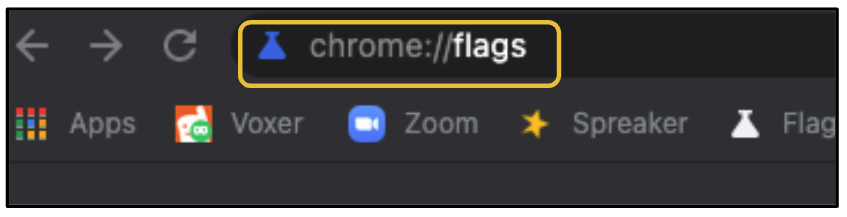
There have been quite a few exciting new updates to Google Chrome recently. One of my favorites is the ability to enable live captions. According to the folks at Chrome Unboxed, the live captions are the product of machine learning and are done on the fly, in real time. At this time, English is the only language supported. This has not been fully released yet, but full release is on the horizon. If you are updated to the most recent version of Chrome, you can get a head start by enabling it via chrome://flags.

Start by typing chrome://flags in the Omnibox and hit enter/return. 

In the search bar that appears at the top, search for Captions. In the results, click the button that says Default and switch to Enable. You'll be prompted to relaunch Chrome and when it restarts, you'll have the ability to turn on the captions in the settings with a variety of other customizable options.


Once enabled, go to your Chrome settings. On a PC or Mac, access this by clicking three dots in the top right corner of Chrome. On a Chromebook, click the bottom right corner of the screen. With the settings open, click Advanced.


After clicking Advanced, scroll down and click Accessibility.

Scroll down to the section called Captions and click it.


You will see a toggle to turn on Live Caption. Below, you'll see customizable options for the appearance of the captions.


Take a look at the video below to see what this looks like.


If you have any questions and would like a follow up, contact me via Gmail or Chat at ajuarez@techcoachjuarez.com. My book, The Complete EdTech Coach: An Organic Approach to Digital Learning, co-authored with my wife Katherine Goyette is now available on Amazon. Click here to purchase. It is published by Dave Burgess Publishing. Be sure to follow the hashtag #OrganicEdTech and #CVTechTalk for updates.


Wednesday, January 6, 2021

Translate Subtitles in Real Time with Google Meet


At the end of 2020, Google announced the ability for Google Meet to translate subtitles into languages other than English. This has huge implications for remote learning. English learners can now see the teacher's words in their home language. Parents who struggled to help their children during video calls due to lack of English skills, can now translate the subtitles and Meet options live. For teachers who cannot speak a language other than English, Meet can be used to conduct a lesson with the translated subtitles. This lesson can be recorded with Screencastify or other screencasting tools to create a video that has the subtitles in it. 

Shoutout to Eric Curts for alerting me to this update.

Get started by creating or joining a Google Meet call. Right click on the screen and click Translate to English. 


At the top, to the right of the Chrome Omnibox (address bar), a small menu will appear. This menu will show you the language currently being used. To change it, click the three dots.


Select Choose Another Language from the dropdown menu.


There will be a long list of languages from which to choose. 


Select your desired language and click Translate.


Immediately, you'll see the controls, buttons and details of Google Meet appear in that language.


Click Turn on subtitles, second button from the right at the bottom to begin translating your spoken word.


Almost instantly you'll see your words in English translated into subtitles of another language. 


If you have any questions and would like a follow up, contact me via Gmail or Hangouts at ajuarez@techcoachjuarez.com. 

My book, The Complete EdTech Coach: An Organic Approach to Digital Learning, co-authored with my wife Katherine Goyette is now available on Amazon. Click here to purchase. It is published by Dave Burgess Publishing. Be sure to follow the hashtag #OrganicEdTech and #CVTechTalk for updates.