Showing posts with label Chrome Web Store. Show all posts

Wednesday, January 31, 2024

Helperbird: A Safe Alternative to the Defunct Immersive Reader Chrome Extension


In the ever-evolving landscape of digital tools, the recent discontinuation of the Immersive Reader Chrome Extension marks a significant change, particularly for the education sector. Immersive Reader, known for enhancing the accessibility of digital content, has been a vital tool for teachers and students alike. Its features, such as read aloud, text spacing, and translation, have made it easier for learners with different needs to access information. However, with this tool no longer operational on Google Chrome, many users are left seeking alternatives.

The good news is that Microsoft's Immersive Reader continues to be available on Microsoft products, including the Edge browser. This offers a semblance of continuity for those who are able to switch platforms. But for the vast majority who are entrenched in the world of Google Chrome, this change poses a challenge.

Enter Helperbird, a Chrome Extension that emerges as a solid alternative. Helperbird not only allows users to access many of the beloved features of Microsoft's Immersive Reader but also brings its own suite of tools to the table. Its functionality is straightforward and user-friendly: simply select the text you want to read, right-click, and hover over the Helperbird option. A menu appears, offering various tools, including the option to open the content in Immersive Reader. This seamless integration ensures that the transition from the now-defunct Chrome Extension is as smooth as possible.

However, it's important to note that full access to Helperbird's features requires signing up for an account. This might be a minor inconvenience compared to the benefits it offers. For a visual guide on how to use Helperbird to access Immersive Reader, see the screenshot provided below. This visual aid can be particularly helpful for getting acquainted with the new process and exploring the available options.


For individuals concerned about data collection and usage, the privacy section on Helperbird's page in the Chrome Web Store provides clear and reassuring information. It explicitly states that Helperbird commits to never selling, storing, or misusing any user data. Additionally, the privacy policy aligns with key regulations such as COPPA and FERPA, ensuring compliance with important standards for the protection of children's online privacy and student education records. This transparency and commitment to privacy and security should offer peace of mind to users prioritizing data safety. Click here to view the developer's privacy policy.


Thursday, February 17, 2022

Fullscreen Interactive Google Slides: The Chrome Extension You've Been Waiting For!


Google Slides is such a versatile tool. The possibilities are virtually endless. One thing I know I've wanted to be able to do with Slides is to quickly and easily annotate over my slides fullscreen. In the past, we had to be in edit mode which makes the slides smaller. If you're trying to do a demonstration or guided practice with students, this can be difficult for them to see. 

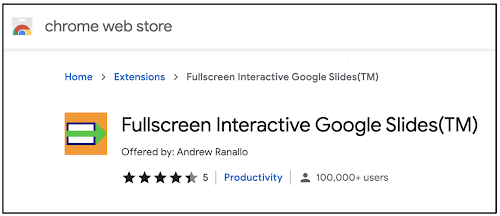
But what if you could annotate fullscreen? If you've been wondering the same thing, the answer is here in the form of the Fullscreen Interactive Google Slides Chrome extension. Click here to add to your Chrome browser. 


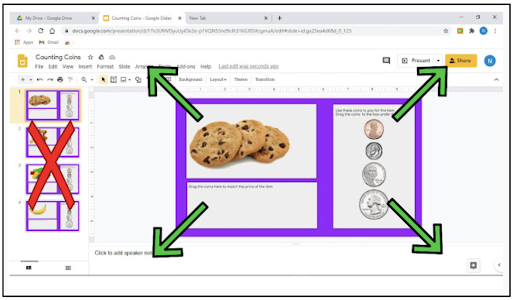
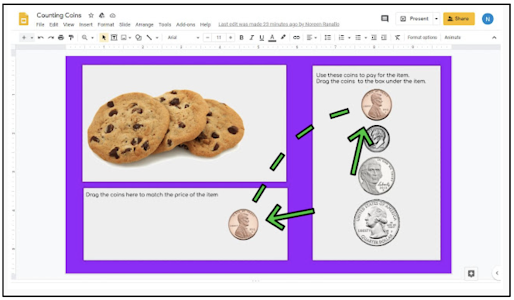
This extension, once installed, allows you to, with the click of a button, make the edit mode of your slide to go full screen. This will enlarge the viewable area all the while continuing to give you access to the toolbar to annotate and manipulate the slide. No need to click Slideshow or Present.


Below is what it looks like when using the extension. You can see the slide in a much larger, fullscreen area. All tools are at your disposal. This can be great for guided practice and helping students see the lesson better.


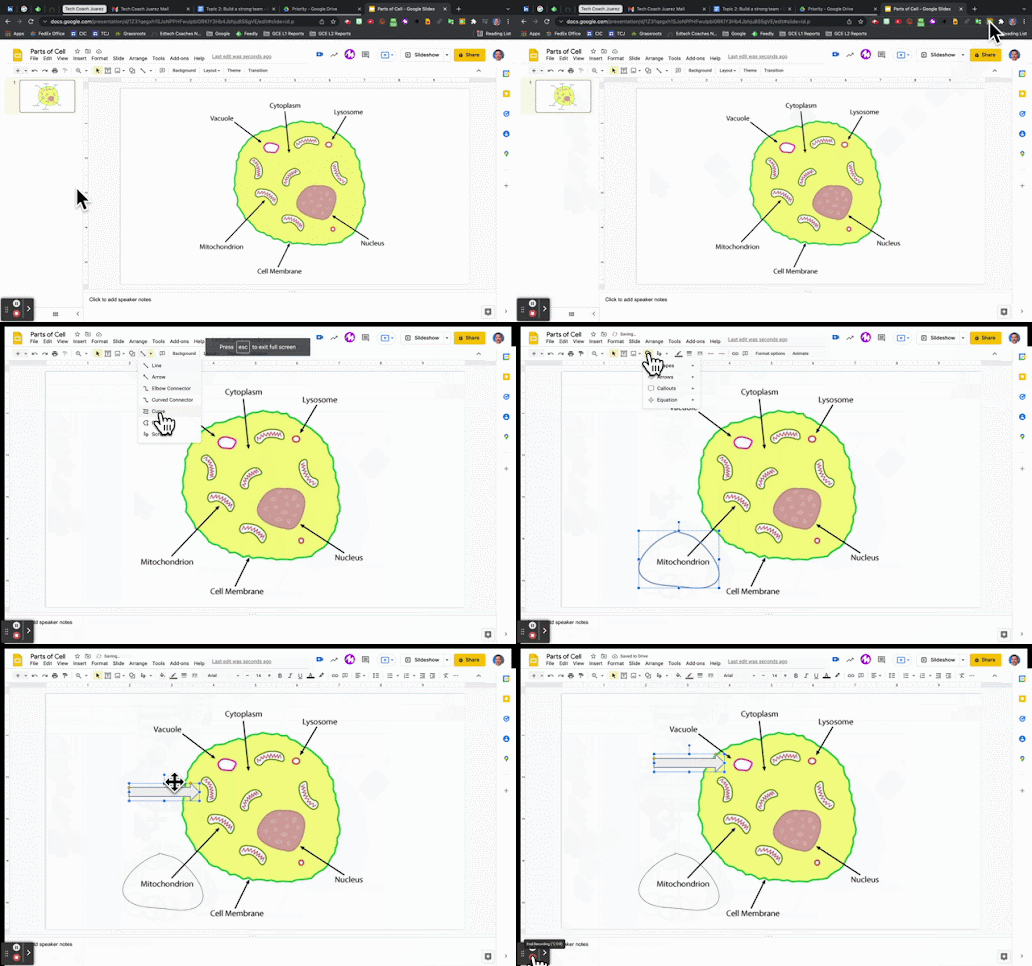
The GIF below shows the extension in action.


How might you use the Fullscreen Interactive Slides extension? If you have any questions and would like a follow up, contact me via Gmail or Chat at ajuarez@techcoachjuarez.com. 

My book, The Complete EdTech Coach: An Organic Approach to Digital Learning, co-authored with my wife Katherine Goyette is now available on Amazon. Click here to purchase. It is published by Dave Burgess Publishing. Be sure to follow the hashtag #OrganicEdTech and #CVTechTalk for updates.

Friday, November 12, 2021

Simple Tools For Communicating with Parents Who Don't Speak English


Communicating with parents about student progress has always been an important part of being a teacher. For parents who do not speak English, this can be a difficult thing with which to deal. The language barrier often makes parents shy about reaching out to their children's teachers. On the flip side, the language barrier can be a difficult thing if the teacher cannot speak the home language of the student. A common practice is to contact another staff member or office personnel who can translate to send a message. But there is something more powerful when the teacher is able to go directly to the parent. That personal touch can be just what is needed to reach the student. 

Where I work, the vast majority of my students' parents only speak Spanish. My Spanish is ok, but I don't feel comfortable having in-depth conversations or sending messages in Spanish regarding grades, behavior, etc. Take a look at some simple tools I use weekly to communicate with parents in Spanish. These tools can be used for almost any language. 

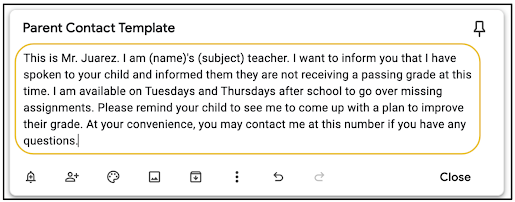
For "blanket statements" regarding failing grades, I created a template on a Google Keep note that I can reuse over and over. If you look closely, I put a place to type the student's name and enter my subject depending on which class I am teaching. This message, saved in Keep, is easily copied and pasted into any messaging app and translator.


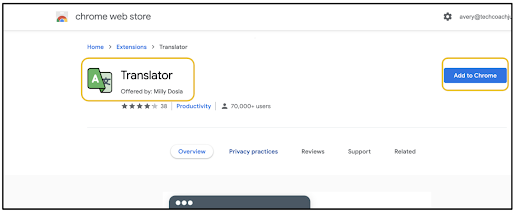
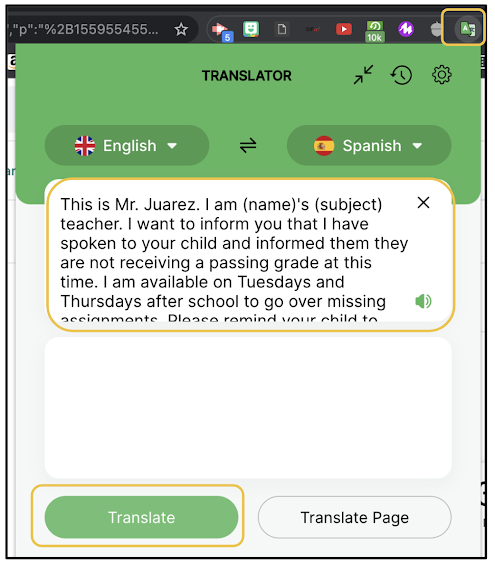
There are many translation Chrome extensions available in the Chrome Web Store. My favorite is Translator by Milly Dosia. When installed, it provides a convenient drop down in Chrome for me to copy and paste text to be translated. 


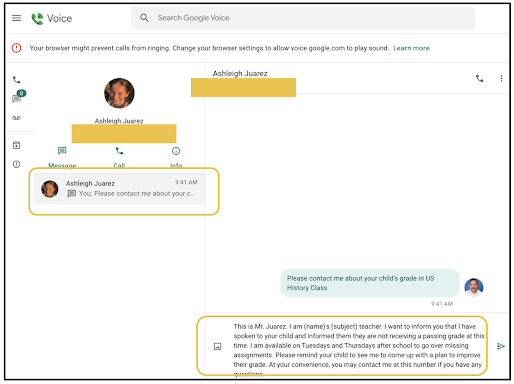
The messaging app I use is Google Voice. I have used Remind and others in the past, but I like Google Voice because it is free and I am able to get a phone number that has a local area code and prefix. Other apps use out of town area codes and prefixes and parents are less likely to respond to such numbers. I am able to use my schools SIS to access parent phone numbers. I paste those numbers into Google Voice and save the contact with the student's name. 

With the student name saved with the parent's number, I copy and paste the blanket statement from Google Keep. From there, I quickly enter the student name and subject. 


Once the message is typed in English, I copy it and click the Translator extension in Chrome. In the dropdown, I paste the English message into the first box and click Translate.


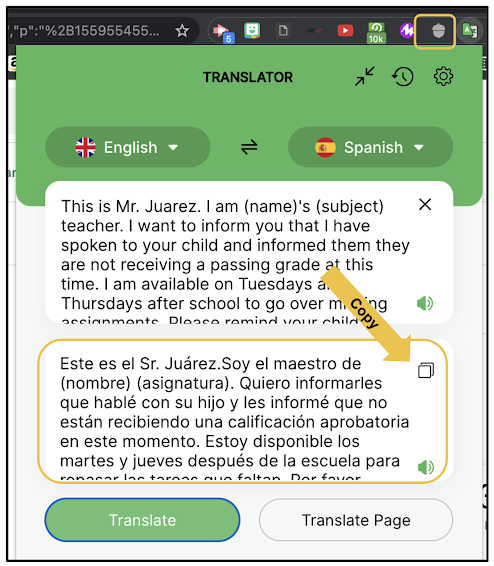
Instantly, the Spanish translation is generated. It's is generally very accurate. Click the Copy button in the box containing the Spanish translation.


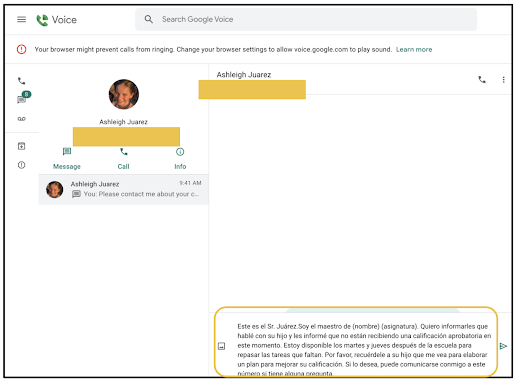
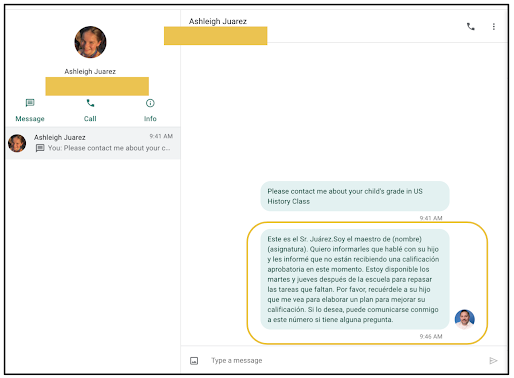
With the Spanish translation copied, go back to Voice, delete the English text and paste the Spanish text before hitting send. 


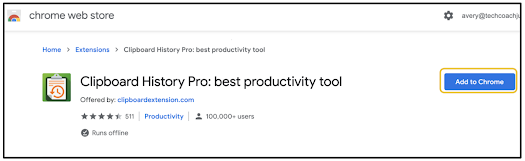
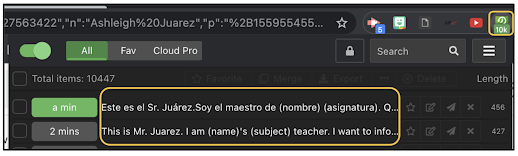
Doing this requires a bunch of copying and pasting, and to make that process even easier, I use another Chrome Extension called Clipboard History Pro. This creates a dropdown in Chrome that shows me all of the recent things I have copied and allows me to quickly re-copy them. 


When sending message to dozens of students each week, these tools expedite the process of breaking down the language barriers with parents who don't speak English. If you can copy and paste, you can break down the language barriers between you and parents. What other tools do you like to use to accomplish this?

If you have any questions and would like a follow up, contact me via Gmail or Chat at ajuarez@techcoachjuarez.com. My book, The Complete EdTech Coach: An Organic Approach to Digital Learning, co-authored with my wife Katherine Goyette is now available on Amazon. Click here to purchase. It is published by Dave Burgess Publishing. Be sure to follow the hashtag #OrganicEdTech and #CVTechTalk for updates.