Showing posts with label Translate. Show all posts

Friday, February 2, 2024

Empower English Learners and Teachers with Translation Chrome Extensions


In today's digital age, supporting English language learners (ELLs) has become increasingly innovative, thanks to simple yet effective tech tools. One of the game-changers in this field is the array of Google Chrome extensions designed to aid ELLs in navigating and comprehending the vast world of English content online. These tools are not just helpful; they can transform the way ELLs engage with language learning.

Imagine a student encountering a challenging text online. With these Chrome extensions (click here to access my favorite), they can simply highlight the text, and instantly, a small popup appears, offering the text translated into their home language. But it doesn't stop there. The popup also includes a button to have the text read aloud in their native language. This feature is incredibly empowering for English learners, allowing them to take control of their learning experience. They no longer have to rely solely on teachers or classmates to understand content, instructions, and more, fostering a sense of independence and confidence in their language acquisition journey.
Here is an example of how a student can use this tool in Google Classroom. Note the speaker button that, when clicked, will read the text aloud to them.

Here is a real photograph captured in a classroom situated in rural Tulare County, California. The student depicted speaks and reads limited English; however, they are utilizing a translation Chrome extension. This tool, approved by the school and deployed to student accounts, enables them to access instructions in Google Classroom. Similar to the example mentioned earlier, it features a speaker button that allows the text to be read aloud.


But the benefits of these Chrome extensions are not limited to students alone. Teachers, too, can leverage these tools to create a more inclusive and efficient learning environment. In California, where Spanish is the predominant second language, these extensions are invaluable. When preparing instructions, resources, or activities on platforms like Google Classroom, Quizizz, Blooket, Kahoot, Quizlet, and Gimkit, teachers can use these extensions for quick and convenient side-by-side translations of instructions, questions and answer choices.


The wisdom behind incorporating these tech tools provide side by side translation is that it allows teachers to provide all students with one version of a quiz, game, assignment, etc., keeping all responses, regardless of language, in one place. This approach not only simplifies the teacher's task, but also helps ELLs feel more included. They don't feel singled out or different because they are given the same version of activities as their peers. With just a few more clicks, coupled with some copying and pasting, teachers can make a significant difference in the inclusivity and effectiveness of their instruction.


These simple tech tools showcase the potential of technology to help bridge gaps in language learning and curriculum access. They are by no means a magic bullet or cure all for the support of English learners. By embracing such innovations, educators can enhance their support for English learners, making the learning experience more accessible, engaging, and empowering for all students while they engage in other, more in-depth and research-based instruction. 

The video below demonstrates a translation extension in real time with Quizizz and Google Classroom.


Monday, March 28, 2022

Translation in Google Docs Made Easy with Docs Paragraph Translate

Translation of text is one of the most basic ways we can begin to support English learners. When you don't speak another language, this can seem like a daunting task. Though not the most difficult thing in the world, opening Google Translate in another tab and hopping back and forth to copy and paste text is tedious and annoying. But what if you could translate targeted text from right within Google Docs? Would that be so much easier? Spoiler alert, the answer is yes and the Docs Paragraph Translate Add On in Google Docs is here to help.

Start by going to the Add-Ons tab in Google Docs, go to Get add-ons, search for Docs Paragraph Translate and install. Once installed, it'll appear in your Add-ons list as seen below.


After opening it, you can set it to Auto-detect the source language or set it exactly to the language you want. If your source language is English, Auto-detect will work fine. 


Set your target language for which you want to translate to. These settings are automatically saved so you don't have set them each time, unless your want a different language.


On your document, select the text you want to translate. With the Add-on open, click Translate.


Immediately, the translation of the selected text appears in the side panel. From there, click the part of the Doc where you'd like to put the translation.


Below, you can see the translation right beneath the text that was originally selected.


In my 17 years working with English learners, I have seen them be more successful with language development when providing side by side translation of their home language and English. This Add-on has been a life saver for quickly translating directions and other important pieces of text as I curate learning experiences for all learners. How will you use the Docs Paragraph Translate Add-on?

If you have any questions and would like a follow up, contact me via Gmail or Chat at ajuarez@techcoachjuarez.com. My book, The Complete EdTech Coach: An Organic Approach to Digital Learning, co-authored with my wife Katherine Goyette is now available on Amazon. Click here to purchase. It is published by Dave Burgess Publishing. Be sure to follow the hashtag #OrganicEdTech and #CVTechTalk for updates.


Tuesday, January 25, 2022

Support English Learners and Quickly Translate PDF Files with Google Docs

Using PDF files and trying to support English learners can be tricky. Because PDFs are meant to limit editing, translating the text to the home language of English learners is difficult. There are paid services for this or you could recruit a translator, but who wants to spend money or wait for translation? For a long time, you have been able to open PDF files as Google Docs and the text became editable. But, in the past, the converted text was often jumbled and many stylistic mistakes were made. 

Recently, this function has greatly improved to where very little of the converted text is altered. With this, you can quickly translate the document from the Google Docs Tool tab. From there, you can download a version of your document in PDF format. Follow the steps below to learn how.

Step 1: Open a PDF in Google Drive.


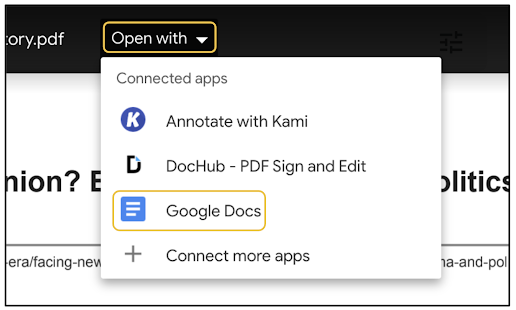
Step 2: Hover your cursor over the document. When the Open with option appears at the top middle, click it and select Google Docs.


Step 3: After the document opens in Docs, scroll through, check for any grammar or formatting errors that may have occurred during conversion and fix them. From there, click the Tools tab at the top. In the dropdown that appears, click Translate document.


Step 5: In the pop up that appears, title the new file and choose your language.


Step 6: After choosing your language, click Translate. A new file will be generated and saved in your Google Drive.


Step 7: The new file will automatically open in a new tab. It will be in the language you selected. Click the Tools tab and hover your cursor over Spelling and grammar. Click Spelling and grammar check. This will show all the mistakes lost in translation.


Step 8: In the pop up that appears, you'll see each mistake. You can ignore or accept each. Since I am not well versed in any language other than English, I generally trust Google's suggestions for spelling and grammar. Google Translate is much better than it used to be and it's a safe bet your translated version will be understandable by those who need to read it. I will say it isn't 100 percent accurate all the time, but good enough to get by until you can get someone to verify it. At the very least, you're providing access to content to those who need it.


Here is what the translated version of my original looks like.


Step 9: To get the translated version in a PDF format, click the File tab, hover your cursor over Download and select PDF. From there, a PDF file will be downloaded to your computer. From there you can upload to Drive if you want.


If you have any questions and would like a follow up, contact me via Gmail or Chat at ajuarez@techcoachjuarez.com.

My book, The Complete EdTech Coach: An Organic Approach to Digital Learning, co-authored with my wife Katherine Goyette is now available on Amazon. Click here to purchase. It is published by Dave Burgess Publishing. Be sure to follow the hashtag #OrganicEdTech and #CVTechTalk for updates.


Thursday, November 18, 2021

Instant Translation of Image Text with Yandex


Supporting the unique language needs of English learners is a common necessity amongst all educators. When you don't speak the home language of an English learner, this becomes even more difficult. Oftentimes, teachers in this situation need to find a staff member who can translate text. To help with this process, Yandex Translate can be a valuable tool. Yandex using OCR (Optical Character Recognition) technology to translate text in an image.

One of my favorite reading and text-marking strategies is Booksnaps. In a nutshell, Booksnaps happen when you curate images of text on Slides, PowerPoint or Seesaw and provide students with opportunities to digital mark the text, answer questions and focus their reading to look for themes and more. 

Getting images of text in English is no problem, but translating to another language is another issue. Yandex allows you to upload your English language images of text and it quickly reproduces the same text in almost any language. The translated image of text is downloaded and imported to any activity you are trying to create.

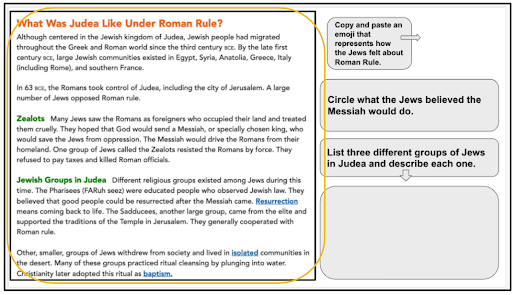
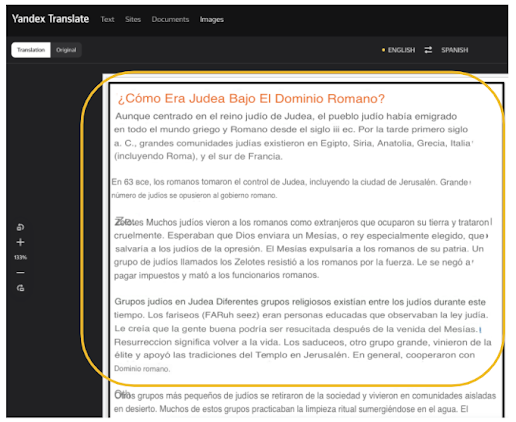
Below is an example of how I use Yandex to create a Spanish translation of Booksnaps. Circled below is an image of text. This image was imported to a slide from my computer. Because it's saved on my computer, I can import it into Yandex.


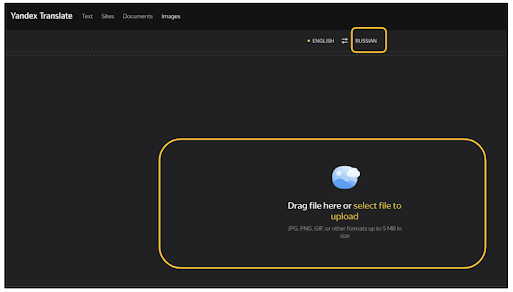
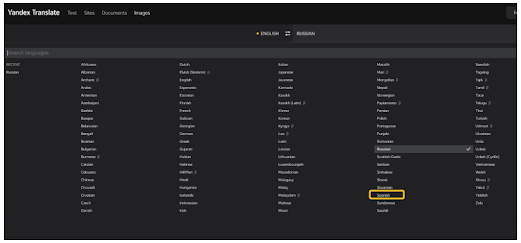
Start by going to translate.yandex.com/ocr. Click the target language button to choose your language and then select file to upload.


Within seconds, you will see your English language text image translated to the language of your choice.


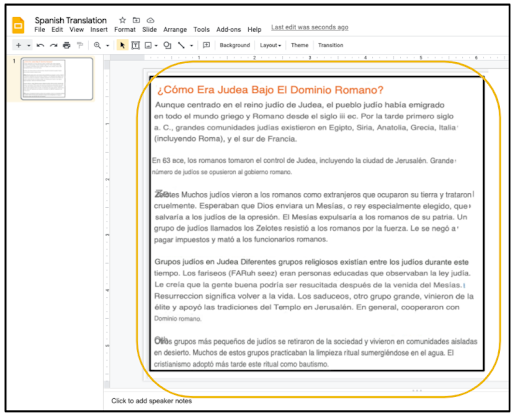
The translated image can then be imported to a non-English language version of your slides.


Take a look below at a short demonstration of how Yandex Translate works.


If you have any questions and would like a follow up, contact me via Gmail or Chat at ajuarez@techcoachjuarez.com. My book, The Complete EdTech Coach: An Organic Approach to Digital Learning, co-authored with my wife Katherine Goyette is now available on Amazon. Click here to purchase. It is published by Dave Burgess Publishing. Be sure to follow the hashtag #OrganicEdTech and #CVTechTalk for updates.


Friday, November 12, 2021

Simple Tools For Communicating with Parents Who Don't Speak English


Communicating with parents about student progress has always been an important part of being a teacher. For parents who do not speak English, this can be a difficult thing with which to deal. The language barrier often makes parents shy about reaching out to their children's teachers. On the flip side, the language barrier can be a difficult thing if the teacher cannot speak the home language of the student. A common practice is to contact another staff member or office personnel who can translate to send a message. But there is something more powerful when the teacher is able to go directly to the parent. That personal touch can be just what is needed to reach the student. 

Where I work, the vast majority of my students' parents only speak Spanish. My Spanish is ok, but I don't feel comfortable having in-depth conversations or sending messages in Spanish regarding grades, behavior, etc. Take a look at some simple tools I use weekly to communicate with parents in Spanish. These tools can be used for almost any language. 

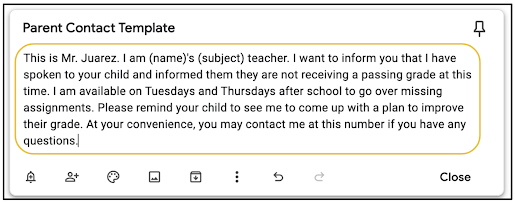
For "blanket statements" regarding failing grades, I created a template on a Google Keep note that I can reuse over and over. If you look closely, I put a place to type the student's name and enter my subject depending on which class I am teaching. This message, saved in Keep, is easily copied and pasted into any messaging app and translator.


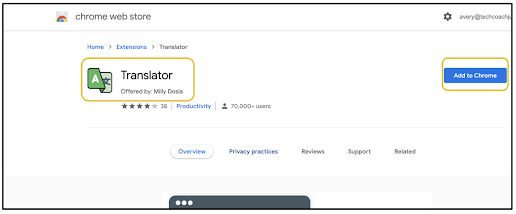
There are many translation Chrome extensions available in the Chrome Web Store. My favorite is Translator by Milly Dosia. When installed, it provides a convenient drop down in Chrome for me to copy and paste text to be translated. 


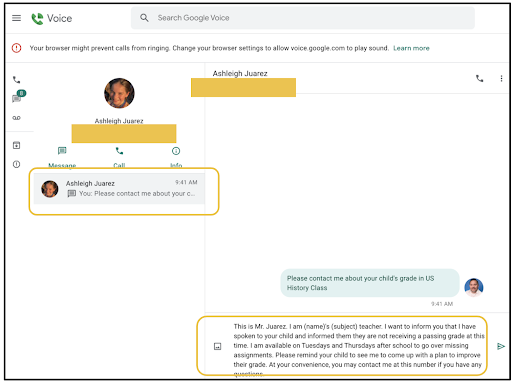
The messaging app I use is Google Voice. I have used Remind and others in the past, but I like Google Voice because it is free and I am able to get a phone number that has a local area code and prefix. Other apps use out of town area codes and prefixes and parents are less likely to respond to such numbers. I am able to use my schools SIS to access parent phone numbers. I paste those numbers into Google Voice and save the contact with the student's name. 

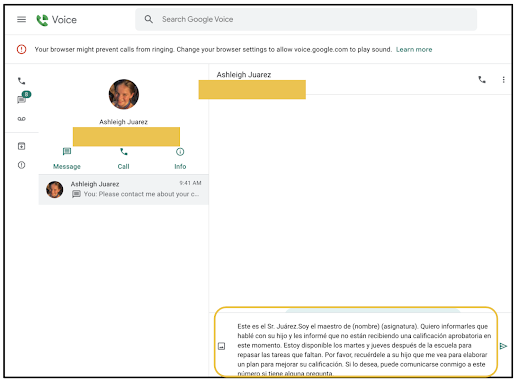
With the student name saved with the parent's number, I copy and paste the blanket statement from Google Keep. From there, I quickly enter the student name and subject. 


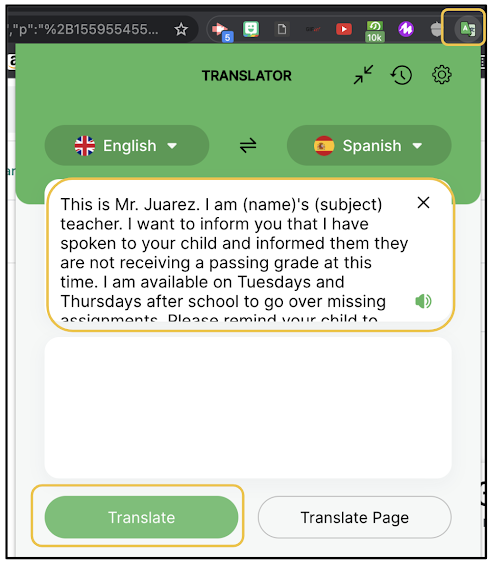
Once the message is typed in English, I copy it and click the Translator extension in Chrome. In the dropdown, I paste the English message into the first box and click Translate.


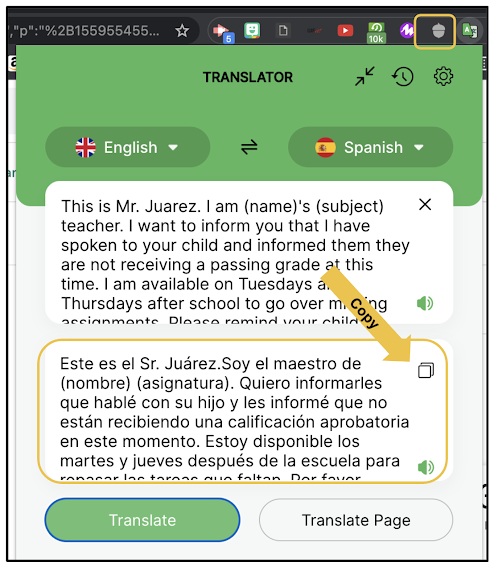
Instantly, the Spanish translation is generated. It's is generally very accurate. Click the Copy button in the box containing the Spanish translation.


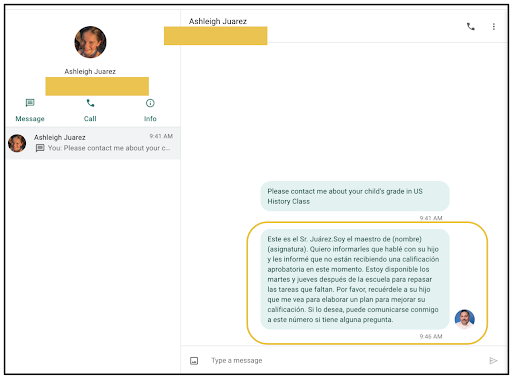
With the Spanish translation copied, go back to Voice, delete the English text and paste the Spanish text before hitting send. 


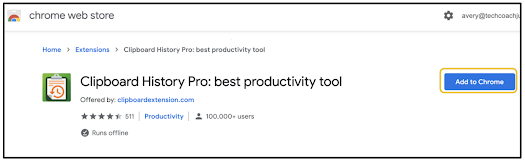
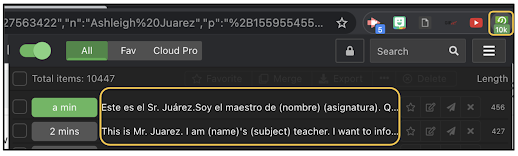
Doing this requires a bunch of copying and pasting, and to make that process even easier, I use another Chrome Extension called Clipboard History Pro. This creates a dropdown in Chrome that shows me all of the recent things I have copied and allows me to quickly re-copy them. 


When sending message to dozens of students each week, these tools expedite the process of breaking down the language barriers with parents who don't speak English. If you can copy and paste, you can break down the language barriers between you and parents. What other tools do you like to use to accomplish this?

If you have any questions and would like a follow up, contact me via Gmail or Chat at ajuarez@techcoachjuarez.com. My book, The Complete EdTech Coach: An Organic Approach to Digital Learning, co-authored with my wife Katherine Goyette is now available on Amazon. Click here to purchase. It is published by Dave Burgess Publishing. Be sure to follow the hashtag #OrganicEdTech and #CVTechTalk for updates.


Tuesday, September 14, 2021

Better Support English Learners: Two Easier Ways To Translate Text in Google Docs

Translating text to help English learners better access content can be a struggle if you don't speak the other language or have to deal with a clunky translation workflow. I speak a bit of Spanish, but I'm not that good where I can quickly translate text I type in Google Docs. I don't like having to tab hop constantly to copy and paste translated text from Google Docs. It's not difficult, but it is annoying.

Check my two favorite ways to translate entire documents or pieces of text within Google Docs WITHOUT having to tab hop, copy and paste.


Did you know there is a translator built right into Google Docs? It's hiding in plain sight within the Tools tab. The Translate document option will create a separate copy of your document in your selected language. This makes it super easy to create separate, non-English versions of Google Docs for English learners. 


When using this feature, the pop up you see below will appear. Click the button you see circled to choose the language from a long list of languages. When you click the Translate button, a new Google Doc will appear in a new tab with all the text translated.


Your new Google Doc will say it's been translated in the the title. This title can be renamed.


To help with English learners' development with the English language, it's a great strategy for them to see text in their own language, side by side, with the same text in English. They can begin to see patterns and make connections between the two languages. If you don't want to create a completely separate version in a different language, the tip demonstrated below is for you.

Start by going to Add-ons in the Google Docs toolbar. In the dropdown menu, click Get add-ons.


A Google Workspace Marketplace window will pop up. In the search bar, type translate. The first search result is Docs Paragraph Translate. Click that one.


Click the Install button to add it to your list of Add-ons.


In the sample below, I created a T-Chart with English text in one column and Spanish in the other column. I selected the English language text and then opened the Docs Paragraph Translate Add-on. The Add-on opens as a menu on the right side of the screen. Since I selected the English language text, all I had to do is click the blue Translate button. Immediately, the Spanish translation appeared in the box below. From there, I clicked on the document (Spanish column) where I wanted the translated text to appear and then clicked the Insert into Doc button.


Immediately, the Spanish translation was inserted into the place on the Doc where I wanted it.


Whether you want an entire separate, translated version or to translate certain parts of a Google Doc, you don't need to constantly tab hopping to Google Translate and copying/pasting. You can accomplish your translation with fewer clicks and all within the same tab. How will you use these tips to make Google Docs content more accessible for English learners?

If you have any questions and would like a follow up, contact me via Gmail or Chat at ajuarez@techcoachjuarez.com. My book, The Complete EdTech Coach: An Organic Approach to Digital Learning, co-authored with my wife Katherine Goyette is now available on Amazon. Click here to purchase. It is published by Dave Burgess Publishing. Be sure to follow the hashtag #OrganicEdTech and #CVTechTalk for updates.


Saturday, September 11, 2021

Help English Learners with Translator Chrome Extension for FASTER Translation

Vocabulary is very important for all learners, English learners in particular. Translating vocabulary, instructions, etc. isn't difficult thanks to the magic of free online translators such as Google Translate. The issue with translation it can be cumbersome. I could create separate versions of Quizlet study sets, Quizizz quizzes, instructions, etc. in another language, but that is time consuming. 

To help with their development with the English language, I like to have definitions, instructions, etc. translated into home languages side by side. I want them to see it both languages at the same time. To accomplish this, in the past, I kept Google Translate open in a separate tab. Tab switching isn't hard, but it's annoying. I have also used the Google Translate Chrome Extension which allowed me to select text, right click and select Google Translate, but it opens Google Translate in a new tab. 

To streamline my workflow, I looked for an alternate to the Google Translate Chrome Extension and I found the Translator Extension. Click here to add it to Chrome. With this, when highlight the text I want to translate, an icon appears. I click it and a pop-up appears where I can immediately see my text translated. I click the copy button and add to my document. This allows me to stay in the same tab the entire time.


The example below is how I use it when I translate Quizlet definitions into Spanish, side by side with English. 


I start by adding the English definition. Next, I select the text and click the Translator icon that appears next to my text.


A pop up appears showing my text translated into Spanish. There is a copy button in the top left of the pop up.


With my copied Spanish text, I paste next to the English text.


Not having to switch tabs makes translating much easier and less cumbersome. What are you looking to translate for English learners? If you have any questions and would like a follow up, contact me via Gmail or Chat at ajuarez@techcoachjuarez.com. 

My book, The Complete EdTech Coach: An Organic Approach to Digital Learning, co-authored with my wife Katherine Goyette is now available on Amazon. Click here to purchase. It is published by Dave Burgess Publishing. Be sure to follow the hashtag #OrganicEdTech and #CVTechTalk for updates.