Showing posts with label Google Keep. Show all posts

Wednesday, March 9, 2022

Jumpstart the Writing Process with Google Keep and Google Docs


In 17 years as an educator, a frequent pain point I have seen teachers deal with is frustration with students struggling to manage notes and sources when working on a research project. These are essential skills that successful adults possess. Please share these tips with your students to help them better manage their notes, sources and writing process.

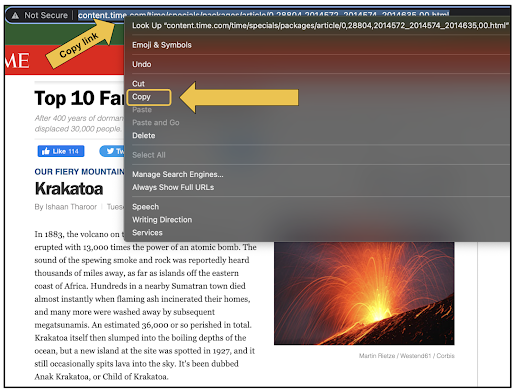
In the example shown below, a student is working on a research paper on volcanoes. All of the research is being done online. While the student searches for sources, they are copying the links of the websites they plan use and cite.


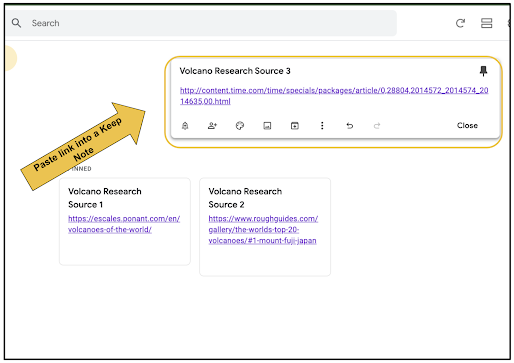
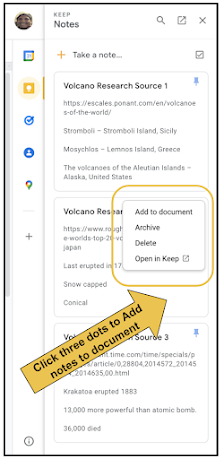
To make the sources easy to find and use during the writing process, this student puts each source as its own note in Google Keep. Notice how this student is mindful to properly name each source for easy, future reference.


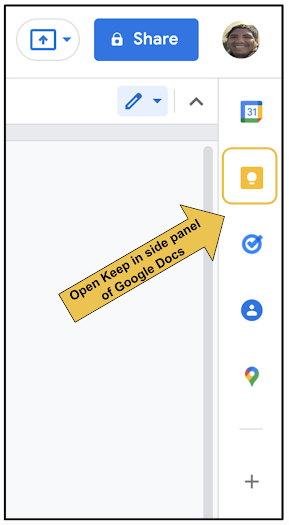
When the student is ready to start writing in Google Docs, they open the Google Keep button on the right side panel.


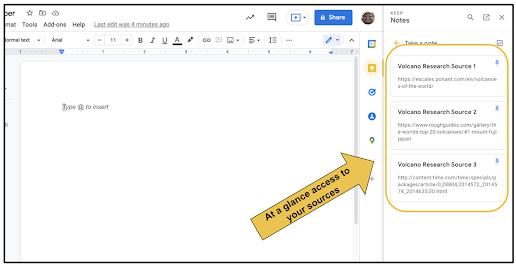
Immediately, their Keep Notes are available. The student has bullets and information in addition to the link to source on each note. This makes it easy to copy and paste information into the Doc to help jumpstart the writing process. This is great if they're using direct quotes.


If they click the three dots on any note, the entire contents of the note can be immediately imported to the Doc.


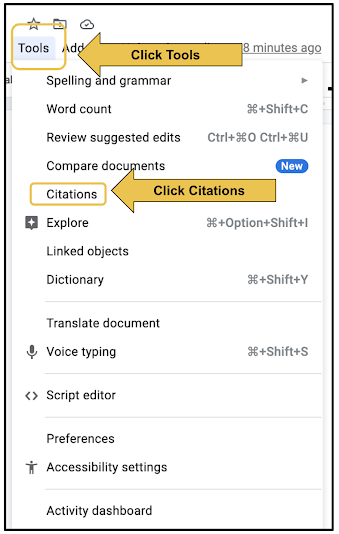
When they are ready to add citations, students can use the built-in Citations tool in the Tools menu within Google Docs.


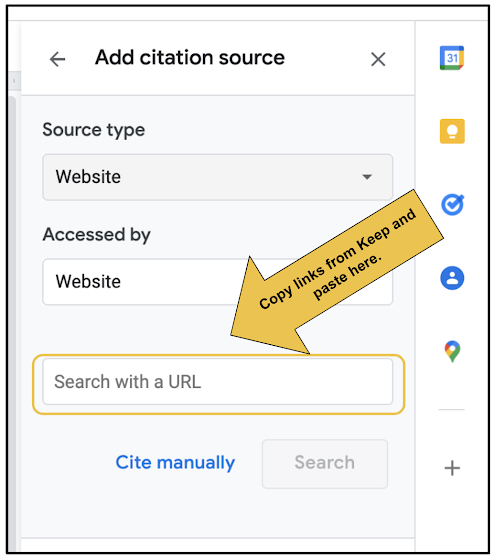
This allows students to easily cite any source, whether a website, blog, book, magazine, etc. With the links saved in Keep, it is quick and easy to copy and paste those links into the Citation tool for instant citation of a source.


Google Keep and Google Docs work very well together when it comes to enhancing the writing and research process. Keep also integrates similarly with Google Slides. This can be useful when creating presentations. How might you use Keep and Docs with your students?

Share the video below with students to show them how to do all the things mentioned in this blog post.


If you have any questions and would like a follow up, contact me via Gmail or Chat at ajuarez@techcoachjuarez.com. My book, The Complete EdTech Coach: An Organic Approach to Digital Learning, co-authored with my wife Katherine Goyette is now available on Amazon. Click here to purchase. It is published by Dave Burgess Publishing. Be sure to follow the hashtag #OrganicEdTech and #CVTechTalk for updates.

Thursday, January 20, 2022

Prep for Google Certified Educator Level 2 Exam: Google Keep

The Google Certified Educator Level 2 Exam has gone through some changes recently. In the past, it was 20 questions multiple choice and 11 performance tasks. The current iteration is 35 multiple choice questions based off of scenarios. Questions will ask you to choose between 1-5 correct answers. These questions require you to be familiar with the features and functionality of each Google Workspace for Education App. 

For Keep, you need to be familiar with the following features and functionality.
- Know how to archive a note and what it means to archive a note
- Be familiar with the process of adding a note to a label, color coding and pinning
- Know how to set both time-based and location-based reminders
- Know how to do a drawing note and how to add an image to a note

Click here to go through some Keep Practice Scenarios on Quizizz Lessons. These scenarios are NOT the same as the test, but similar. If you understand the skills demonstrated in the videos and can answer my checking for understanding questions, you will be prepared for the Keep portions of the Level 2 Exam.

If you have any questions and would like a follow up, contact me via Gmail or Chat at ajuarez@techcoachjuarez.com. 

Thursday, December 16, 2021

Prep for Google Certified Educator Level 1 Exam: Search & Keep


The Google Certified Educator Level 1 Exam has gone through some changes recently. In the past, it was 20 questions multiple choice and 11 performance tasks. The current iteration is 35 multiple choice questions based off of scenarios. Questions will ask you to choose between 1-5 correct answers. These questions require you to be familiar with the features and functionality of each Google Workspace for Education App. 

For Google Search and Google Keep, you need to be familiar with the following features and functionality.

- Search is integrated in Docs, Slides, etc. via the Explore tool
- Keep notes can be accessed on side panel in variety of Google Workspace apps 

Click here to go through some Google Search and Google Keep Practice Scenarios on Quizizz Lessons. These scenarios are NOT the same as the test, but similar. If you understand the skills demonstrated in the videos and can answer my checking for understanding questions, you will be prepared for the Google Search and Google Keep portions of the Level 1 Exam.

If you have any questions and would like a follow up, contact me via Gmail or Chat at ajuarez@techcoachjuarez.com. 

My book, The Complete EdTech Coach: An Organic Approach to Digital Learning, co-authored with my wife Katherine Goyette is now available on Amazon. Click here to purchase. It is published by Dave Burgess Publishing. Be sure to follow the hashtag #OrganicEdTech and #CVTechTalk for updates.
Friday, November 12, 2021

Simple Tools For Communicating with Parents Who Don't Speak English


Communicating with parents about student progress has always been an important part of being a teacher. For parents who do not speak English, this can be a difficult thing with which to deal. The language barrier often makes parents shy about reaching out to their children's teachers. On the flip side, the language barrier can be a difficult thing if the teacher cannot speak the home language of the student. A common practice is to contact another staff member or office personnel who can translate to send a message. But there is something more powerful when the teacher is able to go directly to the parent. That personal touch can be just what is needed to reach the student. 

Where I work, the vast majority of my students' parents only speak Spanish. My Spanish is ok, but I don't feel comfortable having in-depth conversations or sending messages in Spanish regarding grades, behavior, etc. Take a look at some simple tools I use weekly to communicate with parents in Spanish. These tools can be used for almost any language. 

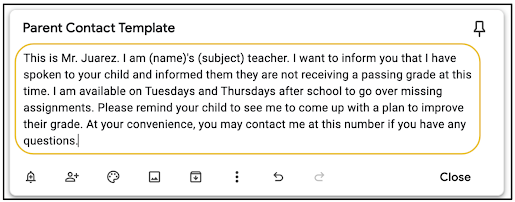
For "blanket statements" regarding failing grades, I created a template on a Google Keep note that I can reuse over and over. If you look closely, I put a place to type the student's name and enter my subject depending on which class I am teaching. This message, saved in Keep, is easily copied and pasted into any messaging app and translator.


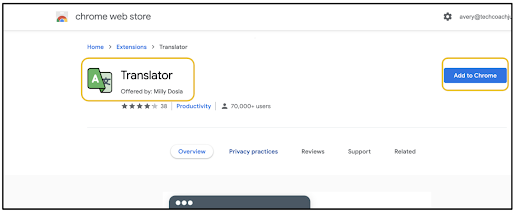
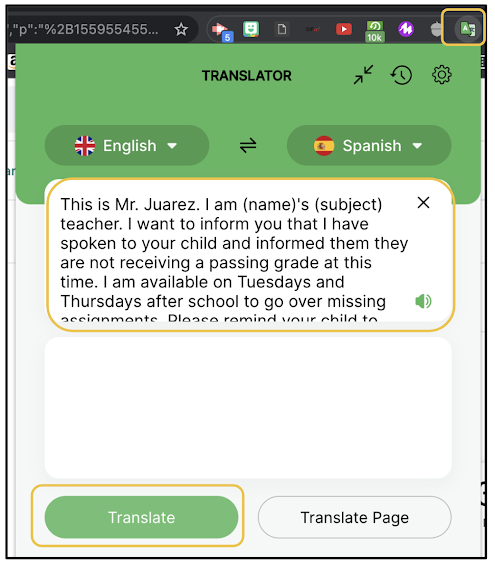
There are many translation Chrome extensions available in the Chrome Web Store. My favorite is Translator by Milly Dosia. When installed, it provides a convenient drop down in Chrome for me to copy and paste text to be translated. 


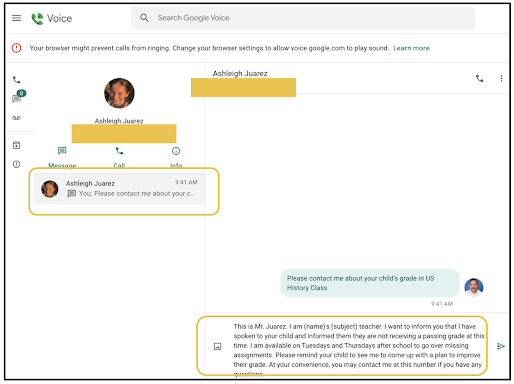
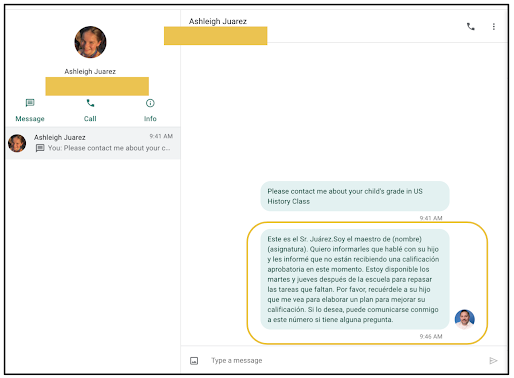
The messaging app I use is Google Voice. I have used Remind and others in the past, but I like Google Voice because it is free and I am able to get a phone number that has a local area code and prefix. Other apps use out of town area codes and prefixes and parents are less likely to respond to such numbers. I am able to use my schools SIS to access parent phone numbers. I paste those numbers into Google Voice and save the contact with the student's name. 

With the student name saved with the parent's number, I copy and paste the blanket statement from Google Keep. From there, I quickly enter the student name and subject. 


Once the message is typed in English, I copy it and click the Translator extension in Chrome. In the dropdown, I paste the English message into the first box and click Translate.


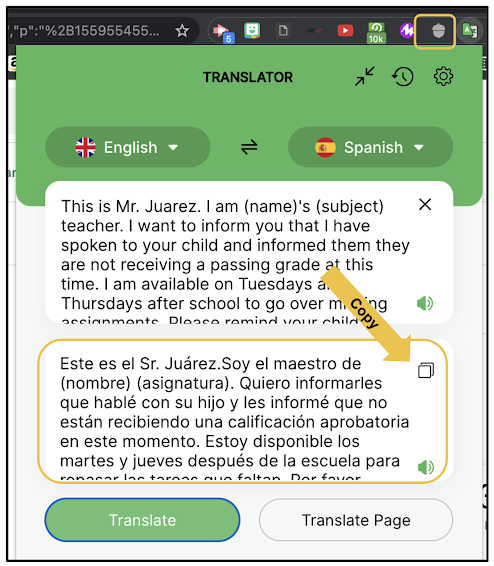
Instantly, the Spanish translation is generated. It's is generally very accurate. Click the Copy button in the box containing the Spanish translation.


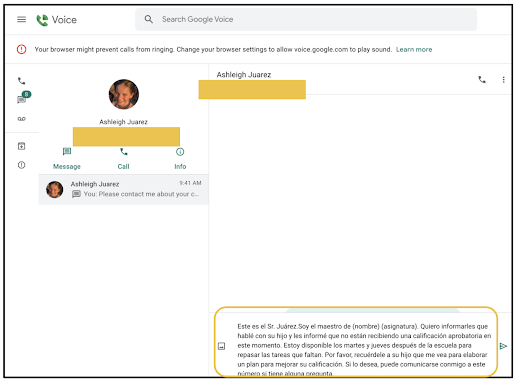
With the Spanish translation copied, go back to Voice, delete the English text and paste the Spanish text before hitting send. 


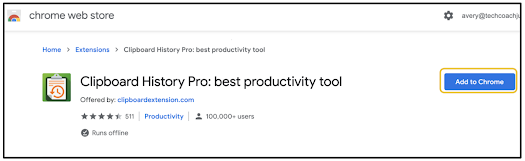
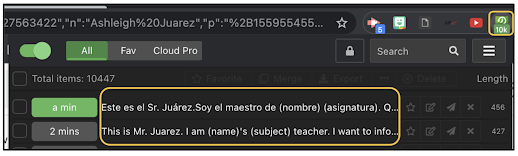
Doing this requires a bunch of copying and pasting, and to make that process even easier, I use another Chrome Extension called Clipboard History Pro. This creates a dropdown in Chrome that shows me all of the recent things I have copied and allows me to quickly re-copy them. 


When sending message to dozens of students each week, these tools expedite the process of breaking down the language barriers with parents who don't speak English. If you can copy and paste, you can break down the language barriers between you and parents. What other tools do you like to use to accomplish this?

If you have any questions and would like a follow up, contact me via Gmail or Chat at ajuarez@techcoachjuarez.com. My book, The Complete EdTech Coach: An Organic Approach to Digital Learning, co-authored with my wife Katherine Goyette is now available on Amazon. Click here to purchase. It is published by Dave Burgess Publishing. Be sure to follow the hashtag #OrganicEdTech and #CVTechTalk for updates.


Wednesday, February 3, 2021

Gmail: A One Stop Shop for Educators


Over the years, Gmail has evolved into quite a productivity suite. It is a one-stop shop for many tasks educators do daily. It is a hub for communication, a platform for collaboration, and a tool for organization. Without having to leave the Gmail tab, you can access not just your emails, but your Chat conversations, Google Chat Rooms, schedule and join Google Meet video calls, see your Google Calendar, access Google Keep notes, use Google Tasks and view your Google Contacts information. 

Below, on the left side of Gmail, you have access to your Email, Google Chat, Google Chat Rooms, and Google Meet video calls. 


Chat, in my experience, is often an underutilized tool. In a nutshell, it's free text messaging within Gmail. You may be thinking that why would I need this when I can text on my phone. Within your school's domain, you can send a Chat message to anyone in your organization by simply knowing their name. There is no need to have everyone's phone number or switch back and forth between your computer and phone. 

Each day, we get many emails. Many of these emails are quick, informal messages asking a quick question that are better off as a text message. Instead of cluttering your inbox with informal text messages, let those messages be handled by Chat. This will free up your Gmail inbox for formal communication from colleagues and admin. Using chat for informal communication will make it less likely that you will miss an important email. 

As you use Chat more, below your Gmail Inbox and Labels, you'll see a list of your most recent Chat conversations, the most recent being at the top. When you click on one, it will pop up at the bottom of your screen for you to type back and forth. 


Google Chat Rooms is a relatively new feature added to Gmail. Click here to read a more in-depth blog post about Chat Rooms. The integration of Rooms makes Gmail a powerful collaboration tool. Rooms is more than an offshoot of Chat. Collaborators invited to a Room, from within Gmail, can participate in threaded discussions, share files instantly (no having to go to Drive and share) and assign tasks to project team members.

Below is the threaded conversation feature of Rooms. You know you are seeing the threaded conversation because, at the top, you will see Chat underlined. As of now, there is no ability to title each thread. Until then, the first post of a thread should be the title. In the example below, the thread is titled "Kaplinsky Mini Courses".


If you were to continue scrolling in the Room from the example above, below, you would come across the next thread, titled "Spring CUE 2021".


When files such as Google Docs are shared within a thread, all members of the Room can access the Doc right within Gmail. If edit access is shared, it can be edited here too. You can see a Google Docs toolbar across the top. This can eliminate the need to open the Doc in another Chrome tab.


In each Room, you can see a tab for Files. Click it and you will see a list of each file posted in the various threads within the Room. It shows you who posted it and gives you options for adding it to Drive or organizing within Drive. 


Each Room also has a Tasks tab. This allows you to assign tasks to members of the Room. When assigned, these Tasks will appear in Google Tasks on that person's side 
panel. 


Google Meet is another tool that is fully accessible within Gmail. No need to go to the Meet website or Google Calendar to start a video call. Simply click New meeting to start one from scratch or click My meetings to see meetings you've scheduled or been invited to.


If you click New meeting, what you see below will appear. This gives you options to invite guests and join the meeting now.


If you click My meetings, in Gmail, you'll see a list of your scheduled meetings or meetings in which you've been invited. Click on a Meeting to see details on the right. 


In Gmail, the side panel, seen on the right side of the screen, gives you quick access to Google Calendar, Google Keep, Google Tasks and Google Contacts. In addition, click the plus button at the bottom to access a "store" for third party apps that will appear in the side panel for easy access.


Google Calendar in the side panel gives you an at-a-glance view of Calendar without opening it in a separate tab. Clicking in here can give you options to start an event or edit events.


Google Keep in the side panel is great for productivity. Notes you've taken and saved can easily be inserted into emails and Chat conversations. I use this daily when adding details to this blog before sending to my mailing list.


Google Tasks in the side panel is probably my favorite feature. At a glance, I can see my repeating tasks and "to-do's". It's a great feeling to see this list shrink throughout the day. It shows productivity. I can easily add action item emails to Tasks so I don't forget to do them throughout the day. 


The newest feature of the side panel is Google Contacts. If you click on an email, then click the Contacts button in the side panel, it will show detailed information about the sender and others included in the email. This makes it easy to save and update contact information.


In a nutshell, Gmail has become a one-stop shop for productivity, efficiency and workflow. You don't need to have multiple tabs open when multitasking. Much of what you need is right there for you in one Chrome tab. What are your favorite aspects of Gmail?

If you have any questions and would like a follow up, contact me via Gmail or Chat at ajuarez@techcoachjuarez.com. 

My book, The Complete EdTech Coach: An Organic Approach to Digital Learning, co-authored with my wife Katherine Goyette is now available on Amazon. Click here to purchase. It is published by Dave Burgess Publishing. Be sure to follow the hashtag #OrganicEdTech and #CVTechTalk for updates.


Thursday, December 3, 2020

3 "Slept On" Aspects of Google Workspace

In the hip hop music genre, the term "slept on" refers to artists, albums or songs that are very good, but have been ignored or overlooked. In Google Workspace, formerly GSuite, there are many small features and apps that are often overlooked. Three slept on aspects of Workspace that can be time savers and improve efficiency are attaching documents to Google Calendar events, creating new Calendars, and using the side panel in Gmail.

Don't schedule a meeting in Google Calendar and separately share a meeting agenda (Google Docs). Kill two birds with one stone by attaching the agenda to the Calendar event. Start by clicking the Attachment button on a Calendar event.


Choose your Agenda file from Google Drive.


When you Save the Calendar event, you will invite attendees via email. When doing so, you'll be prompted to set up the viewing permissions for attendees. Doing this will prevent you having to go back later and share the file with attendees. Attendees will be able to access the file right from their Google Calendar.

When scheduling meetings in Google Calendar, don't invite attendees to individual events, create a new calendar and invite attendees to access the new calendar. When you create the events, add them to the new calendar. This way, attendees only need to accept access to the calendar one time and they will have access to all events placed on it. This eliminates the need for attendees to deal with multiple emails for accepting individual event invites. 

This is useful if you are department or grade level lead, an administrator scheduling staff meetings and or teachers scheduling club or sports team meetings. Start by clicking the "plus" button next to Other Calendars.


In the drop down menu that appears, click Create new calendar.


Title your Calendar then click Create calendar. You'll see a status bar at the bottom while it is being created. When it's finished, it will say successfully created. Click the Configure button to invite people to access it.


When scheduling meetings, just below the Add notification button, you will see your default Calendar. By default, all Calendar events you create are put there. Your default Calendar is your name. To add the event to another Calendar, click your name and choose another Calendar from the menu that appears.


We spend much of our screen time in Gmail. Gmail has evolved into a one-stop shop. Most of Google's services, and the apps you need, are accessible right within Gmail. You can use them without having to tab hop in Chrome. A commonly slept on aspect of Gmail is the side panel. On the right side of Gmail, you will see a side panel that gives you at a glance access to Google Calendar, Google Keep, Google Tasks and other add ons. 


Instead of tab hopping to see your Google Calendar, click the Calendar button on the side panel. When you click on an event, you are able to edit events and add other information.


Use the side panel to access your Google Keep Notes. You are able to create new notes and edit already made notes.


Google Tasks exists entirely within the side panel. Use Tasks to track "to do list" things and action items from email messages. Each task can be have a time based reminder set. Reminders can be recurring as well.

Below the apps above, if you click the "plus" button, you will access a marketplace to add other apps that can be accessible in the side panel. 


If you have any questions and would like a follow up, contact me via Gmail or Chat at ajuarez@techcoachjuarez.com.

My book, The Complete EdTech Coach: An Organic Approach to Digital Learning, co-authored with my wife Katherine Goyette is now available on Amazon. Click here to purchase. It is published by Dave Burgess Publishing. Be sure to follow the hashtag #OrganicEdTech and #CVTechTalk for updates.