Showing posts with label Google Calendar. Show all posts

Tuesday, March 8, 2022

Time Management Tools for Students in Google Workspace: Google Calendar (Share with your students)


In 17 years as an educator, one of the biggest pain points I have seen teachers deal with is frustration with students not keeping track of assignments, due dates and time management. These are essential skills that successful adults possess. Please share these tips with your students to help them better manage their time.

Schools often provide students with a paper planner. We all know kids don't use this as much as we would like. A habit I try to instill in students is to write due dates and reminders in the planner, and then add them to Google Calendar. The repetition helps them better remember and it shows them the value of paper and digital time management tools.

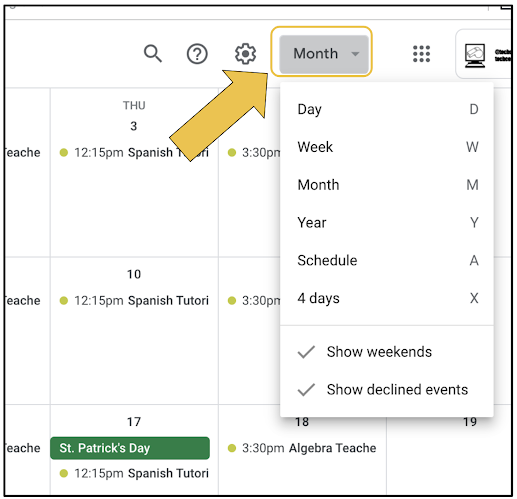
One of my favorite Google Calendar tips, for adults and students, is to use the Schedule View. This allows you to see your day (and a few days after) at a glance. It makes it easier to focus on the immediate future. Teach you students to change the view to schedule by clicking the Calendar View button just to the right of the "waffle". By default, it is set to Month View. This could be a useful habit in a homeroom or advisory class.


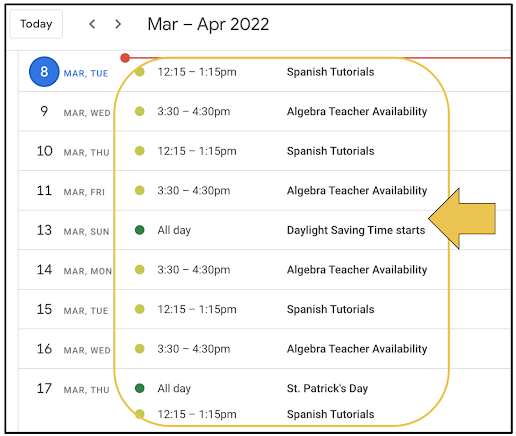
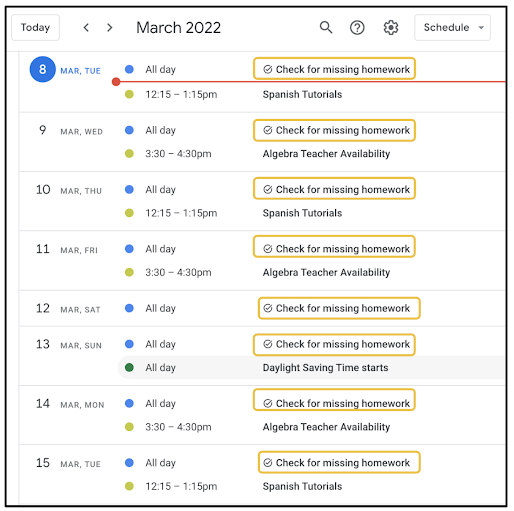
Below is what the Schedule View looks like. It will show you your current day's appointments, tasks, etc. vertically in chronological order.


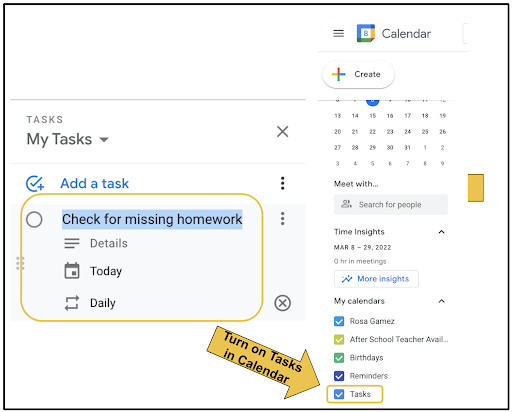
Last week, I wrote a similar blog post about how students can use Google Tasks to keep track of assignments and better manage time. Google Calendar allows you to show your Google Tasks in your calendar. This way you have a one stop shop for tasks and events. Any task you set in Google Tasks can be shown in Google Calendar by clicking the checkbox next to Tasks on the right side of Calendar in the section labeled My calendars. 


Below is what it looks like using the Schedule View with Tasks enabled in Google Calendar. Your Tasks will have a little circle with checkmark icon to the left of them. You can click on them in Google Calendar to view any notes attached to a Task and cross them off without having to switch over to Tasks in the right side toolbar.


Over the years, I have seen students struggle with managing school work with extra curricular activities. Often times, clubs and sports teams will print a schedule for students. More often than not, this printed schedule gets lost or left in a place where they forget to check. One thing they almost never forget to check is their cellphone. 

Teach your students to create extra curricular activity calendars in Google Calendar. If they sync their Google Calendar to the calendar app on their cellphones, reminders and schedules are just a pop up notification away. 

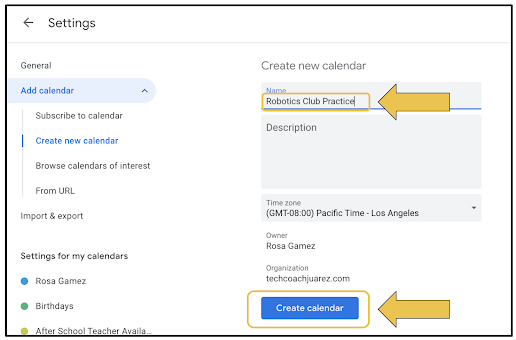
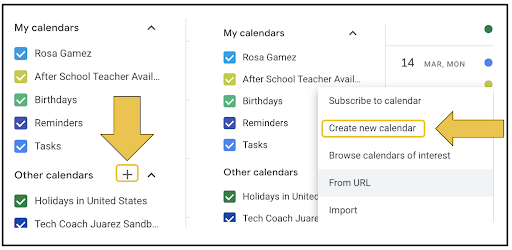
Have them start by clicking the little plus button on the left side of Google Calendar in the section labeled Other calendars. In the menu that appears, have them click Create new calendar. 


They will be prompted to name their new calendar, then click Create calendar.


When they return to the main Google Calendar screen, their extra curricular calendar will appear in the section on the left labeled My calendars. They will need to check mark it to make it visible. 

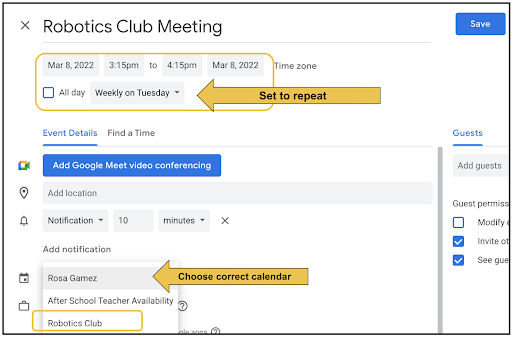
Below is an example of how students can begin creating events on their extra curricular calendars. They start by clicking the big Create button on the top left of Google Calendar. When the event details window pops up, have them click More options to go full screen and see all options. Have them set the date and time of their first event. It is a repeating weekly event, have them set it to repeat. 

Be sure to show them how to set the event to correct calendar. By default, events will appear on the calendar titled as their name. Have them click their name (seen below) and choose the correct calendar in the drop down menu that appears.


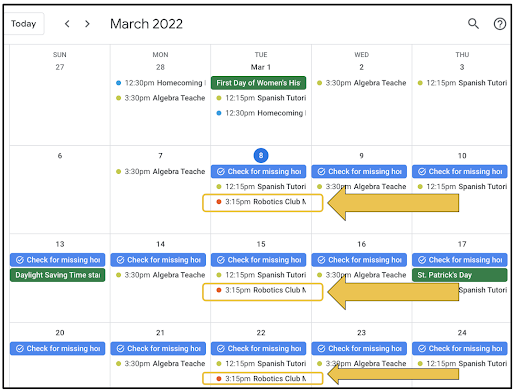
Below is what it looks like in Google Calendar using the Month View. You can see this student's "Robotics Club" event repeats every Tuesday. The color of the dot next to those events is different than events that are on other calendars. 


Students can use Google Calendar to schedule pretty much anything in their lives. They can schedule appointments, study dates, set reminders for homework, and much more. An easy way to start is to show them how your Google Classroom has an accompanying calendar that shows assignments and due dates. How might you use Google Calendar with your students? 

Share this video with your students that demonstrates the skills mentioned in this blog post.


If you have any questions and would like a follow up, contact me via Gmail or Chat at ajuarez@techcoachjuarez.com. My book, The Complete EdTech Coach: An Organic Approach to Digital Learning, co-authored with my wife Katherine Goyette is now available on Amazon. Click here to purchase. It is published by Dave Burgess Publishing. Be sure to follow the hashtag #OrganicEdTech and #CVTechTalk for updates.

Tuesday, February 1, 2022

Prep for Google Certified Educator Level 2 Exam: Google Calendar


The Google Certified Educator Level 2 Exam has gone through some changes recently. In the past, it was 20 questions multiple choice and 11 performance tasks. The current iteration is 35 multiple choice questions based off of scenarios. Questions will ask you to choose between 1-5 correct answers. These questions require you to be familiar with the features and functionality of each Google Workspace for Education App. 

For Calendar, you need to be familiar with the following features and functionality.
-  Know how to set up office hours

- Know how to add people to calendar events

- Know how to set different notifications for event attendees


Click here to go through some Calendar Practice Scenarios on Quizizz Lessons. These scenarios are NOT the same as the test, but similar. If you understand the skills demonstrated in the videos and can answer my checking for understanding questions, you will be prepared for the Calendar portions of the Level 2 Exam.

If you have any questions and would like a follow up, contact me via Gmail or Chat at ajuarez@techcoachjuarez.com.  

Monday, December 20, 2021

Prep for Google Certified Educator Level 1 Exam: Google Calendar


The Google Certified Educator Level 1 Exam has gone through some changes recently. In the past, it was 20 questions multiple choice and 11 performance tasks. The current iteration is 35 multiple choice questions based off of scenarios. Questions will ask you to choose between 1-5 correct answers. These questions require you to be familiar with the features and functionality of each Google Workspace for Education App. 

For Google Calendar, you need to be familiar with the following features and functionality.

- All the different methods of creating an event
- The More Options (Three Dots) capabilities

Click here to go through some Google Calendar Practice Scenarios on Quizizz Lessons. These scenarios are NOT the same as the test, but similar. If you understand the skills demonstrated in the videos and can answer my checking for understanding questions, you will be prepared for the Google Calendar portions of the Level 1 Exam.

If you have any questions and would like a follow up, contact me via Gmail or Chat at ajuarez@techcoachjuarez.com. 

My book, The Complete EdTech Coach: An Organic Approach to Digital Learning, co-authored with my wife Katherine Goyette is now available on Amazon. Click here to purchase. It is published by Dave Burgess Publishing. Be sure to follow the hashtag #OrganicEdTech and #CVTechTalk for updates.

Thursday, April 8, 2021

Digital Organization Tips for Students with Gmail, Tasks and Calendar

Time management is something students need to learn to be successful the modern classroom and workforce. As more teachers rely on digital tools for distributing and collecting materials and student work, there are many simple ways in Google Workspace for students to manage time and organize themselves digitally. Take a look at a few of my favorite tips and tricks.

Google Classroom, Google Calendar and Google Tasks

When teachers assign assignments in Google Classroom, students receive an email notification. Keeping track of Google Classroom notifications for multiple classes can be tricky. To help to remember to work on an assignment, when the student opens the email, they can click the Add to Tasks button on the top toolbar. 


When they click the Add to Tasks button, Google Tasks will open on the right side panel. The subject of the email will be added as a task. Below the task, students will see a button that will give them one click access directly back to this email if they choose to address the assignment later. Next to the task, there is also an edit button.


When they click the edit button, they can add a time reminder that will alert them when they are ready to work on this assignment. 


Another simple tip for students is to create a task independently that will remind them to check Google Classroom for new assignments and announcements. When they click edit, they can not only set a time reminder, but make it recur daily.


When students use Google Tasks, their tasks can appear in Google Calendar. If they have the Google Calendar app, they can receive push notifications on their phones for each task just like a calendar event. To enable Tasks in Google Calendar, on the left side, below My Calendars, click the checkbox for Tasks. In addition, students can view Google Classroom assignments in Google Calendar. They can enable this the same way as Tasks.


My recommendation for easily viewing tasks and Google Classroom assignments in Google Calendar, as seen above, is to use the Schedule view. You can change the view by clicking the button at the top next to the waffle. Enabling this view shows a list, in chronological order of all calendar events and tasks for one day at a time.


Organize Gmail Inbox with Labels

As an edtech coach, I have seen countless students' Gmail inboxes. More often than not, their inboxes are an unorganized mess with thousands of emails. A good practice for students is to organize their inboxes with labels. Think of labels in Gmail like folders in Google Drive. Have students create labels for each subject or teacher and move messages that need to be saved into the respective folders. Remind students to delete messages they know they don't need anymore.

For example, if there are a bunch of messages from science class, have students move them into a science label. Get started by check marking the messages you want to move. At the top, click the Move To button. 

If you don't have a label created yet, click Create new. If one is already created, click the label in the list that appears in the dropdown menu.


When you create a new label, a pop up will appear. Name the label and click Create.


Your labels will appear in alphabetical order on the left side of Gmail below Drafts. Click on your labels to view the messages in each label.


Feel free to use these tips to streamline your workflow and organize your digital workload, and don't forget to share with your students. If you have any questions and would like a follow up, contact me via Gmail or Chat at ajuarez@techcoachjuarez.com. 

My book, The Complete EdTech Coach: An Organic Approach to Digital Learning, co-authored with my wife Katherine Goyette is now available on Amazon. Click here to purchase. It is published by Dave Burgess Publishing. Be sure to follow the hashtag #OrganicEdTech and #CVTechTalk for updates.


Wednesday, February 3, 2021

Gmail: A One Stop Shop for Educators


Over the years, Gmail has evolved into quite a productivity suite. It is a one-stop shop for many tasks educators do daily. It is a hub for communication, a platform for collaboration, and a tool for organization. Without having to leave the Gmail tab, you can access not just your emails, but your Chat conversations, Google Chat Rooms, schedule and join Google Meet video calls, see your Google Calendar, access Google Keep notes, use Google Tasks and view your Google Contacts information. 

Below, on the left side of Gmail, you have access to your Email, Google Chat, Google Chat Rooms, and Google Meet video calls. 


Chat, in my experience, is often an underutilized tool. In a nutshell, it's free text messaging within Gmail. You may be thinking that why would I need this when I can text on my phone. Within your school's domain, you can send a Chat message to anyone in your organization by simply knowing their name. There is no need to have everyone's phone number or switch back and forth between your computer and phone. 

Each day, we get many emails. Many of these emails are quick, informal messages asking a quick question that are better off as a text message. Instead of cluttering your inbox with informal text messages, let those messages be handled by Chat. This will free up your Gmail inbox for formal communication from colleagues and admin. Using chat for informal communication will make it less likely that you will miss an important email. 

As you use Chat more, below your Gmail Inbox and Labels, you'll see a list of your most recent Chat conversations, the most recent being at the top. When you click on one, it will pop up at the bottom of your screen for you to type back and forth. 


Google Chat Rooms is a relatively new feature added to Gmail. Click here to read a more in-depth blog post about Chat Rooms. The integration of Rooms makes Gmail a powerful collaboration tool. Rooms is more than an offshoot of Chat. Collaborators invited to a Room, from within Gmail, can participate in threaded discussions, share files instantly (no having to go to Drive and share) and assign tasks to project team members.

Below is the threaded conversation feature of Rooms. You know you are seeing the threaded conversation because, at the top, you will see Chat underlined. As of now, there is no ability to title each thread. Until then, the first post of a thread should be the title. In the example below, the thread is titled "Kaplinsky Mini Courses".


If you were to continue scrolling in the Room from the example above, below, you would come across the next thread, titled "Spring CUE 2021".


When files such as Google Docs are shared within a thread, all members of the Room can access the Doc right within Gmail. If edit access is shared, it can be edited here too. You can see a Google Docs toolbar across the top. This can eliminate the need to open the Doc in another Chrome tab.


In each Room, you can see a tab for Files. Click it and you will see a list of each file posted in the various threads within the Room. It shows you who posted it and gives you options for adding it to Drive or organizing within Drive. 


Each Room also has a Tasks tab. This allows you to assign tasks to members of the Room. When assigned, these Tasks will appear in Google Tasks on that person's side 
panel. 


Google Meet is another tool that is fully accessible within Gmail. No need to go to the Meet website or Google Calendar to start a video call. Simply click New meeting to start one from scratch or click My meetings to see meetings you've scheduled or been invited to.


If you click New meeting, what you see below will appear. This gives you options to invite guests and join the meeting now.


If you click My meetings, in Gmail, you'll see a list of your scheduled meetings or meetings in which you've been invited. Click on a Meeting to see details on the right. 


In Gmail, the side panel, seen on the right side of the screen, gives you quick access to Google Calendar, Google Keep, Google Tasks and Google Contacts. In addition, click the plus button at the bottom to access a "store" for third party apps that will appear in the side panel for easy access.


Google Calendar in the side panel gives you an at-a-glance view of Calendar without opening it in a separate tab. Clicking in here can give you options to start an event or edit events.


Google Keep in the side panel is great for productivity. Notes you've taken and saved can easily be inserted into emails and Chat conversations. I use this daily when adding details to this blog before sending to my mailing list.


Google Tasks in the side panel is probably my favorite feature. At a glance, I can see my repeating tasks and "to-do's". It's a great feeling to see this list shrink throughout the day. It shows productivity. I can easily add action item emails to Tasks so I don't forget to do them throughout the day. 


The newest feature of the side panel is Google Contacts. If you click on an email, then click the Contacts button in the side panel, it will show detailed information about the sender and others included in the email. This makes it easy to save and update contact information.


In a nutshell, Gmail has become a one-stop shop for productivity, efficiency and workflow. You don't need to have multiple tabs open when multitasking. Much of what you need is right there for you in one Chrome tab. What are your favorite aspects of Gmail?

If you have any questions and would like a follow up, contact me via Gmail or Chat at ajuarez@techcoachjuarez.com. 

My book, The Complete EdTech Coach: An Organic Approach to Digital Learning, co-authored with my wife Katherine Goyette is now available on Amazon. Click here to purchase. It is published by Dave Burgess Publishing. Be sure to follow the hashtag #OrganicEdTech and #CVTechTalk for updates.


Thursday, December 3, 2020

3 "Slept On" Aspects of Google Workspace

In the hip hop music genre, the term "slept on" refers to artists, albums or songs that are very good, but have been ignored or overlooked. In Google Workspace, formerly GSuite, there are many small features and apps that are often overlooked. Three slept on aspects of Workspace that can be time savers and improve efficiency are attaching documents to Google Calendar events, creating new Calendars, and using the side panel in Gmail.

Don't schedule a meeting in Google Calendar and separately share a meeting agenda (Google Docs). Kill two birds with one stone by attaching the agenda to the Calendar event. Start by clicking the Attachment button on a Calendar event.


Choose your Agenda file from Google Drive.


When you Save the Calendar event, you will invite attendees via email. When doing so, you'll be prompted to set up the viewing permissions for attendees. Doing this will prevent you having to go back later and share the file with attendees. Attendees will be able to access the file right from their Google Calendar.

When scheduling meetings in Google Calendar, don't invite attendees to individual events, create a new calendar and invite attendees to access the new calendar. When you create the events, add them to the new calendar. This way, attendees only need to accept access to the calendar one time and they will have access to all events placed on it. This eliminates the need for attendees to deal with multiple emails for accepting individual event invites. 

This is useful if you are department or grade level lead, an administrator scheduling staff meetings and or teachers scheduling club or sports team meetings. Start by clicking the "plus" button next to Other Calendars.


In the drop down menu that appears, click Create new calendar.


Title your Calendar then click Create calendar. You'll see a status bar at the bottom while it is being created. When it's finished, it will say successfully created. Click the Configure button to invite people to access it.


When scheduling meetings, just below the Add notification button, you will see your default Calendar. By default, all Calendar events you create are put there. Your default Calendar is your name. To add the event to another Calendar, click your name and choose another Calendar from the menu that appears.


We spend much of our screen time in Gmail. Gmail has evolved into a one-stop shop. Most of Google's services, and the apps you need, are accessible right within Gmail. You can use them without having to tab hop in Chrome. A commonly slept on aspect of Gmail is the side panel. On the right side of Gmail, you will see a side panel that gives you at a glance access to Google Calendar, Google Keep, Google Tasks and other add ons. 


Instead of tab hopping to see your Google Calendar, click the Calendar button on the side panel. When you click on an event, you are able to edit events and add other information.


Use the side panel to access your Google Keep Notes. You are able to create new notes and edit already made notes.


Google Tasks exists entirely within the side panel. Use Tasks to track "to do list" things and action items from email messages. Each task can be have a time based reminder set. Reminders can be recurring as well.

Below the apps above, if you click the "plus" button, you will access a marketplace to add other apps that can be accessible in the side panel. 


If you have any questions and would like a follow up, contact me via Gmail or Chat at ajuarez@techcoachjuarez.com.

My book, The Complete EdTech Coach: An Organic Approach to Digital Learning, co-authored with my wife Katherine Goyette is now available on Amazon. Click here to purchase. It is published by Dave Burgess Publishing. Be sure to follow the hashtag #OrganicEdTech and #CVTechTalk for updates.