Showing posts with label Gmail. Show all posts

Thursday, March 3, 2022

An Essential Student Skill: Student Gmail Inbox Maintenance (Share with your students)


Students these days are absolute experts when it comes to staying on top of notifications for their online gaming, social media, text messages, DM's and more. What they need to get better at is applying those same skills to email. As they get older, and transition into college or the workforce, professors, admissions officers and employers will communicate vital information via email, not text or DM. The sooner kids take email as serious as they do other forms of communication, the better they will be prepared for their future.

A common theme I see with students, adults too, is a crowded, cluttered inbox. This type of inbox can lead to missing important messages. Since most students are using Google Classroom, they get emails whenever their teachers post assignments, announcements, etc. Kids need to develop the habit of going through their inbox and deleting unnecessary or old messages and moving into labels the messages they need to save. 

The screenshots shown below are using the most up-to-date version of Gmail, recently released by Google. If your Gmail doesn't look like this yet, it will soon. Start by showing kids how to create labels. Click the plus button to create a new label.
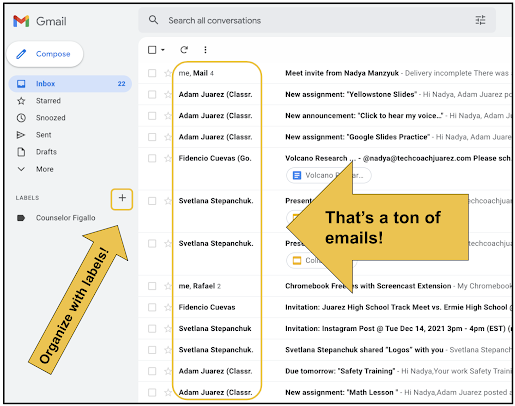
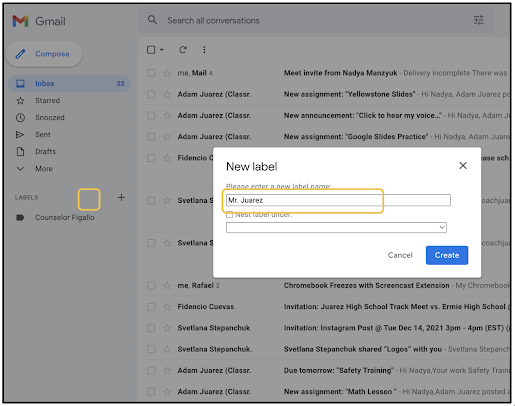
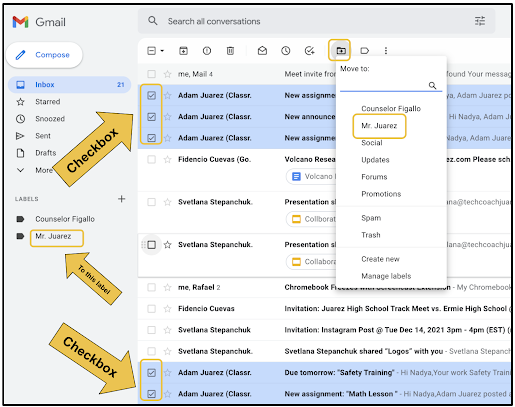
Each school year, I like to have students create a label for each teacher. It's also a good idea to create a label for counselors.


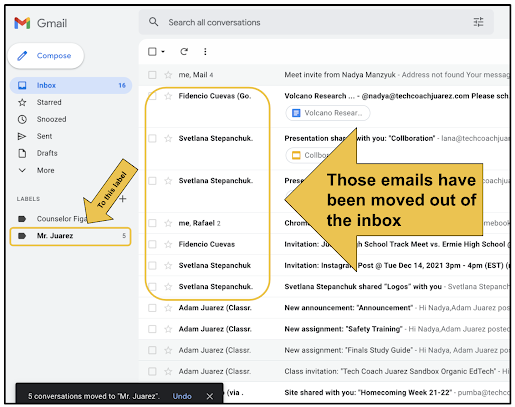
With labels created, you can move multiple, or single, messages by clicking the Move to button at the top. In the dropdown that appears, click the label into which you want to move the message(s). 


Instantly, you'll see those messages disappear from the inbox. Click on the label to view those messages.


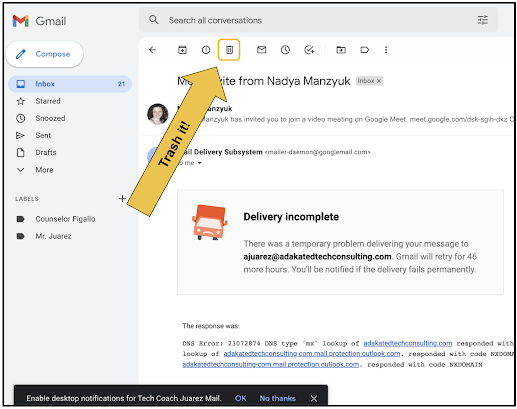
For messages you know you don't need, don't hesitate to delete them. One way is to click on the message to open it. From there, click the trash can button at the top.


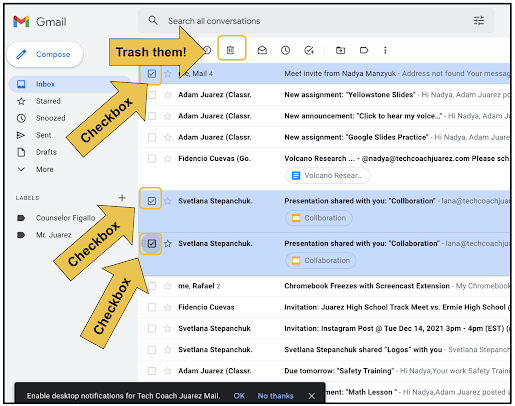
If you have a ton of emails you know you don't need, you can delete many at a time. Do this by clicking the checkbox next to each message you want to delete. Once you've "checkboxed" them, click the trashcan button at the top.


Share this video with students to show them each of the tips demonstrated in this blog.


Share these screenshots with your students. Set up time during the day or make it an expectation for free time for kids to not just check their email, but to organize and declutter their inbox. What email tricks do you have or have you used with students? 

If you have any questions and would like a follow up, contact me via Gmail or Chat at ajuarez@techcoachjuarez.com.

My book, The Complete EdTech Coach: An Organic Approach to Digital Learning, co-authored with my wife Katherine Goyette is now available on Amazon. Click here to purchase. It is published by Dave Burgess Publishing. Be sure to follow the hashtag #OrganicEdTech and #CVTechTalk for updates.


Monday, February 14, 2022

Prep for Google Certified Educator Level 2 Exam: Gmail


The Google Certified Educator Level 2 Exam has gone through some changes recently. In the past, it was 20 questions multiple choice and 11 performance tasks. The current iteration is 35 multiple choice questions based off of scenarios. Questions will ask you to choose between 1-5 correct answers. These questions require you to be familiar with the features and functionality of each Google Workspace for Education App. 

For Gmail, you need to be familiar with the following features and functionality.
- Know how to create a Gmail template
- Know how to enable the unread message icon in settings
- Know how to enable auto-advance in settings
- Know how to customize keyboard shortcuts


Click here to go through some Gmail Practice Scenarios on Quizizz Lessons. These scenarios are NOT the same as the test, but similar. If you understand the skills demonstrated in the videos and can answer my checking for understanding questions, you will be prepared for the Gmail portions of the Level 2 Exam.

If you have any questions and would like a follow up, contact me via Gmail or Chat at ajuarez@techcoachjuarez.com.  

Tuesday, December 7, 2021

Prep for Google Certified Educator Level 1 Exam: Gmail


The Google Certified Educator Level 1 Exam has gone through some changes recently. In the past, it was 20 questions multiple choice and 11 performance tasks. The current iteration is 35 multiple choice questions based off of scenarios. Questions will ask you to choose between 1-5 correct answers. These questions require you to be familiar with the features and functionality of each Google Workspace for Education App. 

For Gmail, you need to be familiar with the following features and functionality.

- Ways you can filter your search in Gmail
- Search criteria when filtering a search in Gmail

Click here to go through some Gmail Practice Scenarios on Quizizz Lessons. These scenarios are NOT the same as the test, but similar. If you understand the skills demonstrated in the videos and can answer my checking for understanding questions, you will be prepared for the Gmail portions of the Level 1 Exam.

If you have any questions and would like a follow up, contact me via Gmail or Chat at ajuarez@techcoachjuarez.com. 

My book, The Complete EdTech Coach: An Organic Approach to Digital Learning, co-authored with my wife Katherine Goyette is now available on Amazon. Click here to purchase. It is published by Dave Burgess Publishing. Be sure to follow the hashtag #OrganicEdTech and #CVTechTalk for updates.

Thursday, April 8, 2021

Digital Organization Tips for Students with Gmail, Tasks and Calendar

Time management is something students need to learn to be successful the modern classroom and workforce. As more teachers rely on digital tools for distributing and collecting materials and student work, there are many simple ways in Google Workspace for students to manage time and organize themselves digitally. Take a look at a few of my favorite tips and tricks.

Google Classroom, Google Calendar and Google Tasks

When teachers assign assignments in Google Classroom, students receive an email notification. Keeping track of Google Classroom notifications for multiple classes can be tricky. To help to remember to work on an assignment, when the student opens the email, they can click the Add to Tasks button on the top toolbar. 


When they click the Add to Tasks button, Google Tasks will open on the right side panel. The subject of the email will be added as a task. Below the task, students will see a button that will give them one click access directly back to this email if they choose to address the assignment later. Next to the task, there is also an edit button.


When they click the edit button, they can add a time reminder that will alert them when they are ready to work on this assignment. 


Another simple tip for students is to create a task independently that will remind them to check Google Classroom for new assignments and announcements. When they click edit, they can not only set a time reminder, but make it recur daily.


When students use Google Tasks, their tasks can appear in Google Calendar. If they have the Google Calendar app, they can receive push notifications on their phones for each task just like a calendar event. To enable Tasks in Google Calendar, on the left side, below My Calendars, click the checkbox for Tasks. In addition, students can view Google Classroom assignments in Google Calendar. They can enable this the same way as Tasks.


My recommendation for easily viewing tasks and Google Classroom assignments in Google Calendar, as seen above, is to use the Schedule view. You can change the view by clicking the button at the top next to the waffle. Enabling this view shows a list, in chronological order of all calendar events and tasks for one day at a time.


Organize Gmail Inbox with Labels

As an edtech coach, I have seen countless students' Gmail inboxes. More often than not, their inboxes are an unorganized mess with thousands of emails. A good practice for students is to organize their inboxes with labels. Think of labels in Gmail like folders in Google Drive. Have students create labels for each subject or teacher and move messages that need to be saved into the respective folders. Remind students to delete messages they know they don't need anymore.

For example, if there are a bunch of messages from science class, have students move them into a science label. Get started by check marking the messages you want to move. At the top, click the Move To button. 

If you don't have a label created yet, click Create new. If one is already created, click the label in the list that appears in the dropdown menu.


When you create a new label, a pop up will appear. Name the label and click Create.


Your labels will appear in alphabetical order on the left side of Gmail below Drafts. Click on your labels to view the messages in each label.


Feel free to use these tips to streamline your workflow and organize your digital workload, and don't forget to share with your students. If you have any questions and would like a follow up, contact me via Gmail or Chat at ajuarez@techcoachjuarez.com. 

My book, The Complete EdTech Coach: An Organic Approach to Digital Learning, co-authored with my wife Katherine Goyette is now available on Amazon. Click here to purchase. It is published by Dave Burgess Publishing. Be sure to follow the hashtag #OrganicEdTech and #CVTechTalk for updates.


Thursday, March 25, 2021

Hidden in Plain Sight: Subtasks in Google Tasks


Not too long ago, I wrote a blog about creating new, secondary lists in Google Tasks. That is a great organizational tool, but you have to switch over to those lists to see them. More importantly, you need to remember to switch over. As my colleague Kathleen Giannandrea says, "Out of sight, out of mind". If you fall into that category, the subtasks function in Google Tasks will be helpful. 

For example, if you have a separate list in Google Tasks to remind you to make or check on IEP accommodations, you could, instead, create a Task just for IEP Accommodations with accompanying subtasks. This will keep these tasks at a glance in your primary list without having to switch lists to view. One downfall to adding subtasks to a task is the inability to set it to repeat. You can set a one time reminder for the "parent" task.

Get started by creating a new task in Google Tasks found in the right side panel in Gmail, Google Calendar, Google Docs, Google Slides, Google Chat, Google Drive or Google Sheets.


After typing the task, click the "pencil" button to edit.


While in edit mode, click the button to Add subtasks.


You will add the subtasks in the same manner you would a regular task. The difference is the subtasks won't have an edit button. If you need to add multiple subtasks, either click Add subtasks again or push enter/return on your keyboard after entering a subtask.


What you see below is an example of a task with multiple subtasks. 


Here is what it looks like on the right side toolbar. You can click the circle button next to each task to cross off individual subtasks, but if you cross off the "parent" task, all the subtasks will disappear.


For many of us, the subtasks function of Google Tasks is a simple, but great productivity tool hiding in plain sight. How will you use the subtasks function of Google Tasks? If you have any questions and would like a follow up, contact me via Gmail or Chat at ajuarez@techcoachjuarez.com. 

My book, The Complete EdTech Coach: An Organic Approach to Digital Learning, co-authored with my wife Katherine Goyette is now available on Amazon. Click here to purchase. It is published by Dave Burgess Publishing. Be sure to follow the hashtag #OrganicEdTech and #CVTechTalk for updates.


Wednesday, March 24, 2021

Mote is Now Available in Gmail


Just this morning, Mote released a cool new update that allows you to easily embed Mote voice notes into Gmail! The next time you click the Mote Chrome Extension, what you see below will appear. Click Yes to enable Mote in Gmail.


After enabling it in Gmail, do a quick refresh of your browser and start a new message in Gmail. You'll notice on the bottom toolbar a Mote button. 


When you click the button, it will immediately start recording so be ready to talk. Click the Mote logo in the pop up to stop recording. 


When you're done recording, what you see below is what it will look like in your message. If you're not satisfied with the recording, click the three dots in the top right corner of the recording and click Delete.


Below is what it looks like on the recipient's end. On a computer, the recipient will simply click the play button and hear the message. On a mobile device, when they click the Mote message, it will open in a mobile browser window where they can click play and listen.


Sometimes students and colleagues can get a better understanding of what you're trying to say via the spoken word rather than just text. How will you use Mote in Gmail? If you have any questions and would like a follow up, contact me via Gmail or Chat at ajuarez@techcoachjuarez.com. 

My book, The Complete EdTech Coach: An Organic Approach to Digital Learning, co-authored with my wife Katherine Goyette is now available on Amazon. Click here to purchase. It is published by Dave Burgess Publishing. Be sure to follow the hashtag #OrganicEdTech and #CVTechTalk for updates.


Wednesday, March 17, 2021

Collaborate Better with Google Chat Rooms


A pain point I hear about often is having to dig through emails and Google Drive to find shared files. Recently, Google added Google Chat Rooms to the Google Workspace arsenal of apps. At first glance, it seems like a group chat on steroids, but in actuality, it's a tool that can enhance collaboration and help avoid having to fish through convoluted email threads and Google Drive to find files.

What makes Google Chat Rooms such a great tool for streamlining collaboration is how you only have to invite collaborators one time. Once they're in the Room, any files shared within are shared with all members. No more having to open the file, clicking Share and adding members names. In addition, you can start files right within the Room. Instead of having to search through Drive and email threads, Rooms are housed right within Gmail. Simply open the Room, scroll through the threads and click on the files you need.

Create your first room by going to Gmail and clicking the plus button next to Rooms on the left side of the screen. In the menu that pops up, click Create room.


In the pop up that appears, click in the first box to title your Room. I like to create rooms each quarter for my PLC to share agendas, presentations and planning documents. In the second box, add the names of collaborators. The two options below allow you to Use threaded replies and Allow people outside your organization to join. I recommend using threaded rep


Using threaded conversations is highly recommended. I like to create threads for different topics. In the PLC example below, the thread was titled Unit 5 Lesson Planning. As of now, you cannot officially name or title threads. In light of that, I always make the first post within a thread the title.


One of my favorite aspects of Rooms is how when I share documents, they're automatically shared with all members of the Room. No having to enter people's names or email addresses each time and hoping they open their emails to access the document. 

To share documents, there are a couple of options. If the feature is available in your domain, when you start a reply within a thread, you'll see a button (circled below) to create a Google Doc, Google Sheet or Google Slides Presentation. 


The other option is to click the Drive button seen when replying within a thread. This will initiate a pop up menu allowing you to add any file saved in your Google Drive.


When you post the file from Drive, you'll see a small pop up where you determine the file permissions for all Room members. 


With files shared in a Room thread, collaborators no longer have to go fishing through their inboxes for shared with me emails or the Shared with me folder in Drive. They simply open the room, scroll to the thread and click the file. Google Docs files can be opened within the Chat Room without having to open a new tab. Other files will open in their own separate tab.


The pandemic has forced us to find more effective ways of collaborating. More than ever, educators are using tools like Google Chat Rooms in addition to Google Classroom to collaborate in PLC's and across school sites. How might you use Google Chat Rooms?

If you have any questions and would like a follow up, contact me via Gmail or Chat at ajuarez@techcoachjuarez.com.  My book, The Complete EdTech Coach: An Organic Approach to Digital Learning, co-authored with my wife Katherine Goyette is now available on Amazon. Click here to purchase. It is published by Dave Burgess Publishing. Be sure to follow the hashtag #OrganicEdTech and #CVTechTalk for updates.


Wednesday, March 3, 2021

Use Google Tasks to Help with IEP Accommodations


Not too long ago, I wrote a blog post about how to organize your IEP accommodations documents for easy access. Organizing your IEP documents is one thing, but with our hectic schedules, remembering to consider many of the nuances and unique accommodations in lesson design is another thing. 

With my hectic schedule, Google Tasks makes remembering these things much easier. Tasks helps me schedule reminders for common, frequent accommodations such as sending extra reminder emails, creating reduced alternate assignments, providing extra time for assignments, contacting case managers, and much more. 

If you're not careful, your Google Tasks list can get long and convoluted. What I like to do is create a new, secondary list for IEP accommodations. Start by opening Google Tasks on the side panel in Gmail. Click "Your Name's list" and select Create new list in the menu that appears.


Title your list.


Add your task(s) and set time/date reminders. On the days I know I will be lesson planning, I always set reminders for IEP accommodations.


Some reminders are set for certain days and others are each day during the week. 

If you don't want to have to always toggle between lists on Google Tasks, turn on Tasks in Calendar and your tasks will appear in your Calendar. I like to use the Schedule view. 


During the pandemic and in distance learning, accommodating students on IEPs is much more difficult. Anything we can do to streamline this process is definitely welcomed. How will you use Google Tasks to enhance your ability to accommodate students on IEPs. If you have any questions and would like a follow up, contact me via Gmail or Chat at ajuarez@techcoachjuarez.com. 


My book, The Complete EdTech Coach: An Organic Approach to Digital Learning, co-authored with my wife Katherine Goyette is now available on Amazon. Click here to purchase. It is published by Dave Burgess Publishing. Be sure to follow the hashtag #OrganicEdTech and #CVTechTalk for updates.