Showing posts with label Feedback. Show all posts

Sunday, February 26, 2023

ChatGPT and Google Classroom: Power Up Your Ability To Provide Feedback

As an AI language model, ChatGPT can help teachers provide feedback on student writing more easily. In a previous blog post, I discussed ways to use AI tools such as ChatGPT to expedite the feedback process for student writing. Building on this, as an avid user of Google Classroom, I realized that feedback generated by ChatGPT can be stored in the Google Classroom comment bank. This can significantly reduce the amount of time spent grading student assignments.

One of the biggest challenges faced by teachers when grading student writing is providing informative and constructive feedback that is tailored to each student's needs. This process can be tedious and time-consuming, especially for writing assignments that require nuance and subjectivity. ChatGPT can simplify this process by generating criteria-based suggestions that are customized for each student.

For example, if a student is struggling with grammar and punctuation, ChatGPT can generate comments that focus on those specific areas. Similarly, if a student is struggling with the structure of their writing, ChatGPT can provide guidance. When you notice trends and similarities in the feedback that students need for issues such as grammar and punctuation, you can save them in the Google Classroom comment bank. To do this, simply copy and paste into the comment bank. This allows teachers to access and reuse comments across multiple assignments, saving time and ensuring consistency in grading.

Moreover, by storing comments in the comment bank, teachers can easily collaborate with their colleagues. If your department or PLC is using a shared Google Classroom for common or standardized assessments, all co-teachers have access to the comment bank. They can share and reuse effective comments, or create a set of standard comments that can be used across their department or school.

However, using AI-generated feedback has some potential drawbacks. Some teachers may feel that this approach is impersonal and lacks the nuance and context that human feedback can provide. Others may be concerned about the reliability and accuracy of the suggestions generated by ChatGPT.

It's important to view ChatGPT as a tool that can supplement, but not replace, the feedback provided by teachers. By using ChatGPT to generate criteria-based suggestions, teachers can save time and focus on providing more personalized and nuanced feedback to their students.

ChatGPT can be an incredibly useful tool for teachers looking to improve the efficiency and effectiveness of their feedback. By generating criteria-based suggestions that can be stored in the Google Classroom comment bank, ChatGPT can streamline the grading process while providing targeted and personalized feedback to each student. Although using AI-generated feedback has potential drawbacks, it can be an invaluable tool for teachers looking to improve the quality of their feedback while also reducing their workload. Think of ChatGPT as a personal assistant and adapt its suggestions based on your expertise and knowledge of your students.

If you would like to bring me to your school for PD, workshops, a keynote, training or a follow-up on this or previous blogposts, click here to schedule an appointment to chat. My book, The Complete EdTech Coach: An Organic Approach to Digital Learning, co-authored with my wife Katherine Goyette is now available on Amazon. Click here to purchase. It is published by Dave Burgess Publishing. Be sure to follow the hashtag #OrganicEdTech and #CVTechTalk for updates.


Thursday, October 20, 2022

The Spice of the Learning Process: Feedback and Stop Signs

Coaching soccer for nearly 20 years, nothing was more effective in helping my players grow than targeted, in the moment feedback. During shooting drills, seeing one of the players consistently fire shots far above the goal frame, immediate feedback about the placement of the plant foot and getting the knee over the ball was absolutely vital to helping the player drive the ball with power and accuracy towards the goal. 

Over 17 years as a teacher and instructional coach, I tried to apply a similar approach in the classroom. The classroom is different the the soccer pitch for obvious reasons. Soccer players are out there because they want to be and love the game. With that in mind, they are much more receptive to feedback and are more intrinsically motivated to elicit it from the coach. In the classroom, the converse is true. Students have to be there. It's the law. If you're reading this, I am sure you'll have no trouble envisioning students over the years you know did not want to be in your classroom or school for that matter. With that in mind, traditional classroom feedback is usually red marks on the paper after it has been submitted. Very few students actually see this as an opportunity to correct mistakes if given the opportunity. In this manner, feedback is merely an autopsy. Students in the classroom, in many cases, don't seek out feedback from the teacher. It's usually a one way street from teacher to student when the teacher has the time.

This is the paradigm I'd like to see shifted. I'd love to see a classroom environment and culture where learning experiences (not lesson plans) are designed where teachers and students engage in a robust feedback loop. I'd like to see the students eliciting feedback from the teacher as well as the other way around. The feedback loop would be a two-way street.

This will not happen over night. Like anything, it will take time to develop. It is a process. One way I have developed a similar culture in my classrooms began with the simple idea of a stop sign. As mentioned above, students traditionally do not ask for feedback while they work or are engaged in an activity. To begin "training" students to be self-reflective and ask the teacher for feedback, in the activities I design, I try to embed stop signs at strategic points. The stop signs are reminders for students to stop, reflect, raise hand and ask the teacher to come check their progress. This allows students to work at their own pace, and when I arrive, I can give them targeted, personalized feedback. This feedback is one on one. For many reasons, students fear raising their hands and asking questions in front of the whole class. One on one, or in small groups, there is less of a fear factor. This helps build relationships and rapport with students. They feel heard. The feedback I give one student, is likely to be different than that to another student. 

I try to incentivize student elicited feedback by setting a "participation points" goal for each activity. Each "feedback encounter" is a point. The more they elicit feedback from me, the more points they earn. In this type of classroom, the step counter on my smartwatch is working overtime. Student elicited feedback is actually improving my health. 

Let's take a look at some of the activities in which I have embedded stop signs to help create a culture of student elicited feedback.

Slides Presentation

When having students navigate an activity in Google Slides or PowerPoint, look for natural stopping points where you can insert slides with a stop sign. If there are multiple points, simply duplicate the stop sign slide and move as needed.


EdPuzzle

During distance learning, EdPuzzle became a popular way to deliver asynchronous instruction. EdPuzzle allows you to embed questions are targeted spots in a video. When you embed questions in EdPuzzle, there is also a button to add an image. That same stop sign slide you use in Google Slides or PowerPoint can be downloaded individually as a JPEG file on your computer. Click the add image button in your EdPuzzle question to add the stop sign JPED from your computer to the question.


Nearpod

Just like with a Google Slides or PowerPoint presentation, in Nearpod, find those natural stopping points and add a stop sign slide. What I do, like with EdPuzzle, I use my downloaded stop sign slide JPEG and add it to a slide in Nearpod.


Quizizz Lessons

Quizizz is more than just fun, gamified quizzes. The Quizizz Lessons function is very similar to Nearpod. In same manner, add your stop sign slide JPEG to a Quizizz Lessons slide at strategic points.


Eduprotocols are absolutely blowing up in the world of education, and they have hardly scratched the surface. If you haven't heard of Eduprotocols, check out eduprotocols.com to learn more. Eduprotocols, originally developed by my friends Jon Corippo and Marlena Hebern, are built on the concept of a culture of targeted, in the moment feedback. Eduprotocols will go a long way in developing that culture in your classroom. As I have become more familiar and comfortable using Eduprotocols, I have found targeted points of these simple activities to embed stop sign reminders for students. 

Mini Report 

The Mini Report Eduprotocol is a simple way to get students to do some research, take notes and write. The way I deploy this activity is to have students read the two sources first, no note taking. From there, they go back over the sources and look for information about certain topics, one at a time. This gives them the opportunity to engage in multiple reps of reading the sources and practice skimming. Below, you can see how I embed the stop signs after each topic for students to elicit feedback from me. 


Frayer

Frayer is such a simple, versatile activity. I can be adapted for almost anything. As a social studies teacher, I liked to use Frayer as a skimming the text activity. Below you can see how I embed stop signs at specific points.


8pARTS DBQ

In a social studies class, analyzing primary sources is very important. 8 pARTS DBQ is a great way to get kids to engage in this. Like Frayer, I strategically embed stop signs where I want to be able to check student work.


Eduprotocols, and many other strategies, are designed to have students engage in a robust feedback loop. But to get to that point, students need little reminders to actually pause, reflect and ask for feedback. It doesn't take long to implement this system. If you can search the web for a picture of a stop sign, copy and paste, you have the skills to do this. 

One of my greatest teacher successes took place last year. I was teaching a 10th grade World History class. In this class, I had a student who was a 12th grader and had failed the class twice before. This was the student's third attempt at World History. Never have I seen a student embrace the idea of individualized, targeted feedback so well. This student took to my feedback system like a duck to water. This student never felt so supported. In the past, they didn't feel engaged. In my class, they actually began to work ahead. What made my teacher heart leap for joy was the weekend emails this student would send. Whether they were making up work when absent or working ahead, I would receive emails and direct Google comments asking for feedback. Unsurprisingly, this student got one their few "A's" in high school, and easily passed World History. This student graduate and is now working on earning a welding certificate. 

Believe it or not, something as simple as copying and pasting stop signs for reminders to ask feedback can make all the difference in the lives of the students we serve. What ideas, tips, tricks or strategies do you employ for building a culture of feedback in your classrooms?

If you would like to bring me to your school for PD, workshops, a keynote, training or a follow-up on this or previous blogposts, click here to schedule an appointment to chat.

My book, The Complete EdTech Coach: An Organic Approach to Digital Learning, co-authored with my wife Katherine Goyette is now available on Amazon. Click here to purchase. It is published by Dave Burgess Publishing. Be sure to follow the hashtag #OrganicEdTech and #CVTechTalk for updates.


Thursday, February 24, 2022

The Power of the Stop Sign


According to the IBM Training and Skills Blog, "Learning is a lifelong process, it is a self-directed and self-paced journey of discovery…not a forced march and 'race' to a learning standard or data point. The purpose of learning is not to 'arrive' at a particular level of proficiency “on time”. As long as we are alive, most people are continually learning, and the 'journey' never ends. " I really love this quote. I believe this sentiment should guide our work as educators.

I am not quoting this to knock on standards or data. That's a whole other blog post. I am quoting this because I aim to teach students and train teachers with the idea that learning is a process, a process that never ends. As educators, we want to model for students how to be lifelong learners. 

Too often in my career, I have encountered students who will submit work for the sake of submitting work. They are playing the game of school. They say, "Here mister, I turned it in. I should have an A". After evaluating their work and providing comments and feedback for which they can use to improve, I often get refusal to resubmit work, because in their minds, they were finished. The learning was over. The learning was a destination, not a journey or process. 

One way I have been trying to change this mindset with my students is by focusing on providing targeted feedback while the kids are working. I provide feedback on their note taking and while they producing a learning artifact. If I wait until they've turned something in to provide feedback, it becomes an autopsy. Very few will want to go back and fix something "dripping with red ink".

This is easier said than done, but once you develop this culture, you will begin to see students start to elicit feedback from you and not just the other way around. When this happens, you are "grading" them as they work and when you see the final product, the quality is much higher. It's much easier to grade because you've been part of their learning journey. 

Ok, I will get off of my soapbox now. Let's take a look at a simple way to build a feedback loop and help build a culture of learning being a journey and not a destination. One way I try to do this is by awarding participation points for students who ask for feedback during class. Click here to access a spreadsheet I use to keep track of weekly participation points. 

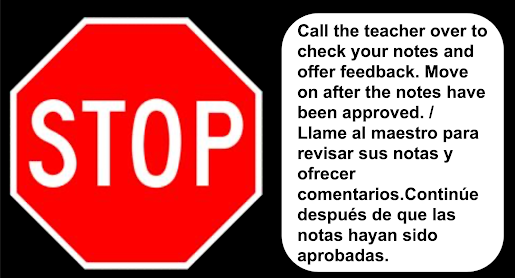
A simple, yet powerful way build a culture of feedback is to use a "stop sign" slide at strategic points in a lesson. When I teach a lesson, I like to pre-record my lessons. Each lesson is chunked into 2-3 minute videos. In between each chunk, I insert my stop sign slide. I like to use Quizizz Lessons for this, but it also works with systems such as Pear Deck, Nearpod, Google Slides and more. This slide asks students to stop, reflect on their notes and ask the teacher for feedback. They raise their hand and I come take a look at their notes and see if they missed any important information. 

In these one on one encounters, organic conversations arise and individualized teaching moments take place. Feedback becomes personalized to the needs and questions of that student. If they act on the feedback, I add participation points and they continue with the lesson at their own pace. This style of teaching means you will not be tethered to your computer or desk. The step counter on your smartwatch will be working overtime so wear comfortable shoes. 

This can be done when delivering live, whole class instruction too. Insert some stop signs where kids can reflect, write summaries, pair-share, revise notes, receive feedback, etc. before moving on. It provides a nice little brain break.

If you've read this far, you may be thinking, what about student talk and the 4 C's? The examples discussed above are just ideas on way you could deliver instruction. That instruction forms the foundation for activities that will require students to use the learning to engage in the 4 C's and interact with their peers.

Stop signs are great ways to break up a lesson. If you are doing a Hyperdoc, insert some stop signs to remind students to reflect and ask for feedback. Using tools like Kami, you can insert stop signs in articles when students are marking the text. The possibilities are endless.

How might you use stop signs to build a culture of feedback, reflection and learning as a process? If you have any questions and would like a follow up, contact me via Gmail or Chat at ajuarez@techcoachjuarez.com. My book, The Complete EdTech Coach: An Organic Approach to Digital Learning, co-authored with my wife Katherine Goyette is now available on Amazon. Click here to purchase. It is published by Dave Burgess Publishing. Be sure to follow the hashtag #OrganicEdTech and #CVTechTalk for updates.


Wednesday, March 24, 2021

Mote is Now Available in Gmail


Just this morning, Mote released a cool new update that allows you to easily embed Mote voice notes into Gmail! The next time you click the Mote Chrome Extension, what you see below will appear. Click Yes to enable Mote in Gmail.


After enabling it in Gmail, do a quick refresh of your browser and start a new message in Gmail. You'll notice on the bottom toolbar a Mote button. 


When you click the button, it will immediately start recording so be ready to talk. Click the Mote logo in the pop up to stop recording. 


When you're done recording, what you see below is what it will look like in your message. If you're not satisfied with the recording, click the three dots in the top right corner of the recording and click Delete.


Below is what it looks like on the recipient's end. On a computer, the recipient will simply click the play button and hear the message. On a mobile device, when they click the Mote message, it will open in a mobile browser window where they can click play and listen.


Sometimes students and colleagues can get a better understanding of what you're trying to say via the spoken word rather than just text. How will you use Mote in Gmail? If you have any questions and would like a follow up, contact me via Gmail or Chat at ajuarez@techcoachjuarez.com. 

My book, The Complete EdTech Coach: An Organic Approach to Digital Learning, co-authored with my wife Katherine Goyette is now available on Amazon. Click here to purchase. It is published by Dave Burgess Publishing. Be sure to follow the hashtag #OrganicEdTech and #CVTechTalk for updates.


Friday, February 12, 2021

Have Kids Easily Create Memes in Google Classroom

Memes are a huge part of popular culture. We all have laughed at a meme we've seen on social media. Students talk about the memes they saw online with their friends. A few years back, I started having students create memes for topics they learned in my history classes. They served as a method for students to connect popular culture to the historical topics they were learning. 

They are great for history, but can be done in any subject. Finished memes could be jumping off points for academic conversations and critical thinking exercises. They can be a great starting point for building a robust feedback loop as well.

Below are some student examples from this school year. These come from a lesson I taught on the American Revolution. Each meme was created with Google Slides via Google Classroom.

Get started by creating a Memes Template assignment in Google Classroom. The template allows you to reuse the post over and over without having to reinvent the wheel. Add simple instructions that can be altered if needed each time you reuse the assignment. Click Create and choose Slides. When you reuse it in the future, a new copy of this Slides template will be made each time. With each reuse, if you need to augment it, you can, but the basic structure will always be the same.


Below is an example of the template I use. I like to use the grey space on the outside of the slide to insert a box with instructions. Students will have to find a background image and paste it on the slide. Teach them how to layer it where the image is in the "back" of the slide with the captions on top of it. This can be done by right clicking on the image after it's been pasted onto the slide. 

From there, I use Word Art to insert a space for the captions. Be sure to use a white font and make it bold. My instructions tell them to double click on the Word Art to edit it with their captions. When this template is reused in the future, I can duplicate this slide for as many slides necessary for the topic I am teaching. 


After setting up the template Slides presentation, be sure to set it to Make a copy for each student.


Below is an example from earlier this school year. Reviewing student work is a breeze. Click on the thumbnail of a student's submission and marvel at their memes. Use this as an opportunity to leave text feedback in the Private comments section or voice comments if you have the Mote Chrome extension. Click here to learn more about Mote.


Moving forward, click Reuse post in Google Classroom to reuse your Memes template. I recommend creating a Google Classroom Shell with no students invited to house all of your template assignments. This has been a huge time saver for me. Click here to learn more about creating a Google Classroom Shell.


Each time you reuse the Memes template, simply change out the topic. No need to create new slides because a new copy of the original will be made. The new copies can be augmented as needed and the original will not be changed.


How will you use Memes in your subject area or grade level? If you have some cool student examples, please share them so I can feature them in the Cardinal Innovation Center Memes Gallery. If you have any questions and would like a follow up, contact me via Gmail or Chat at ajuarez@techcoachjuarez.com. 

My book, The Complete EdTech Coach: An Organic Approach to Digital Learning, co-authored with my wife Katherine Goyette is now available on Amazon. Click here to purchase. It is published by Dave Burgess Publishing. Be sure to follow the hashtag #OrganicEdTech and #CVTechTalk for updates.


Tuesday, December 15, 2020

Start the Teacher/Student Feedback Loop with Mote and Google Classroom

Many educators, recently, have fallen in love with Mote and the ability it gives them to leave personalized, voice feedback to students. I have to say, I very much enjoy leaving voice feedback to students, but there are still many students who struggle accessing the feedback and acting upon it. The series of screenshots below demonstrates how to get started leaving feedback as the teacher and how students access the feedback to resubmit work.

Start by opening an assignment in Google Classroom and opening a student submission. This will open the Google Classroom Grading Tool.


In the Google Classroom Grading Tool, on the right side of the screen, you will see a space to enter Private comments. If you have the Mote extension added to Chrome, a Mote button will appear in the Private comments space. Click this button to begin recording your verbal feedback. The examples shown below are from a Thin Slides activity about Adolf Hitler.


After clicking the Mote button, recording begins almost instantly. You will see the 1:30 countdown start. Click done when finished recording. In this Thin Slides about Adolf Hitler example, I verbally explained to the student that their image was of Joseph Stalin and not Hitler. If I were to leave comments on their turned in document, I may also verbally remind them on Mote to look for those comments as well before resubmitting.


When the recording is finished, it will appear as the text below. Click Post when ready.


Often times, students do not respond to feedback. If you have students who struggle with this, share the following screenshots with them. Remind them that when a teacher leaves a Private comment in Google Classroom, they will receive an email. Be sure they have comments and notifications turned on in Google Classroom. In the email, they can click on the title of the assignment or click Reply to be taken right to the assignment. They can also click the Mote link to hear the feedback without having to go to Google Classroom.


After hearing the feedback from Mote, and possibly reading text comments left on the document, students click Resubmit to turn in the latest iteration of their work.

If you have any questions and would like a follow up, contact me via Gmail or Hangouts at ajuarez@techcoachjuarez.com.  My book, The Complete EdTech Coach: An Organic Approach to Digital Learning, co-authored with my wife Katherine Goyette is now available on Amazon. Click here to purchase. It is published by Dave Burgess Publishing. Be sure to follow the hashtag #OrganicEdTech and #CVTechTalk for updates.


Monday, December 14, 2020

Leave Student Feedback in Flipgrid


Leaving feedback is an important part of teaching. Flipgrid has upgraded their "feedback game" allowing you to leave text and video feedback to student submissions. Start by opening a Flipgrid topic and clicking to open a student response. 

After viewing a student response, scroll down and click Feedback. From there, you'll be able to Record Feedback to leave video comments to students or type feedback in the Private Comments box. When finished leaving feedback, click Email Feedback to send the comments to the student. In a Google district, this works if Gmail has been turned on for students. You can click Copy Feedback Link and paste the feedback link in other means of communication to students. 


If you have any questions and would like a follow up, contact me via Gmail or Hangouts at ajuarez@techcoachjuarez.com. 

My book, The Complete EdTech Coach: An Organic Approach to Digital Learning, co-authored with my wife Katherine Goyette is now available on Amazon. Click here to purchase. It is published by Dave Burgess Publishing. Be sure to follow the hashtag #OrganicEdTech and #CVTechTalk for updates.


Wednesday, December 9, 2020

Rock the Comment Bank in the Google Classroom Grading Tool


Feedback is such an important part of the learning process. Having to repeatedly type similar comments over and over is time consuming and tedious. Sometimes we find little hacks to speed it up such as having a Google Doc or Google Keep note with comments saved for quick reference for copy and pasting. 

The Google Classroom Grading Tool has features built in to expedite this process and improve workflow when providing student feedback. When you open student work in Classroom, the Grading Tool opens in a new Chrome tab. On the right side of the screen, near where you can assign a Grade and add Private comments, is a button for the Comment bank.


The Comment bank allows you to store frequently used comments. To add a comment to the bank, click the Add to bank button. See the example below.


When you click the Add to bank button, a small window appears for you to type your comment. Click Add when finished. There does not appear to be a limit on the amount of comments you can save in the Comment bank.


One way to add a comment from the Comment bank is to click the three dots at the top right corner of a comment and select Copy to Clipboard. You are also able to edit the comment and delete it from this menu.


An even quicker way to get a comment from the Comment bank to the student submission is to hover your mouse over a comment. When you do, a copy button will appear in the bottom right corner of the comment. Click it to copy it to your clipboard.


Once copied, your comment can be quickly pasted, as seen below, to the student submission or as a private comment within Google Classroom.


If you have any questions and would like a follow up, contact me via Gmail or Hangouts at ajuarez@techcoachjuarez.com. 

My book, The Complete EdTech Coach: An Organic Approach to Digital Learning, co-authored with my wife Katherine Goyette is now available on Amazon. Click here to purchase. It is published by Dave Burgess Publishing. Be sure to follow the hashtag #OrganicEdTech and #CVTechTalk for updates.


Wednesday, October 21, 2020

Encourage Students to Act on Teacher Feedback with Google Classroom

Feedback is such an important part of the learning process. The key word in that statement is "process". Authentic learning that sticks comes from mistakes made and adjustments done based on teacher/mentor feedback. Whether you are in distance learning, hybrid or face to face, speed of teacher feedback and student reaction to it is key.

In distance learning, it's easy for teachers to leave quick feedback on student work through platforms like Google Classroom. A big issue, though, is how students ignore feedback or are not used to replying or acting upon it. Getting students to see the feedback and use it to iterate and improve work is a challenge. Often times, students aren't aware of the tools available to them for receiving feedback, acting on it and resubmitting work. Below is a series of screenshots that shows teachers how to quickly leave feedback on Google Classroom assignments and how students can view teacher feedback, act on it and resubmit.

The Teachers

In Google Classroom, open an assignment to view student work. On a Google Doc, Google Slides Presentation, Google Drawing or PDF, you can leave a comment. This can be done by right clicking on a portion of the document and selecting Comment. On PDFs and images, there is a Comment button on the top right of the grading window. Leaving comments this way puts the comment directly on the document rather than just a Private Comment on Google Classroom.


Below is an example of what a comment box will look like on Google Slides.


The Student

Below is an example of an email a student will receive when a comment is left. The student will see the feedback left and a link that takes them back to the document.


After acting on the feedback, in Google Classroom, students can click the Resubmit button to turn in the newest iteration of their work. If a Resubmit button is greyed out, it means the teacher hasn't returned the assignment to the student. Be sure to leave comments and return work to students promptly so they can iterate and resubmit.

If you have any questions and would like a follow up, contact me via Gmail or Hangouts at ajuarez@techcoachjuarez.com. If you would like to unsubscribe from this blog, go to bit.ly/tcjinbox.

My book, The Complete EdTech Coach: An Organic Approach to Supporting Digital Learning, co-authored with my wife Katherine Goyette is now available on Amazon. Click here to purchase. It is published by Dave Burgess Publishing. Be sure to follow the hashtag #OrganicEdTech and #CVTechTalk for updates.