Showing posts with label Add-ons. Show all posts

Tuesday, January 10, 2023

Simple Google Tools to Give English Learners Access to Curriculum

English learners often feel left out and teachers struggle to find ways to simply give them access to content. Have you ever felt a little uncomfortable trying to help give English learners access to content? If so, Google has a variety of easy to use tools that help teachers accommodate the learners and empower the learners to access the content. In this session, we will explore Google Docs/Slides Add-ons, Google Chrome extensions and systems to not only give access, but help aid with their development with the English language.


This session will demonstrate simple ways to use Google to give ELLs access to content in their home language and side-by-side with English. A common practice when attempting to give English learners access to content, teachers create separate versions of content or assignments in the home language. This can make English learners feel alienated, and at the same time, it does not help them grow with the English language. Don't get me wrong, there is a time and place for separate versions in the home language, but in this session, we will take a look at simple tools and systems to provide side-by-side translation in the same resource or activity. This can begin to help English learners feel included, accommodated and develop with the English language.


In this session, attendees will:


  • Take a look at tools built into Google Docs to aid with translation

  • Investigate Chrome extensions to help English learners access curriculum and engage

  • Demonstrate Add-ons in Google Docs and Slides for translation and engagement

  • Develop a system for side by side translation, not just versions in different languages

  • Practice using Google Translate conversation mode to enhance your ability to give in-person, real-time feedback


If you would like to bring me to your school for PD, workshops, a keynote, training or a follow-up on this or previous blogposts, click here to schedule an appointment to chat.

My book, The Complete EdTech Coach: An Organic Approach to Digital Learning, co-authored with my wife Katherine Goyette is now available on Amazon. Click here to purchase. It is published by Dave Burgess Publishing. Be sure to follow the hashtag #OrganicEdTech and #CVTechTalk for updates.

Wednesday, November 17, 2021

Support English Learners and SPED Students with CLOZEit Add-on


Supporting the unique learning needs of English learners and SPED students is not the easiest thing in the world. A scaffold I have used over the years to help these students better access content has been Cloze reading and word banks. These strategies are great entry level activities for students. 

Generating such activities can be tedious, or expensive if you purchase some off of Teachers Pay Teachers. Within the Add-ons menu of Google Docs, the CLOZEit Add-on allows you to take any text and very quickly create a Cloze reading activity with word bank. 

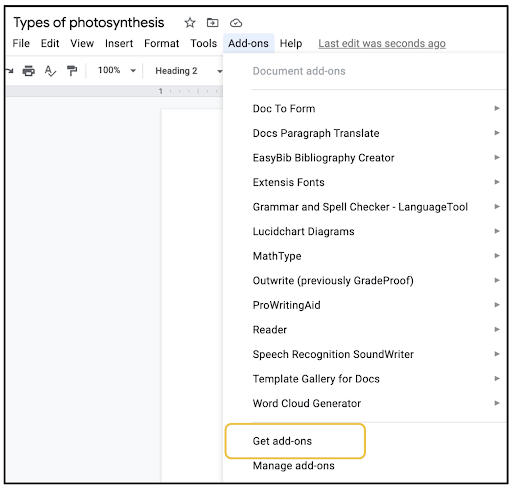
Get started by clicking on Add-ons in the Google Docs toolbar and click Get add-ons.


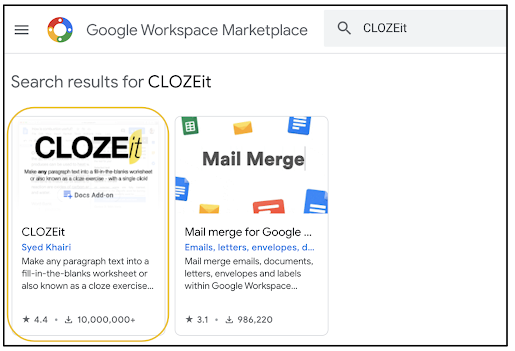
The Google Marketplace will appear. Type CLOZEit in the search bar and click it when it appears in the search results.


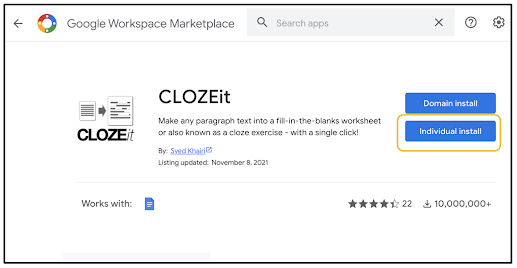
Install it when prompted. You will not see "Domain Install" unless you are a Super User or Google Administrator in your school or district's Google Domain. If you don't have permission to install, contact the Google Administrator for your domain (a tech coach or IT personnel) to get access. 


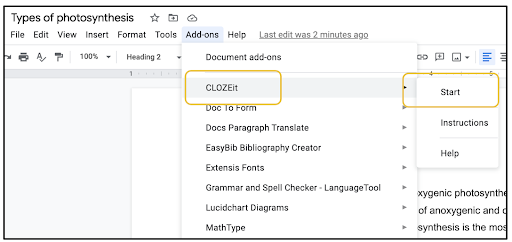
Once installed, you'll find it in your Add-ons menu. Hover over it and click Start.


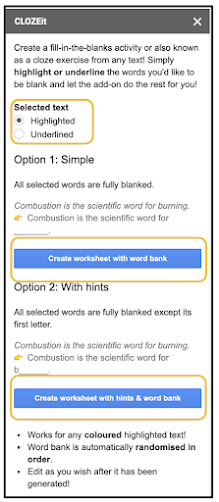
Once launched, what you see below will appear on the right side of your screen. On your Doc, you can either highlight or underline text you want to take out to create for a Cloze reading activity. Either choice works the same. Once you've selected highlighted or underlined, you have two options. One is to create worksheet with word bank. The word bank will appear at the bottom of the page below wherever the text ends. The second option is the same except it adds a hint (the first letter of the missing word).
 

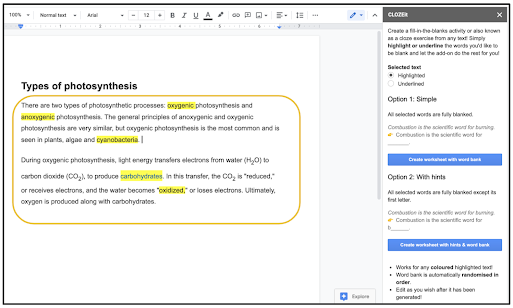
Below is what it looks like before choosing Options 1 or 2. In this case, I chose to highlight the words I wanted to remove. Underlining would have done the same thing.


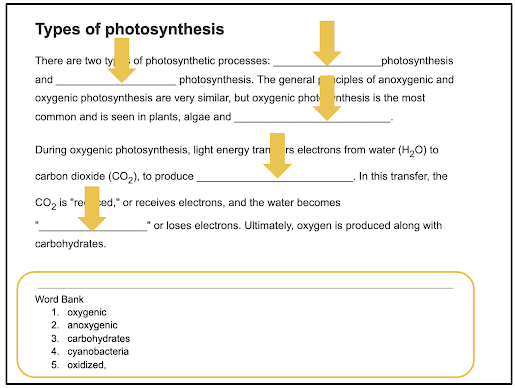
Choosing Option 1, CLOZEit immediately removed the highlighted words and replaced them with blanks. Below the text, you can see the word bank containing all of the words I wanted removed. 


For years, I have read IEP's recommending Cloze reading with word banks as an accommodation. If you are looking for a quick activity for a sub, enrichment, extra credit or intervention, this Add-on will come in handy. For what might you use the CLOZEit Add-on?

If you have any questions and would like a follow up, contact me via Gmail or Chat at ajuarez@techcoachjuarez.com. My book, The Complete EdTech Coach: An Organic Approach to Digital Learning, co-authored with my wife Katherine Goyette is now available on Amazon. Click here to purchase. It is published by Dave Burgess Publishing. Be sure to follow the hashtag #OrganicEdTech and #CVTechTalk for updates.