Showing posts with label SPED. Show all posts

Wednesday, November 17, 2021

Support English Learners and SPED Students with CLOZEit Add-on


Supporting the unique learning needs of English learners and SPED students is not the easiest thing in the world. A scaffold I have used over the years to help these students better access content has been Cloze reading and word banks. These strategies are great entry level activities for students. 

Generating such activities can be tedious, or expensive if you purchase some off of Teachers Pay Teachers. Within the Add-ons menu of Google Docs, the CLOZEit Add-on allows you to take any text and very quickly create a Cloze reading activity with word bank. 

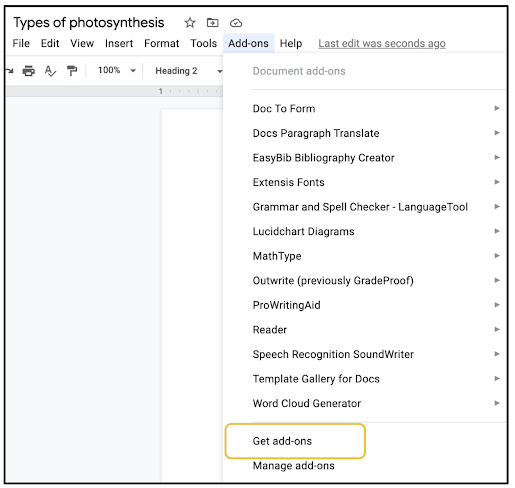
Get started by clicking on Add-ons in the Google Docs toolbar and click Get add-ons.

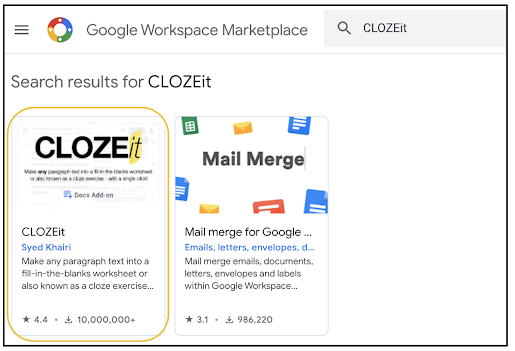
The Google Marketplace will appear. Type CLOZEit in the search bar and click it when it appears in the search results.

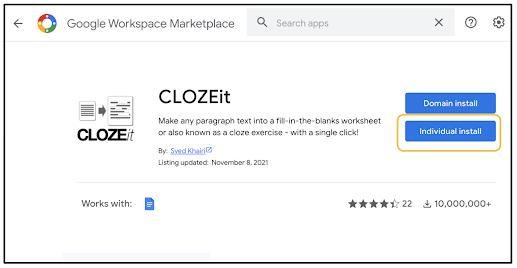
Install it when prompted. You will not see "Domain Install" unless you are a Super User or Google Administrator in your school or district's Google Domain. If you don't have permission to install, contact the Google Administrator for your domain (a tech coach or IT personnel) to get access. 

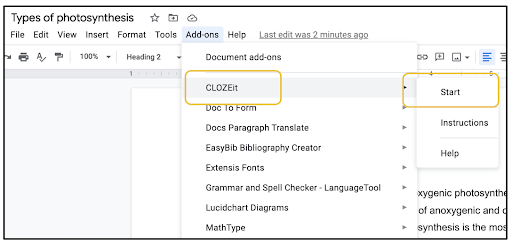
Once installed, you'll find it in your Add-ons menu. Hover over it and click Start.

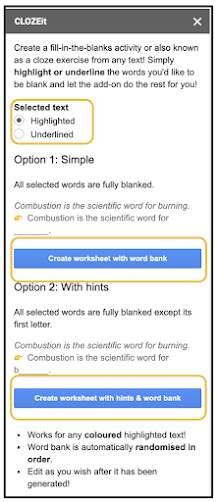
Once launched, what you see below will appear on the right side of your screen. On your Doc, you can either highlight or underline text you want to take out to create for a Cloze reading activity. Either choice works the same. Once you've selected highlighted or underlined, you have two options. One is to create worksheet with word bank. The word bank will appear at the bottom of the page below wherever the text ends. The second option is the same except it adds a hint (the first letter of the missing word).
 

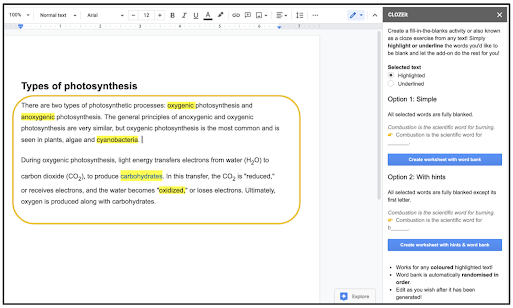
Below is what it looks like before choosing Options 1 or 2. In this case, I chose to highlight the words I wanted to remove. Underlining would have done the same thing.

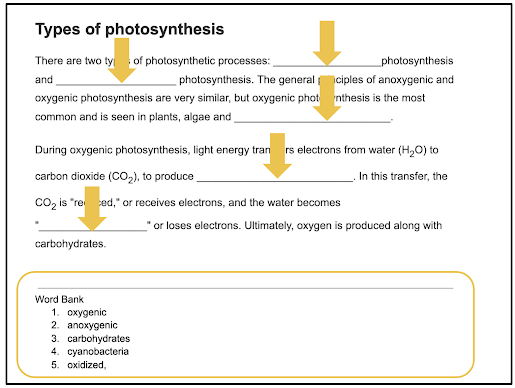
Choosing Option 1, CLOZEit immediately removed the highlighted words and replaced them with blanks. Below the text, you can see the word bank containing all of the words I wanted removed. 

For years, I have read IEP's recommending Cloze reading with word banks as an accommodation. If you are looking for a quick activity for a sub, enrichment, extra credit or intervention, this Add-on will come in handy. For what might you use the CLOZEit Add-on?

If you have any questions and would like a follow up, contact me via Gmail or Chat at ajuarez@techcoachjuarez.com. My book, The Complete EdTech Coach: An Organic Approach to Digital Learning, co-authored with my wife Katherine Goyette is now available on Amazon. Click here to purchase. It is published by Dave Burgess Publishing. Be sure to follow the hashtag #OrganicEdTech and #CVTechTalk for updates.


Thursday, February 18, 2021

Quickly Have IEP Accommodations at a Glance (Privately)


The adjustments to schools and teaching due to the COVID-19 pandemic have made it difficult to address the needs of students on IEPs. As teachers, keeping track of the accommodations is no easy task. One way I have been able to keep myself mindful of these things is a simple Google Doc. SPED student case managers sent me PDF documents called IEP At a Glance. These documents have all the pertinent information for the classroom teacher. These documents have the specific accommodations for each student. 

I save these PDFs in a folder in Google Drive and create a table in Google Docs. The table has a row for each student and columns where I write a short summary of student accommodations and my own notes. Since I have each student's At a Glance PDF in a folder in Google Drive, I can easily link each student's document to their name on my table. 

Start by creating a Google Doc and inserting a table. As seen below, I have a column for period, name, accommodations and teacher notes. 


Highlight a student's name and click the link button on your Google Docs toolbar. Go to your file in Drive, get the link and paste it below.


To get the link, find your IEP files in Drive. My advice is, when you receive the file from the case manager, make a copy of it that you own. 


Once you find the appropriate file, right click on it and select Get link.


In the small window that appears, do two things. First, make sure the file permission is Restricted. This is important because this is a legal document. You don't want others accessing it. This document is for your eyes only. Once it's set to Restricted, click Copy link. Go back to your Doc and paste it as linked text.


To keep your IEPs At a Glance handy, you could bookmark in Chrome. But if you're anything like me and you have too many bookmarks, use the Priority tab in Google Drive. In the Priority tab, you can add Drive files to a Workspace. Workspaces in the Priority tab are useful for displaying and accessing often-used documents without having to fish through a congested Google Drive.

If you haven't created a Workspace yet, click Create. 


After titling your Workspace, click the Add files button in the top right corner. This will allow you to add any file saved in Google Drive. Once created, you can go to the Priority tab, open the Workspace and easily access this and other important documents.


Anything we can do to accommodate students on IEPs is a good thing. Having quick access to IEP accommodations is hugely helpful when lesson planning. What other ideas do you have for providing and organizing IEP accommodations? If you have any questions and would like a follow up, contact me via Gmail or Chat at ajuarez@techcoachjuarez.com. 

My book, The Complete EdTech Coach: An Organic Approach to Digital Learning, co-authored with my wife Katherine Goyette is now available on Amazon. Click here to purchase. It is published by Dave Burgess Publishing. Be sure to follow the hashtag #OrganicEdTech and #CVTechTalk for updates.