Showing posts with label Lesson Plans. Show all posts

Wednesday, January 11, 2023

Boost Efficiency and Power Up Collaboration with Google Classroom Shells


Two things educators all need are more time and collaboration. Google Classroom Shells is a simple idea, hiding in plain sight, to help streamline the lesson design process all the while forming a foundation for effective collaboration in departments and PLC’s.


A Shell is a Google Classroom with no students enrolled. If you are fan of Marvel, it's a little bit like the "mirror dimension" from the first Dr. Strange movie. The "mirror dimension" is a place where sorcerers can practice their spells without affecting the real world. Your Shell allows you to fine tune activities, templates, instructions, accommodations and more without students seeing it. When your assignments, and different versions of them are set in your Shell, simply reuse them in your Classrooms in which students are enrolled. These templates are set so you can add unique details and documents without having to retype instructions, etc. A Google Classroom Shell is your "mirror dimension".


In this session, learn to develop a class shell within Google Classroom to house templates of often-used assignments, activities and Eduprotocols. In addition, learn to use a class shell to facilitate collaboration with departments and PLCs for common assignments and assessments. Each example shared will be rooted in 4 C’s lesson design in order to increase engagement while empowering students to take ownership of their own learning. Attendees will leave the session ready to create different types of Google Classroom Shells: Go-To Activity Templates, Common Activities and Assessments for PLCs, Eduprotocols, Curriculum Aligned, and Fitness for PE Class.


"Go-To Activities" Shell

No matter how long you've been teaching, you likely have an arsenal of go-to activities and assignments that can be reused for multiple topics. During the pandemic and distance learning, if you weren't already using Google Classroom, you were forced to adapt these lessons to Google Classroom.


One thing I found annoying was the process of reusing my go-to activities by reusing posts from different classes. Though not difficult, I was annoyed in how instructions and accommodations varied from class to class. I did not enjoy having to retype or re-edit instructions or re-attach unique versions of documents.


It was this inconvenience that led me to develop my first Google Classroom Shell. This Shell was just for me. One of my go-to assignments was my weekly assessment where I gave students the same 4 options each week to demonstrate learning. The only thing that changed was the weekly essential question. I put the instructions in English and Spanish and used the same rubric regardless of the topic. Each week, all I did was reuse the post from the Shell, type in that week's essential question and click Assign. This was such a huge time saver. Slowly, but surely, I began adding more template activities and assignments to the Shell. My lesson plan time was reduced dramatically


The X before the assignment name was a placeholder for the week number. When I reuse the post, I simply replace the X with the week number. Get started building your "Go-To Activities" Shell by creating posts with your instructions, leaving room for customization. In addition, add template documents that include the format you want to use, but open ended to add custom content for future reuse. When you reuse the post in the future, Classroom will make a copy of the documents for you. No need to attach template documents anymore!


Common Activities and Assessments for PLCs

After establishing with my Go-To Lessons Shell, colleagues thought it was a cool idea and wanted to use some of my templates. What we did instead was create a shared Shell for our PLC where we were all co-teachers. We each created a Topic with our name and added our go-to activities. Doing this, we all had access to each other's activities and template documents. We were able to reuse each other's materials.


In our PLC, we were mandated to periodically proctor common assessments. Using our PLC Shell, we collaborated on assignments for each assessment. We discussed and agreed upon instructions, documents and accommodations. We created a generic version of the assignment in addition to versions for English learners and SPED students. We were able to reuse any version from the Shell. For organizational purposes, we created a Topic titled "Common Assessments".


This process galvanized our PLC and made collaboration very enjoyable. For common assessments, we downloaded our student scores to compare data at future meetings. 


Get started with this process by creating a Classroom and inviting colleagues as co-teachers. From there, create a topic for each member and add your templates and go-to activities.


Eduprotocols

These days, Eduprotocols are all the rage. If you're reading this and you haven't heard of Eduprotocols, open a new browser window and navigate to eduprotocols.com. You will not be disappointed. 


For those of you new to Eduprotocols, in a nutshell, they are a series of lesson frames that can be reused over and over, with the 4C's embedded and applicable to any grade level or subject. As Eduprotocols became a huge part of my teaching, I instinctively built an Eduprotocols Shell. Just like in my "Go-To Activities" Shell, the instructions, accommodations and template documents stay the same each time I reuse. Only the topics or content changes. Below is a screenshot of my Thin Slides template.


When I reuse this Eduprotocol template, I add the topic and week number in the title. If you're new to Eduprotocols, Thin Slides is what I recommend you use to get started before diving into the rest. It's great for checking for understanding and getting students comfortable presenting in front of their peers. I facilitate by reusing the post then adding a specific topic and giving students 3 minutes to build their slide. On their slide, they will include ONLY one word and one picture about a takeaway, opinion or idea about the assigned topic. They click turn in and I present via Google Classroom on the projector each student's slide. 


When student's slide appears, they have roughly 7 seconds to present, elaborating on their one word and one picture. The one picture and word is there to help them remember what they want to say. In less than 10 minutes, I can have every kid present, everyday. Imagine how comfortable they will be presenting by the end of the year! If interested in joining one of my Eduprotocols Shells as a co-teacher, email me at ajuarez@techcoachjuarez.com.

Curriculum Aligned

If you like the idea of creating a Shell for your department or PLC, then you'll be sure to like the idea of building a curriculum aligned Shell. This type of Shell, best created with a department, takes a specific curriculum and develops assignments and activities that align with each section and chapter of the textbook. 


I originally thought of this type of Shell because I was disillusioned with how textbook companies often have an online version of their book with an accompanying system for which students will login to access curriculum aligned activities. This was just one more thing for students to login to. These systems often where heavy duty, taking up processor power on Chromebooks causing them to operate very slowly. 


Since we were already using Google Classroom, I decided to adapt the curriculum's prebuilt assignments, in addition to my own, to the Google Classroom environment. Classroom works fine on Chromebooks and do not slow them down. Working with colleagues, we went section by section and chapter by chapter creating a treasure trove of activities. If new teachers joined the department, they were given access to this Shell and they had a head start. Even though we were reusing these posts, we still maintained creative control to adapt them as needed. 


Below is a screenshot of a curriculum aligned Shell for a 7th grade World History class that contains Eduprotocols for each section in the textbook.


The naming conventions above were for the grade level, chapter and section. For example, 7.1.1 stands for 7th grade, chapter 1, section 1. No matter the section being covered, this department had activities already built beforehand for teachers to pick, choose and reuse. Get started by creating a new Classroom and inviting co-teachers. Crack open your curriculum, look at the chapter/section structure, create topics for each and start building your curriculum aligned activities. This will take some time if doing for an entire textbook, but the collaboration involved will strengthen your team and save time in the future. 


Fitness for PE Class

For years I struggled to find a way to meaningfully integrate technology into a PE class. Initially, I thought about getting students to use something like a Fitbit to track fitness, but that posed too many logistical problems. I thought about having students use a fitness app on their cellphones, but not every kid has a cellphone. After a conversation with a PE teacher, we decided Google Classroom was the answer. All of our students had access to Google Classroom either on their cellphone or a school issued Chromebook. 


A PE teacher friend and I built a PE Fitness Tracker Shell. This Shell included Google Classroom Questions where students would record mile times, sit and reach scores, height, weight and much more. This allowed the teacher and students to see their fitness and health progress over time. 


Topics were created to organize activities by BMI, cardio and flexibility records. The "x's" were there as placeholders for dates of recording. This helped the teachers and students see progress over time. Below is a screenshot of this Shell.


Google Classroom Shells are very versatile, help facilitate collaboration and save time. For what will you create a Google Classroom Shell? If you would like to bring me to your school for PD, workshops, a keynote, training or a follow-up on this or previous blogposts, click here to schedule an appointment to chat.

My book, The Complete EdTech Coach: An Organic Approach to Digital Learning, co-authored with my wife Katherine Goyette is now available on Amazon. Click here to purchase. It is published by Dave Burgess Publishing. Be sure to follow the hashtag #OrganicEdTech and #CVTechTalk for updates.

Friday, January 6, 2023

4C The Future: Lesson Design That Empowers


Have you ever struggled with student engagement and effective technology usage?  Would you like students using technology to interact meaningfully with content rather than just staring quietly at a screen? With our 4C's lesson design model, we will help you focus on student engagement and organic tech integration while honoring your years of teaching experience and skillset.


In our book, The Complete EdTech Coach: An Organic Approach to Supporting Digital Learning, we say "If you plan with the 4C's in mind, the tech will take care of itself". We believe you should "lead with learning, never with tech". Using our 4C's lesson design model, we begin with a conversation about your learning goal and your teaching experience & toolbox. With those things in mind, we brainstorm the student moves in how they will engage with each of the 4C's, communication, creativity, critical thinking and collaboration. In this process, as coaches, we lean on your years of experience, skillset and content knowledge as we delve into each of the 4C's. You are the expert and you know your students best.


There is nothing fancy to it. On a whiteboard or scratch paper, draw an open-ended four square, one square for each C. After deciding on a learning goal, discuss and jot down ideas for how students will engage with each C in pursuit of the learning goal. It is this brainstorm where technology naturally finds its way into a lesson. If no technology is needed for students to engage in one of the C's, no worries. We aren't going to push technology for technology's sake. If the technology is the best fit for your students to engage in a C, it is used. When finished with the 4 C's brainstorm, your lesson ideas, with organically integrated technology, can easily be plugged into any district or school mandated lesson plan template. This can be a great activity for departments and PLCs.


Faces were covered for privacy


Questions and ideas to consider when brainstorming with the the 4 C's


  • Creativity: What will students create to demonstrate understanding?

  • Communication: Who is the target audience for the student work? Just the teacher? Whole class? School community? Local community? The world via the web? What structures do you have in place for real-time teacher to student feedback?

  • Collaboration: Where and how will students give each other peer feedback as they work together? How might they act on the peer feedback?

  • Critical thinking: How will students engage in problem solving? How might they think outside the box? Will they be given voice and choice to choose the best tools and methods for demonstrating understanding?

  • Teachers and Coaches: With what tech tools am I familiar? With what tech tools are my students familiar? What strategies are my go-to teaching strategies? What are the various skillsets of my students? What student accommodations need to be made?

  • Coaches: Recommend technology tools if a teacher is hitting a brainstorm roadblock. Recommend a technology tool if it truly is the best way for student engagement and demonstration of learning. If a teacher isn't familiar with a tech tool, offer to co-teach part of the lesson.


Faces were covered for privacy


If you would like to bring AdaKat EdTech Consulting to your school for PD, workshops, a keynote, training or a follow-up on this or previous blogposts, click here to schedule an appointment to chat.

Our book, The Complete EdTech Coach: An Organic Approach to Digital Learning, co-authored with my wife Katherine Goyette is now available on Amazon. Click here to purchase. It is published by Dave Burgess Publishing. Be sure to follow the hashtag #OrganicEdTech and #CVTechTalk for updates.


Friday, April 29, 2022

Power Up Your Collaborative Lesson Design with Wipebook!


Floor to ceiling whiteboard walls are luxury most educators do not have. I am one of the fortunate educators whose learning space has floor to ceiling, magnetic whiteboard walls. They make teaching students and leading professional learning sessions a blast. But what about the times when I am not in my learning space where I don't have this amazing luxury? In those instances, Wipebook the rescue!

The Cardinal Innovation Center in Orosi, CA

When I teach and or present in spaces other than my own, Wipebook allows me to design lessons as if I was still in the friendly confines of the Cardinal Innovation Center. Pinning up Wipebook pages around the room allows me to quickly and easily increase my dry erase, writable space to give students and teachers the ability to get up and make their thinking visible. With their ideas up, on the walls, on Wipebook pages, the ease and opportunities for feedback increase tremendously. In addition, this is conducive to fostering collaboration. 

In my book, The Complete EdTech Coach: An Organic Approach to Supporting Digital Learning, my co-author Katherine Goyette and I promote a 4 C's lesson design style. We begin with a learning target/goal/standard and use a simple 4 square diagram to map out how students will engage with each of the 4 C's as a way of reaching the learning target/goal/standard. As we like to say, "When you plan with the 4 C's in mind, the tech takes care of itself."

Wipebook is great for departments and PLCs to collaboratively design 4 C's-infused lessons and learning experiences. They are lightweight, flexible, easy to transport and fit well on a tabletop. This allows all colleagues to easily gather around, brainstorm and plan. Simply gathering around a Wipebook page to design a lesson is like a family gathering to share a meal. In this instance, colleagues are sharing some edu-fellowship and fostering a culture of collaboration.

Start by writing your learning target/goal/standard at the top and drawing a basic 4 square diagram. Each of the 4 C's (communication, collaboration, creativity, critical thinking) will go in one of the 4 squares. From here, the conversation begins on how students will meet the learning target/goal/standards via each of the C's. If you download, the Wipeboard Scan app, you can easily keep a record of your planning with you and reuse the Wipebook. One of the simple, yet brilliant things about Wipebook is that they are reusable. Try doing that with chart paper! 

Below is a sample from a "Causes of WWI" lesson my colleagues and I designed with Wipebook. 


My wife (co-author) and I use Wipebook when we lead 4 C's lesson design workshops. As mentioned, they are lightweight, flexible and easy to transport. In most instances, the spaces in which we lead workshops and professional development have little to no dry erase whiteboard space. With Wipebook, we are covered.

My wife Katherine and I right before our 4 C's Lesson Design session at 2019 NSTC Conference in Palm Springs. This was the first time we used Wipebook to facilitate this session.

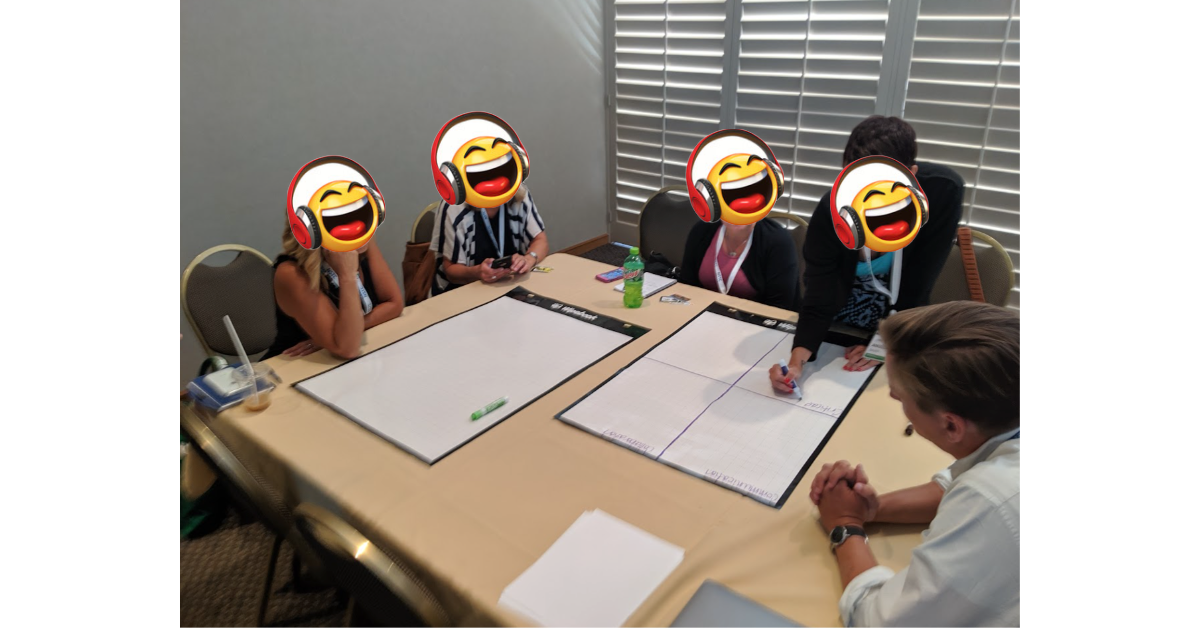
Below are some action shots of our first session using Wipebook. In each image, you can see how the versatility of Wipebook made it easy to facilitate collaboration. 


You can see some teams collaborating on the Wipebook while at the same time using devices to research strategies and standards. This provides a healthy balance of tech and non-tech in the lesson design process. 


As my colleague and good friend Joe Marquez says, "Teaching is a collaborative sport." Wipebook is a simple, yet powerful tool for fostering collaboration amongst educators. Many of us have fond memories of sharing family meals and the great conversations shared. Wipebook can bring a similar feel to the lesson design process. Oftentimes, lesson design can feel like a chore, and it becomes dreaded, but what if it felt more like sharing a family meal? I can't imagine much dread in that. Let Wipebook help you set the table.

My book, The Complete EdTech Coach: An Organic Approach to Digital Learning, co-authored with my wife Katherine Goyette is now available on Amazon. Click here to purchase. It is published by Dave Burgess Publishing. Be sure to follow the hashtag #OrganicEdTech and #CVTechTalk for updates.


Tuesday, August 10, 2021

Use Chrome's QR Code Function to Display Lesson Plans for Admin and Coaches


As we return to full-time, face to face instruction, we are inching our way backs to a sense of normalcy. One feature of the job that is returning is administrators and coaches walking into classrooms. As a coach, when doing informal walk thru's, the last thing I want to do is interrupt your class flow by asking or searching for lesson plans. One way to help prevent admin or coach disruption by lesson plan search is to post a QR code near the door that links to lesson plans. 

If you have a preferred weekly lesson plan template saved on Google Docs, fill it out the first week. Each week, copy the previous week and paste it at the top of the document. This way, the most recent week is at the top and it allows you to keep a running record of all your lesson plans on one document. 


After filling the lesson plan template out the first time, click in the Omnibox (address bar). When you do, you'll see a QR code button appear on the right side. Click it.


A dropdown will appear with a QR code to your lesson plan template. Click the download button to save it to your computer. It won't allow you to copy and paste the image from the dropdown. Be sure to set the sharing permissions on the Doc for anyone with a link or specific people to be able to view it.


Create a new Google Doc and insert the downloaded QR code. Drag the corners of the image to make it appear larger within the Doc. Click the print button and print a copy.


I usually laminate the printed Doc and post it right by the door. Doing this let's my admin or coaches access the lesson plan template without interrupting my class or searching my workspace for a printed copy. What ideas do you have for giving stakeholders access to your lesson plans?

If you have any questions and would like a follow up, contact me via Gmail or Chat at ajuarez@techcoachjuarez.com. My book, The Complete EdTech Coach: An Organic Approach to Digital Learning, co-authored with my wife Katherine Goyette is now available on Amazon. Click here to purchase. It is published by Dave Burgess Publishing. Be sure to follow the hashtag #OrganicEdTech and #CVTechTalk for updates.